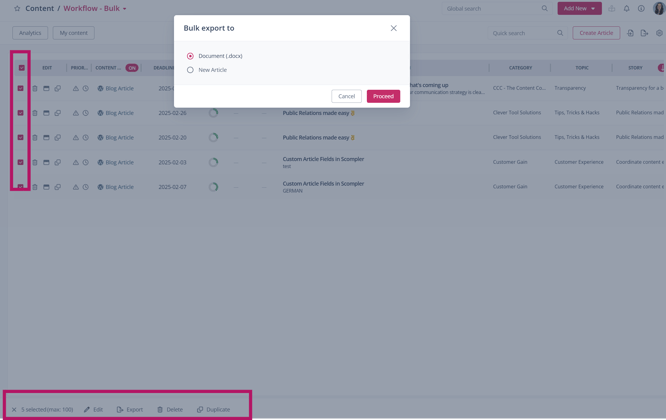
Content from your topic structure in Scompler can be exported to Word in order to discuss selected stories and articles with colleagues who are not involved in your project. Classic newsletters are a good example of such use cases. In newsletters, stories are often developed whose articles have already been published in other channels and with other content types such as social media, press releases, magazines, podcasts, etc. These articles can be exported together with their text and the associated stories and topics, giving you and your team a clear overview of which articles can be included in the newsletter.

Exporting articles to Word
To export articles to Word, go to the Topics view or the Content section and set the filters so that the desired articles are displayed. Expand the stories and topics, display the articles, and click the white box next to the “Edit” column to select the articles.
As soon as you select more than one article, the following functions will appear at the top:
Note: To add the “Bulk Edit” function to the view in the Topics and Content sections, click the configuration wheel and open the additional settings. In the pop-up window, click the “article Columns” tab, expand the “Functions” category in the right column, and drag the “Bulk Edit” option into the left column. Then save your changes.
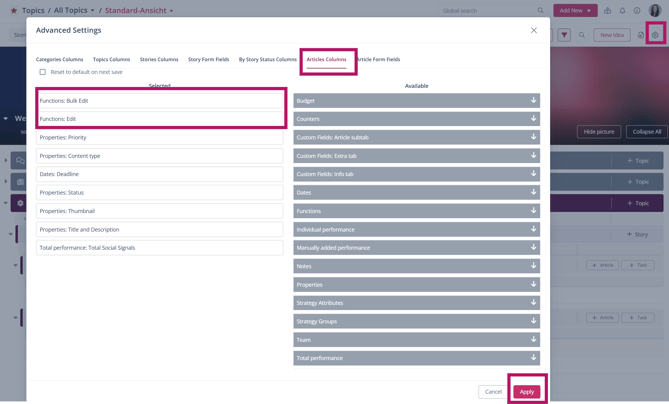
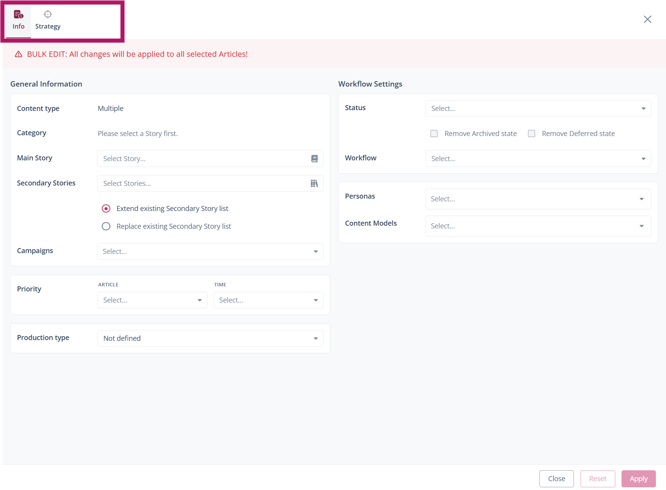
Bulk Edit
With this function, you can edit certain data of the selected articles:
- Production type
- Main story
- Secondary stories
- Folders
- Priority
- Personas
- Storyboards
- Strategy
- Team
- Status
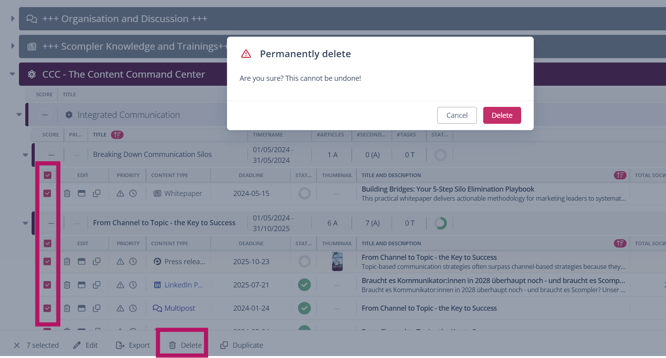
Bulk Delete
This function allows you to delete the selected articles with a single click.
Bulk Duplicate
Duplicate selected elements and decide whether tasks, deadlines, and workflow tasks should also be duplicated.
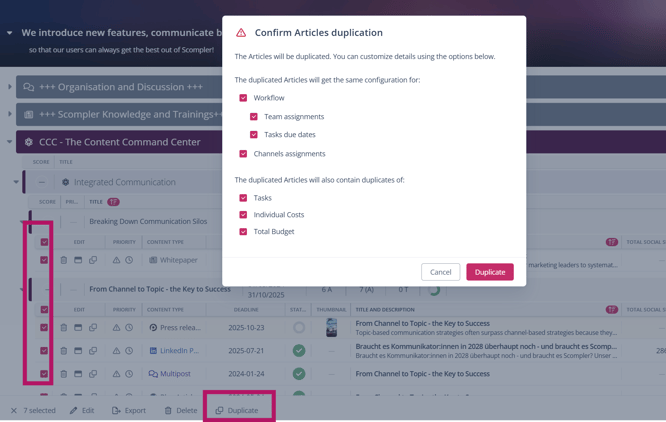
Bulk Export
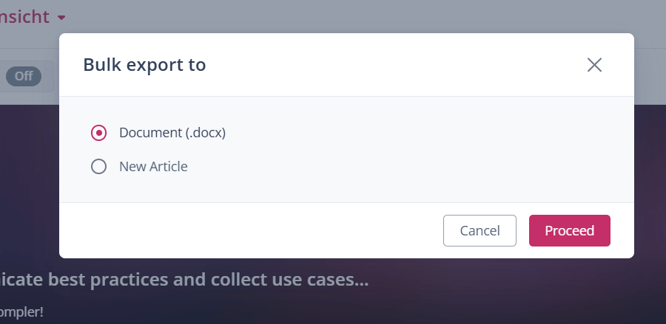
To export, click this option and choose whether the articles should be exported as a Word document or as a article in Scompler. The selected articles are listed in Word or in a Scompler article, together with the text and the parent stories and topics.
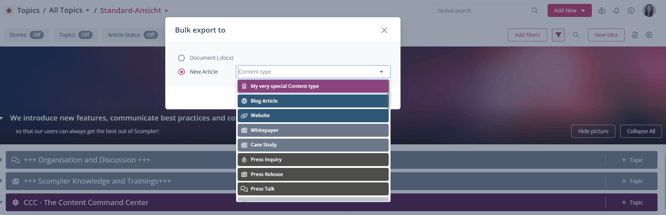
Article in Scompler: Select the content type for the article and click “Continue.”
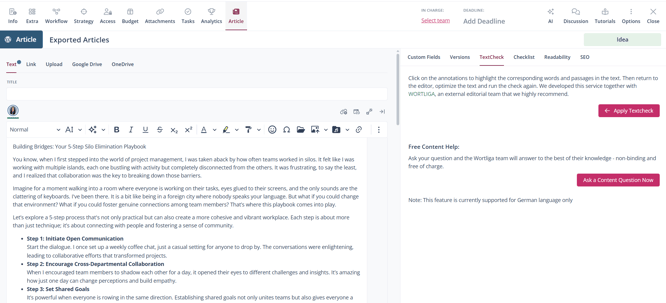
IMPORTANT: The created article is not assigned to a story. You should manually assign a story in the “Info” tab so that you can find the article again in the future.
Word: A Word document is automatically created and downloaded.
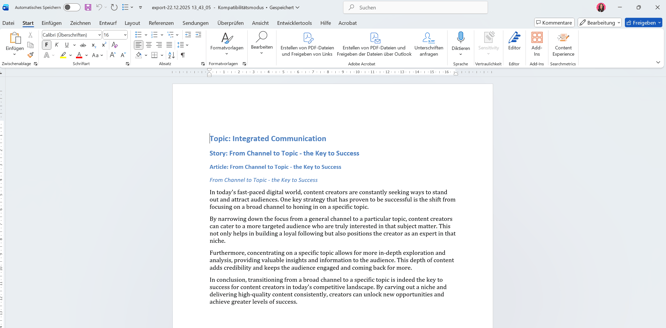
Tip: This function is also useful for creating a table of contents or documenting selected stories.
Content section
You can also find the above-mentioned functions in the Content section. Click “Content” in the left navigation bar and use the filters to display only the articles you want to export:
- Add filters to display the desired articles by clicking the configuration wheel.
- To use “Bulk Export,” the functions “Bulk Edit” and “Edit” must also be added.
- After adding the desired filters, click “Apply.”
- Filter the information to display the articles you need and select them by clicking the checkbox in the “Edit” column.
- Click “Bulk Export” and choose whether the articles should be exported as a Word document or as a article in Scompler.