If a social media post could not be published, you’ll see the corresponding publication status and an error message in the post.
Identify Failed Social Media Posts
There are two ways to identify social media posts that encountered an error during publication.
View in the calendar:
-
In the Calendar, click Add filters.
-
Select Publish Status.
The filter is added above the Calendar. -
Filter by the options Partially failed and Failed.
The Calendar displays posts that match these status.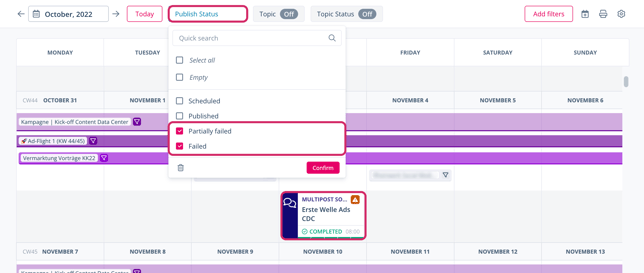
The red or orange warning icon indicates that there were (partial) issues with the publication of this post. The Publish Status is also visible if you are not actively filtering by it.
View in the Content module:
- In the Content module, click the gear icon.
The Content Settings dialog opens. -
Navigate to Page Columns > Available > Properties.
-
Double-click the option Publish Status > Apply.
The Publish Status column is added to the Content table. - In the newly added column, filter by Partially failed and Failed.
The Content table displays posts that match these status.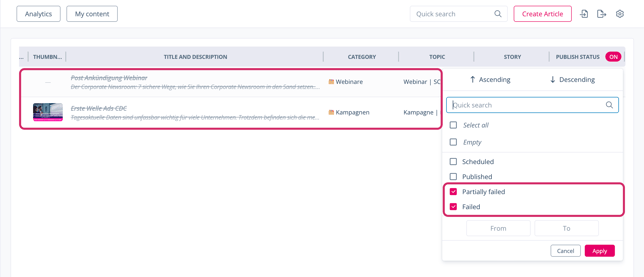
Fix Errors in Social Media Posts
In posts with errors, you’ll find information about why an error occurred during publication and what you can do to fix it.
- Open a post whose publication failed (either partially or completely).
- Navigate to the Article tab.
Below the article title, you’ll see the error message Posting failed or Posting failed to some channels. - Next to the error message, click What you can do.
The error message expands and displays recommendations to fix the error.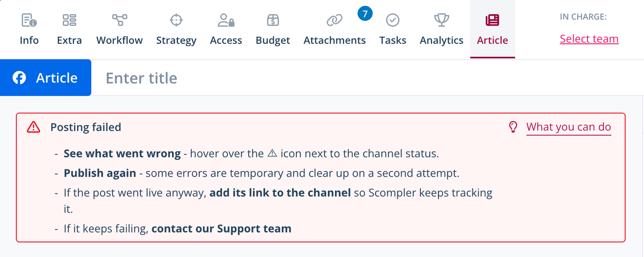
Manually Publish and Link Failed Social Media Posts
If you are still unable to publish a social media post via Scompler despite following the recommendations in the error message, manually publish it on the corresponding platform. To ensure a comprehensive analysis of your communication efforts, we recommend linking the manually published post to Scompler.
- Open the failed post that you published manually.
- Navigate to the Article tab.
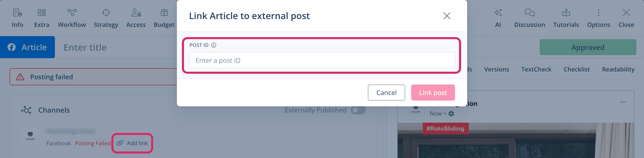
- Under Channels click Add link.
The dialog to add the externally published post opens. - Copy the post ID from the respective network and paste it into the corresponding field.
- Click Link post.