
You can mention user profiles and pages in posts created within Scompler. The following networks are supported:
- Open the article in which you want to mention a profile or page.
- Navigate to the Article tab.
- In the text field, type the @ symbol or click the @-mention icon.
- Enter the name of the profile or page you want to tag.
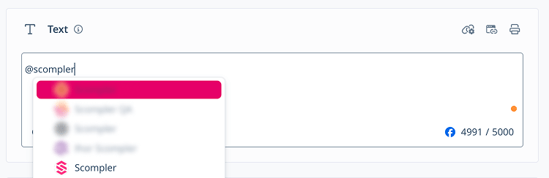
A dropdown menu displaying all fitting profiles or pages opens. - Select the profile or page.
The mention was added.
You have tagged a Facebook profile or page. Once you publish the article, the profile or page is notified.
You can mention personal LinkedIn profiles and company pages in two ways: by using the URL or the type-ahead search. You can also shorten the mentions you've added while keeping the link to the profile.
URL search:
Prerequisites:
- The user profile has activated the LinkedIn option Mentions by others under Settings > Visibility.
- The user profile or page URL must not contain special characters.
- In LinkedIn, open the profile or page and copy the profile URL.
- In Scompler, open the article in which you want to mention the profile or page.
- Navigate to the Article tab.
- In the text field, type the @ symbol or click the @-mention icon.
- Paste the profile or page URL copied in step 1.
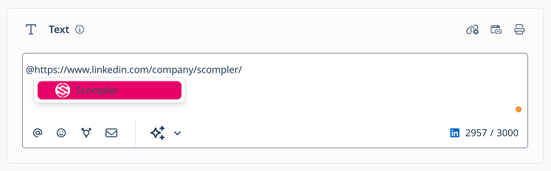
A dropdown menu displaying the profile or page opens. - Select the profile or page.
The mention was added.
You have tagged a LinkedIn profile or page. Optionally, you can now shorten the mention. Once you publish the article, the profile or page is notified about the mention.
Type-ahead search:
Prerequisites:
- The user profile has activated the LinkedIn option Mentions by others under Settings > Visibility.
- The user profile has set English as one of their profile languages.
- The user profile follows your page.
- The user profile or page name must not contain special characters.
- Open the article in which you want to mention a profile or page.
- Navigate to the Article tab.
- In the text field, type the @ symbol or click the @-mention icon.
- Enter the name of the profile or page you want to tag.
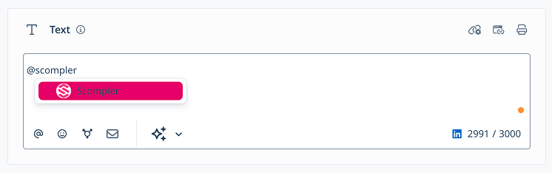
A dropdown menu displaying all fitting profiles or pages opens. - Select the profile or page.
The mention was added.
You have tagged a LinkedIn profile or page. Optionally, you can now shorten the mention. Once you publish the article, the profile or page is notified about the mention.
Shorten a Mention
You can shorten inserted mentions while keeping the link to the LinkedIn profile or company page.
-
Cut at the end: Place your cursor at the end of the mention and press the Backspace key. This removes the last part of the name.
- Cut at the beginning: Place your cursor before the @ symbol and press the Delete key (Windows) or Fn + Backspace (Mac). This removes the first part of the mention.
Example: @Max Alexander Mustermann can become @Max, @Max Alexander, @Alexander Mustermann, or @Mustermann. The person remains correctly linked.
X (Twitter)
- Open the article in which you want to mention an account.
- Navigate to the Article tab.
- In the text field, type the @ symbol or click the @-mention icon.
- Enter the name of the account you want to tag.
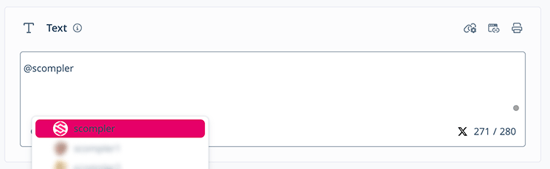
A dropdown menu displaying all fitting accounts opens. - Select the account.
The mention was added.
You have tagged an X account. Once you publish the article, the account is notified.