Mobile Community Management lets you interact with your audience on social media anytime and from anywhere – directly from your smartphone. The channels and action types availbale within Community Management are listed here.
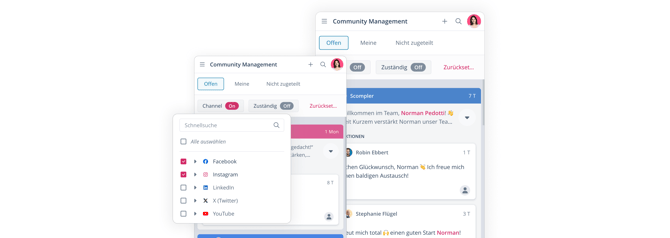
With Mobile Community Management, you can:
- View tickets, messages, and inquiries
- Assign tickets to individual users or teams
- Reply to tickets
- Mark tickets as resolved
Mobile Community Management is available through your smartphone's web browser. It is not supported in the mobile app.
Take a look at this interactive demo to get an idea of how mobile Community Management works.
Access Community Management
- Open app.scompler.com or pro.scompler.com in your smartphone's web browser, depending which server your organization uses.
To learn which server your organization uses, take a look at the URL used in your desktop app. Optionally, type this URL into the browser of your mobile device.
-
Log in to Scompler.
-
Tap the hamburger menu to open the side navigation.
- Tap Community.
You have opened Mobile Community Management on your smartphone. Here, you can access all messages, comments, and mentions.
Assign a Ticket
- Scroll to the ticket you want to assign.
- Tap the user icon.
- A list of available users and teams opens.
- Select a user or team.
- Tap Apply.
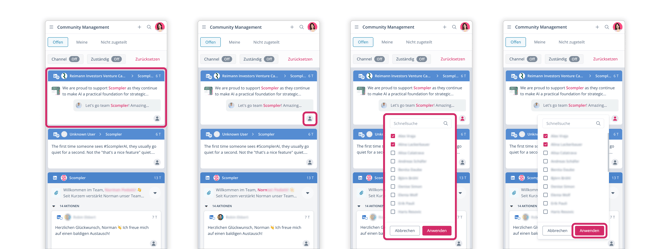
You have assigned a ticket to a user or team.
Answer a Ticket
- Scroll to the ticket you want to reply to.
- Tap the ticket.
- The ticket opens in the detail view.
- Tap the text field.
- Enter your reply.
- Tap Send.
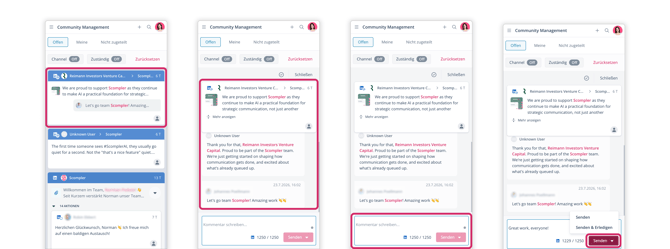
You have replied to a ticket. To mark the ticket as resolved immediately, tap the arrow next to Send and select Send & Resolve.
Mark a Ticket as Resolved
- Scroll to the ticket you want to mark as resolved.
- Tap the ticket.
- The ticket opens in the detail view.
- Tap the checkmark icon.
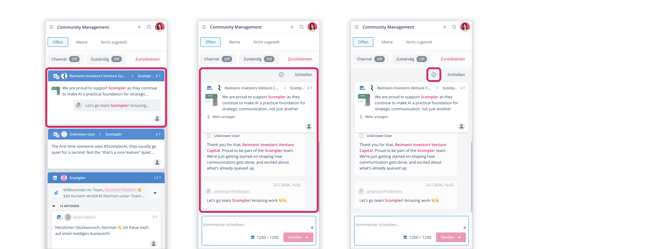
You have marked the ticket as resolved.