
- You are using the Scompler PRO package
Install Scompler AI
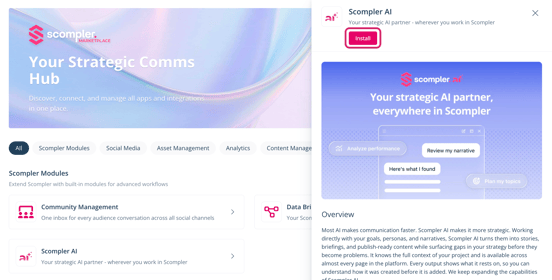
If you are not yet using Scompler AI, you can install it via the Marketplace.
Scompler AI is available for free when you are using the Scompler PRO package. The freemium model of Scompler AI includes 100 AI credits per month. If needed, you can purchase additional credits at any time.
- Navigate to Marketplace > Scompler Modules > Scompler AI.
- Click Install.
The dialog to request access to Scompler AI opens. - Click the checkbox to agree to the terms and conditions of activating Scompler AI.
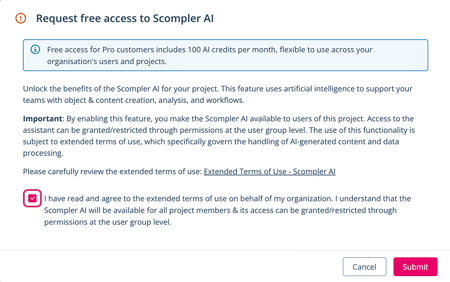
- Click Submit.
You have installed Scompler AI. The included free credits are available immediately.
You can purchase additional credits at any time by clicking Request more credits.
Ensure that Scompler AI is available to all needed user groups. You can find the respective permissions under Project Settings > Users > Groups > Scompler AI.
Web Search for Scompler AI
You can let Scompler AI retrieve current information from the public internet when generating content. When activated, Scompler sends a search query for your project to your selected search provider; your project content, strategy data and conversation history are not sent.
The available search providers include Linkup and Brave Search. While Linkup processes queries within the EU, Brave Search processes queries in the United States under the EU Standard Contractual Clauses. Learn more about the search providers (link security article).
Activate Web Search for Scompler AI
- Navigate to Project Settings > Apps > Scompler AI.
- Under Web Search, activate the respective option.

The dialog to activate web search opens. - Click the checkbox to authorize the selected provider as an additional sub-processor for your project.
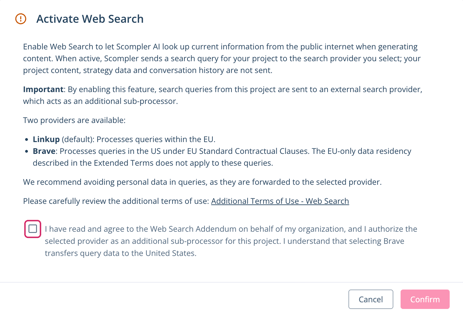
- Click Confirm.
- In the dropdown menu next to the Web search option, select your preferred search provider.

You have activated web search for Scompler AI. You can now retrieve current information from the internet when using Scompler AI.
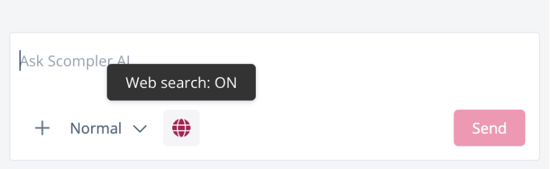
While web search is enabled globally, you can turn its usage on or off for individual queries by clicking the web search icon in the text input field.
Memory for Scompler AI
With the Memory feature, Scompler AI remembers information about you across chats, such as your role and preferred formats.
The Memory feature is turned on by default for all projects and users. Administrators can deactivate it for the whole project. Saving and recalling memories uses a small share of your AI credits.
Deactivate Memory for Scompler AI
- Navigate to Project Settings > Apps > Scompler AI.
- Under Memory, deactivate the option Activate Memory.

You have deactivated the memory feature for Scompler AI. The memory icon within the chat is hidden for everyone in the project, and memories are no longer saved or used. You can activate the Memory feature again at any time.