
You can change the email address linked to your Scompler account directly from your profile. Before you start, make sure you have access to your new email address, as you will need to confirm the change.
For security reasons, only the user themselves can change their email address.
If your email address has already been changed by your company
You may still receive emails from Scompler at your previous email address if your company has set up forwarding to your new address. This is especially useful if you need to reset your password, as the password reset email is sent to your previous email address.
Once you start the email change process, the confirmation email will be sent to your new email address.
Change Your Email Address
Projects without SSO or with optional SSO
Changing your password requires you to log in to your Scompler account. If you cannot log in because you forgot your password, reset it. Afterwards, proceed with the following instructions.
If your project uses non-strict SSO, you can still log in with your email address and password and follow the steps below.
- Log in to Scompler with your current email address and password.
- Navigate to your profile picture > My Profile.
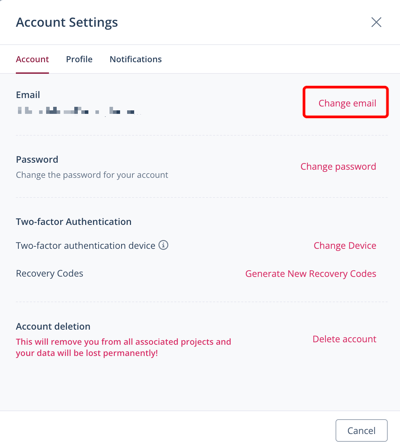
- In the Account tab, click Change email.
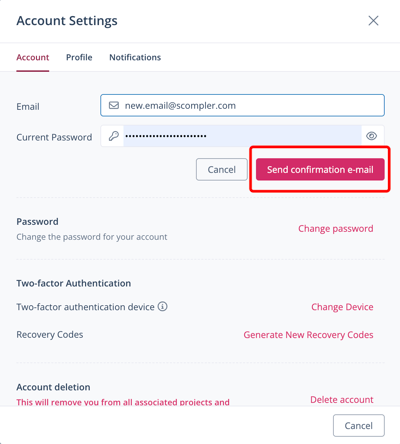
- Enter your new email address.
- Enter your current password.
- Click Send confirmation email.
- Open the confirmation email sent to your new email address.
- Click Confirm email.
You have changed your email address. You can now log in to Scompler with your new email address and password.
The confirmation email may appear in your spam or junk folder. If you still cannot find it, contact Scompler Support.
Projects with strict SSO
In projects using strict SSO, email addresses cannot be changed by the users themselves, but only by a project owner.
Prerequisite:
-
You are a project owner.
- Navigate to Project Settings > Users > the user for which you want to change the email address.
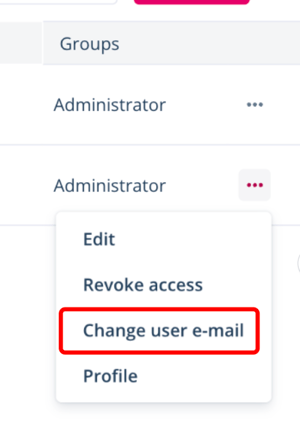
- Next to the selected user, click the three dots > Change user email.
A dialog to change the user email opens. - Under New Email, enter the user's new email address.
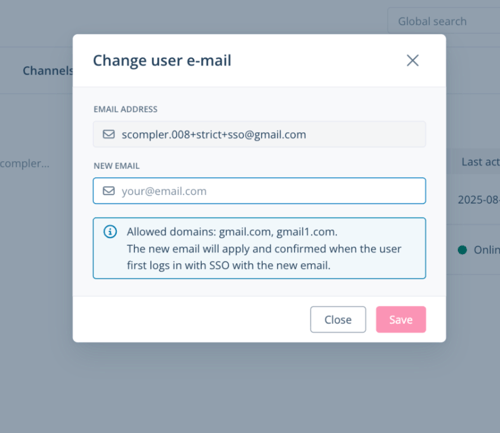
- Click Save.
You have changed the email address for a user in a project using strict SSO. The new email address will be applied and confirmed when the user first logs in to Scompler via SSO using the new email address.