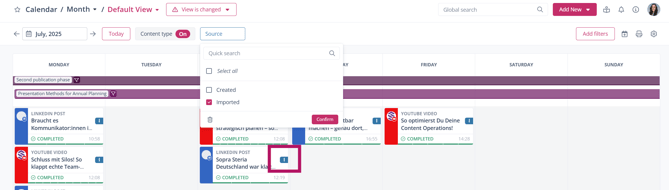
Imported posts can be distracting in the calendar if you only want to focus on content planned directly in Scompler. In addition, imported posts are not assigned to a story after import, so it can also be helpful to view only imported posts.
This can be done very easily using the “Source” filter:
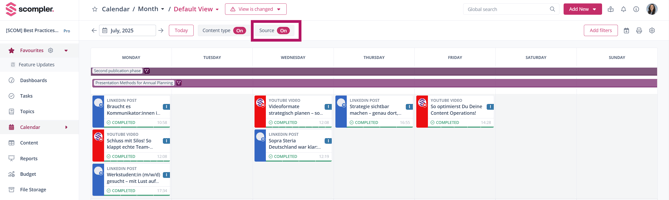
Filter imported posts by source
Customize the calendar to your needs by clicking the gear icon in the top right corner of the calendar. You can find more information about calendar views in Scompler here:
https://kb.scompler.com/knowledge/kalender-ansichten.
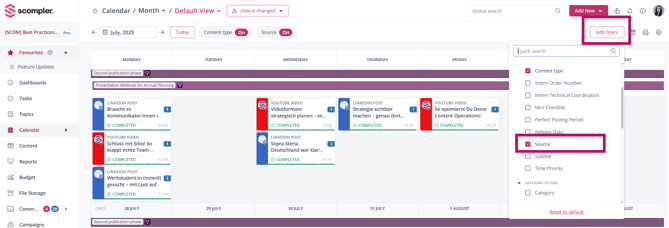
Using calendar filters, you can filter content and create a personalized view. If you only want to see imported posts, click “Add filter” and select “Source” from the drop-down menu to activate the filter in the top bar.
To display only imported posts, select the “Imported” option. When you hover your mouse over this option, the text “Only this” appears on the right. Click this text and then click “Confirm.”
How to recognize imported posts
Imported posts are marked with a small blue “i” icon on the right side of each post in the calendar.