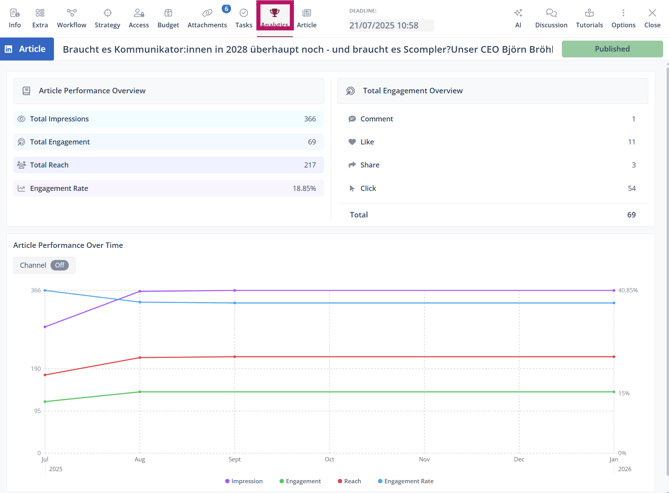
To access Social Signals, open the relevant post and click on the “Analytics” tab. There you will find the performance data collected for this post from the selected channel.
Get a clear overview of your social media activities and save time by comparing aggregated results across all channels.
Viewing aggregated performance data across multiple posts
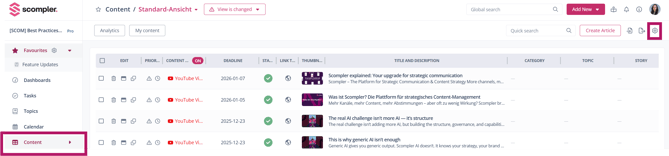
To access data collected from multiple posts, click “Content” in the left navigation bar. click the configuration wheel in the top right corner.
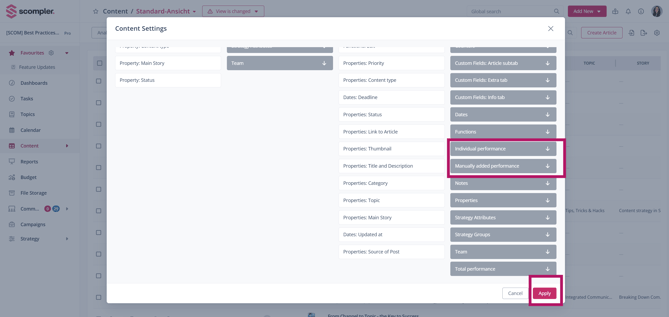
First, select the parameters you want to see.Under “Overall performance,” you will find general performance metrics for each channel. Under “Individual performance,” you will find multiple parameters per channel. Activate the desired parameters by double-clicking them or by dragging them into the left column. Click “Apply” to save your changes.
You can then use the filters in the Content section to display only the posts you need. If required, you can save the created view and reuse it later. This gives you a clear overview of the performance data of your posts across multiple social media channels.
Tip: You can create a separate view for each social media channel and save it as a favorite or share it with other members of your team.
Supported channels and metrics
You can display key performance indicators for your posts from the following channels:
-
Facebook
-
Google Analytics
-
Google Plus
-
Instagram
-
LinkedIn
-
Twitter
-
YouTube