
In the topic architecture, you plan your categories, topics, stories, and articles in one view. This article explains how to set up the view, filter and sort content, and create and edit objects.
Prerequisites:
- You have activated the new topic architecture
- Your user role has permissions to create and edit objects
Choose the Starting Level
Choose which level the view starts with: category, topic, story, article, or story status.
- Navigate to Topics.
- Click the current starting level in the toolbar.
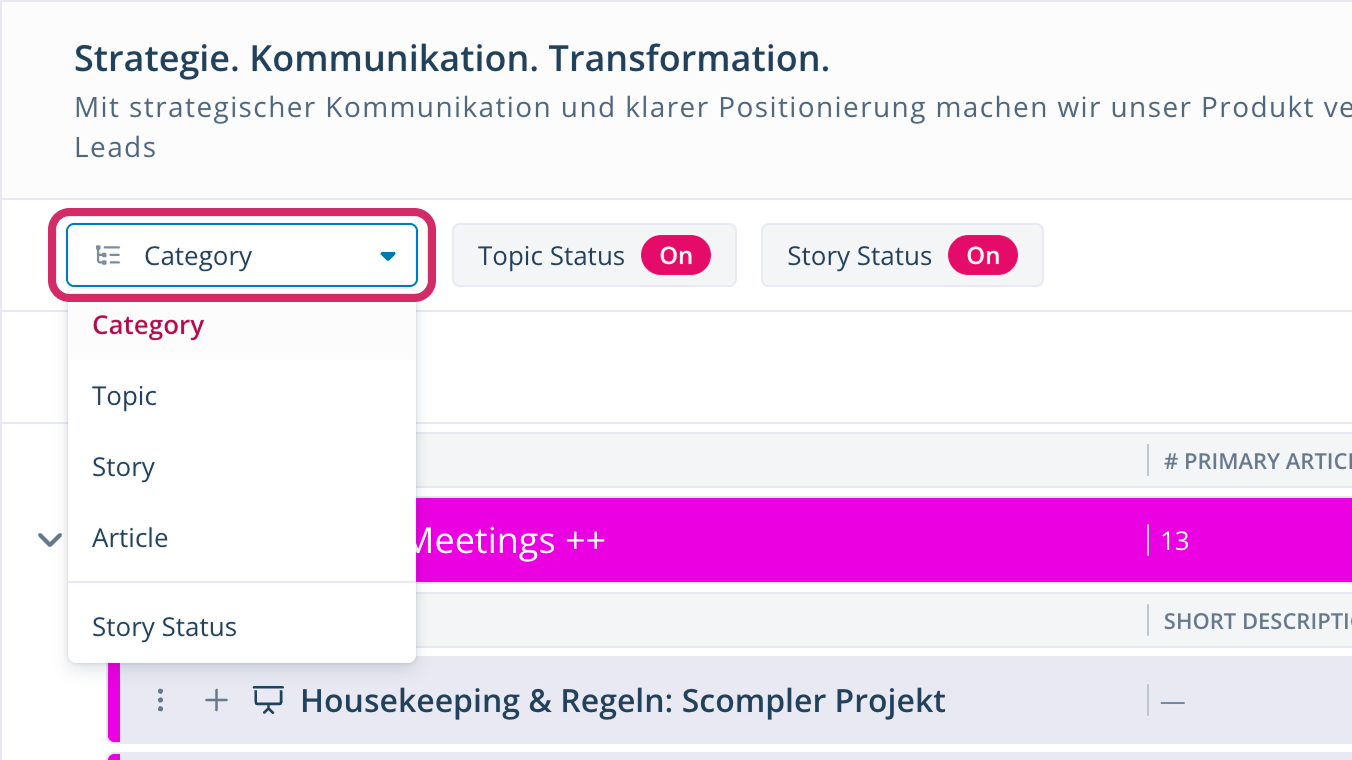
A dropdown menu with the available levels opens. - Select the level you want teh view to start with.
You have chosen the starting level. Changing it changes your current view, so save the view if you want to keep the change.
If you choose the starting level Story Status, you can display your stories either as a list or as a Kanban board. The view saves the display you choose.
Customize Columns
You can adapt the topic architecture to your needs. For each level, choose which information to show and in which order.
You can select up to 20 columns per level.
- Navigate to Topics.
- Click the gear icon > Column Settings.
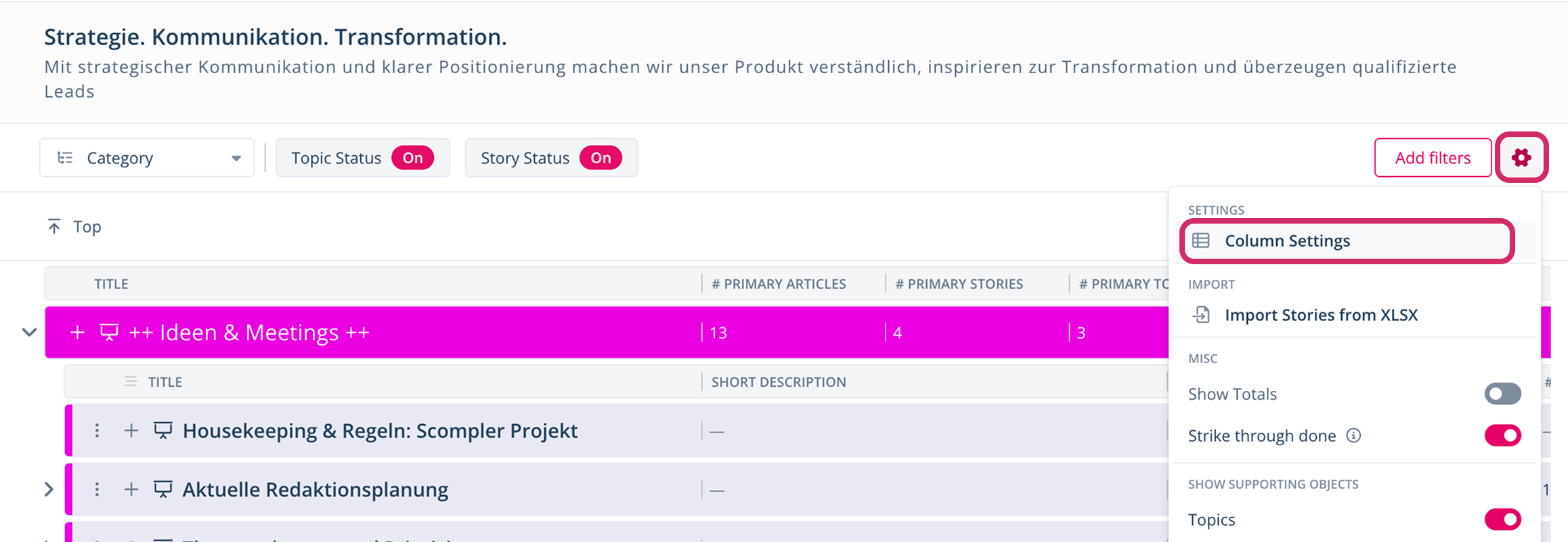
The Column Settings dialog opens. - Select the level whose columns you want to customize.
- In the left area, select the columns you want to be visible.
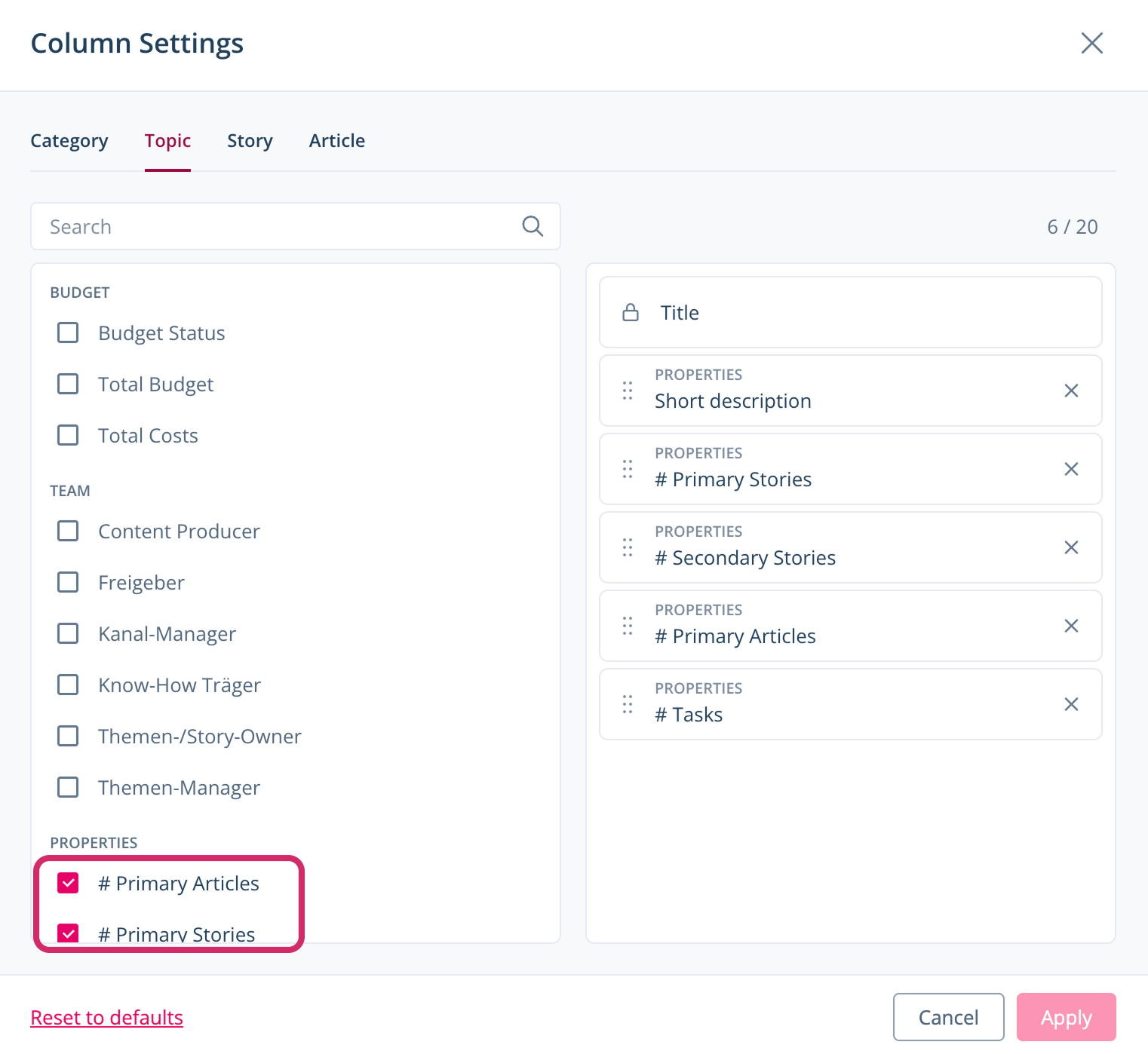
The already selected columns are displayed in the right area. - Drag the selected columns in the right area.
- Repeat steps 4 and 5 for all other levels whose columns you want to customize.
- Click Apply.
You have customized the columns. You can change them at any time.
Adjust the Sorting in Columns
You can sort lists in the topic architecture by column, e.g. alphabetically by title. Columns you can sort by show a sort icon when you hover over their header.
How you change the sorting depends on which list you want to sort:
- Top-level list with the starting level topic, story, or article: Click a column header to sort the list by that column.
- Child objects, e.g. the topics of a category or the stories of a topic: The parent object defines how its child objects are sorted. Set it to By Table Header first. You can then sort the list by clicking a column header.
Set Sorting by Table Header
For Categories
- Click the title of a category.
The Edit Category dialog opens. - In the Topic order dropdown menu, select By Table Header.
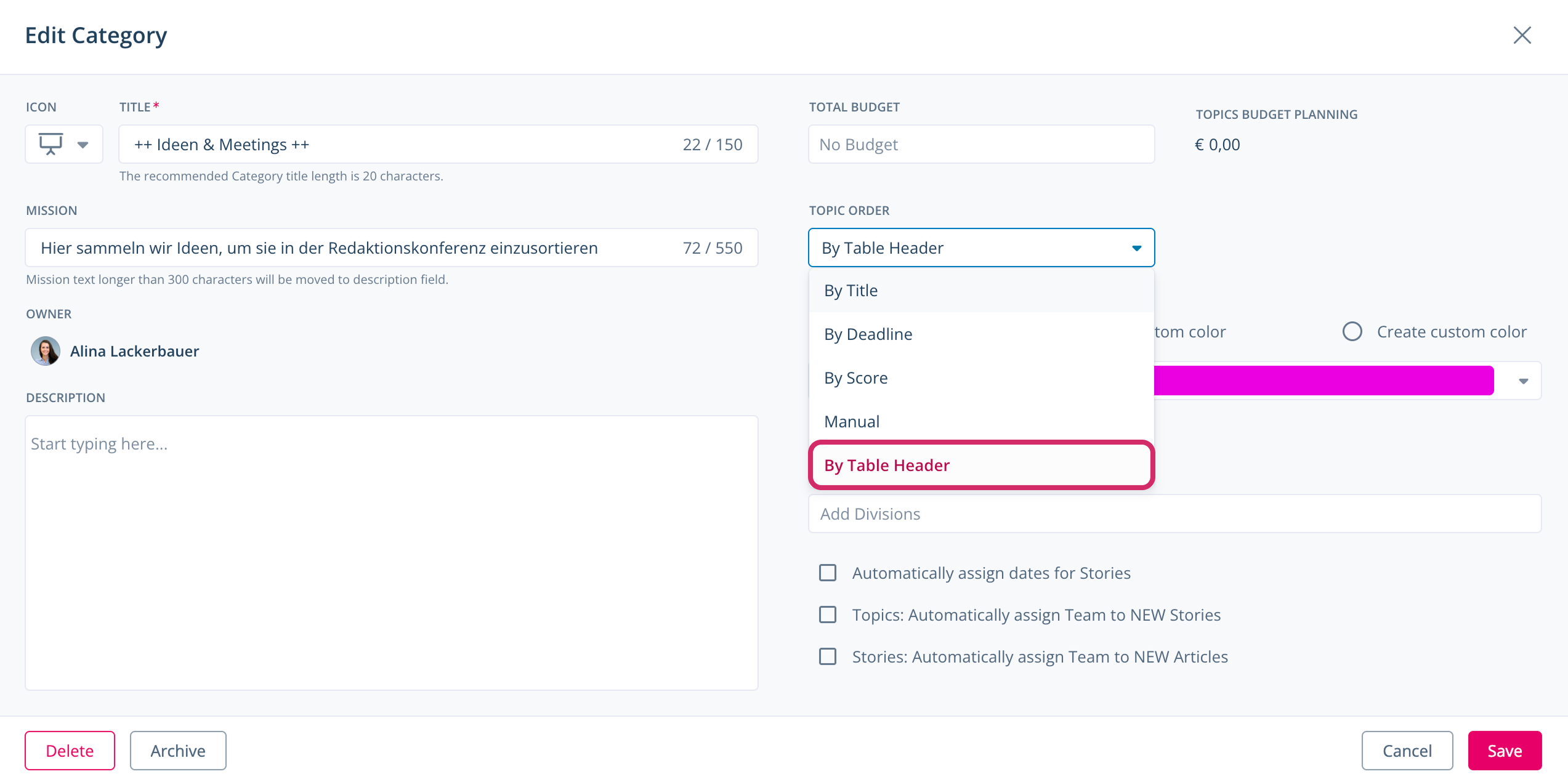
- Click Save.
You have changed the sorting setting of the category. You can now sort its topics by clicking a column header.
For Topics or Stories
- Click the title of the topic or story.
The topic card or story card opens. - In the Info tab, under Story order (for topics) or Article order (for stories), select By Table Header.
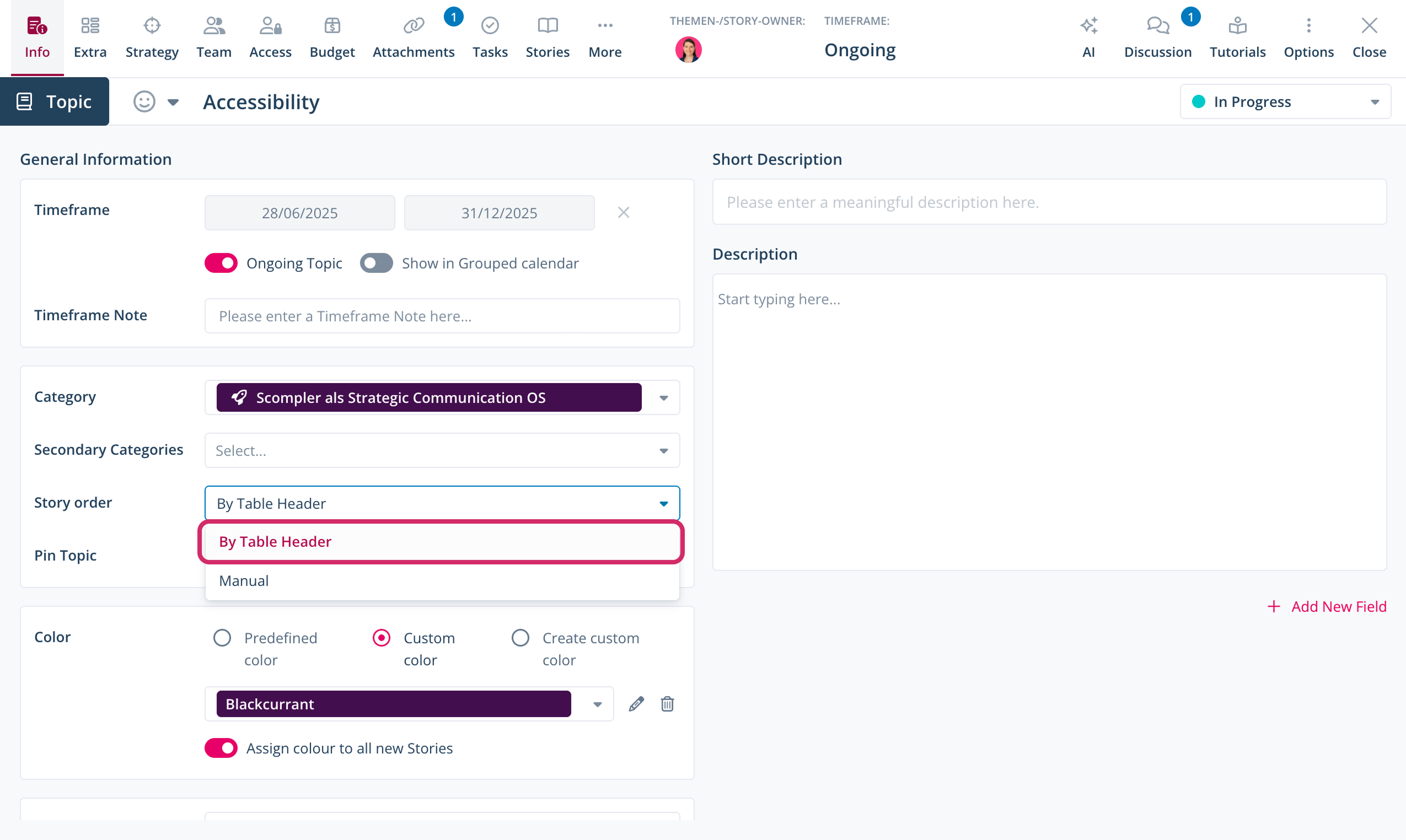
- Close the topic or story.
You have changed the sorting setting of the topic or story. You can now sort its stories or articles by clicking a column header.
The By Table Header setting applies to all users in the project, but each user chooses their own sort column. The sorting only affects that list, not the levels below it.
Narrow Down the View with Filters
With filters, you can show only the content you need right now in just a few clicks.
- Navigate to Topics.
- Optionally, click Add filters and select the filters you want to display in the toolbar.
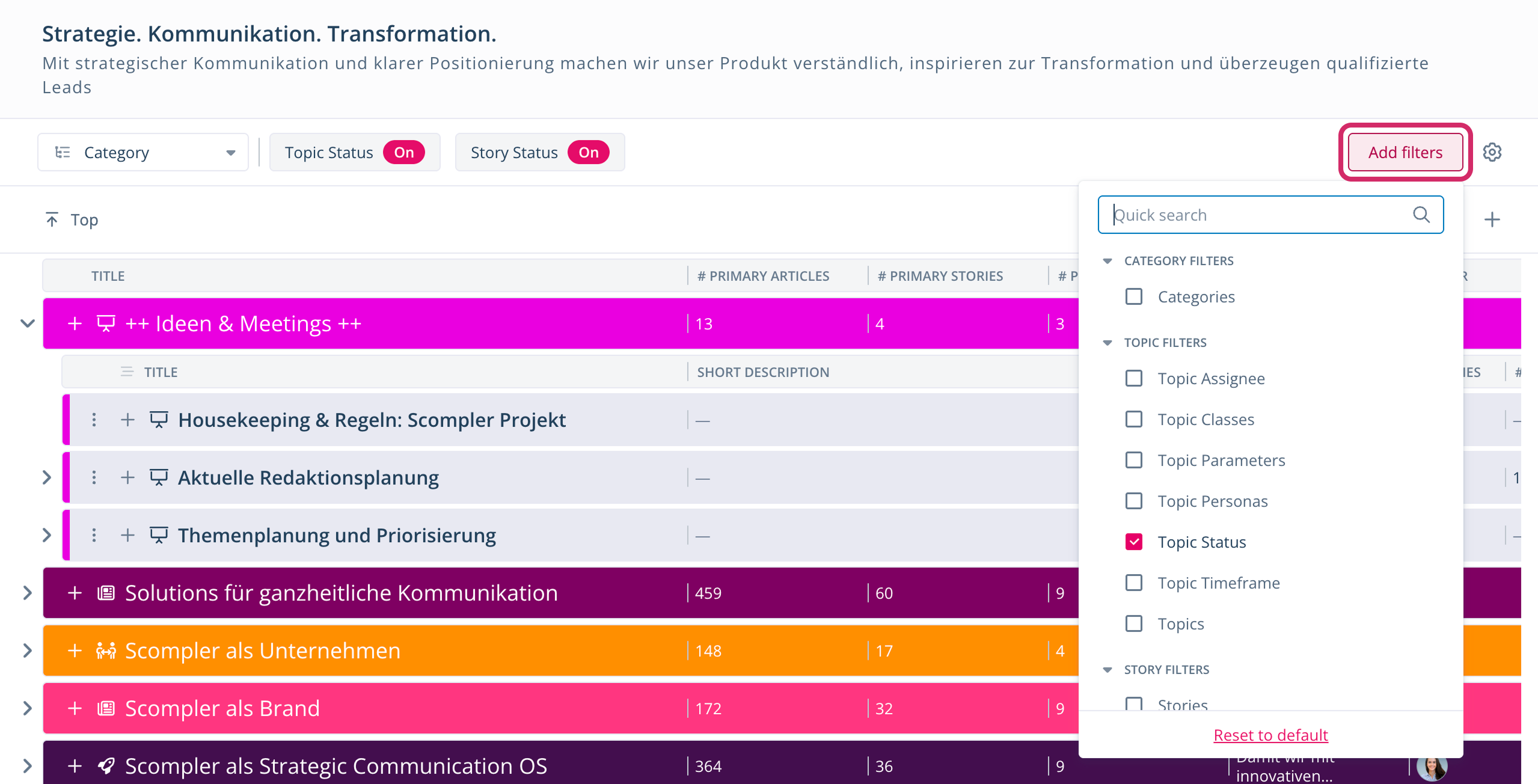
- Click a filter in the toolbar.
A menu with the available filter options opens.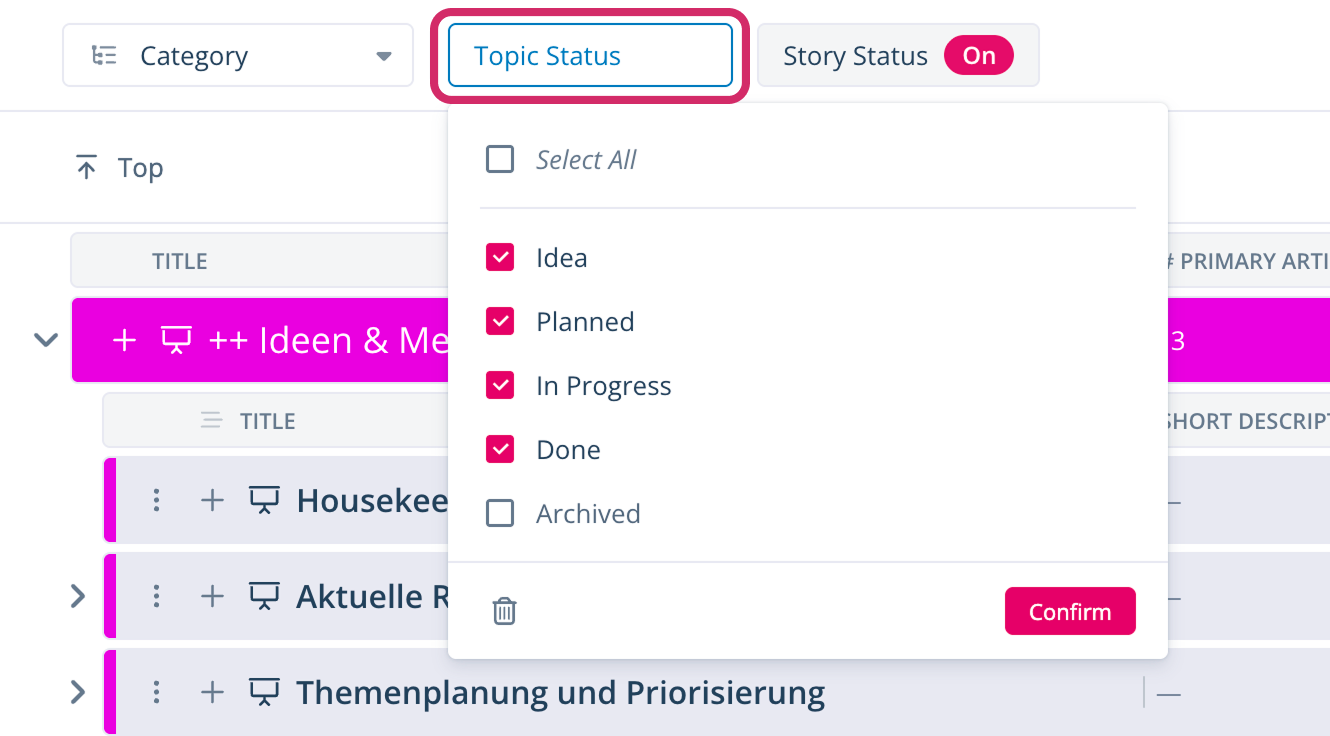
- Select the filter options you want.
- Click Confirm.
- Repeat steps 3–5 for all filters you want to apply.
You have filtered the topic architecture. You can adjust the filters at any time.
If you use the Divisions feature, your division selection also affects which content you see.
Create Objects
You can also create new categories, topics, stories, and articles directly in the topic architecture, and even several topics, stories, or articles at once.
The type of object you create depends on the starting level you have selected.
- Navigate to Topics.
- Click the + button.

The dialog for creating a new object opens. - Fill in the required fields.
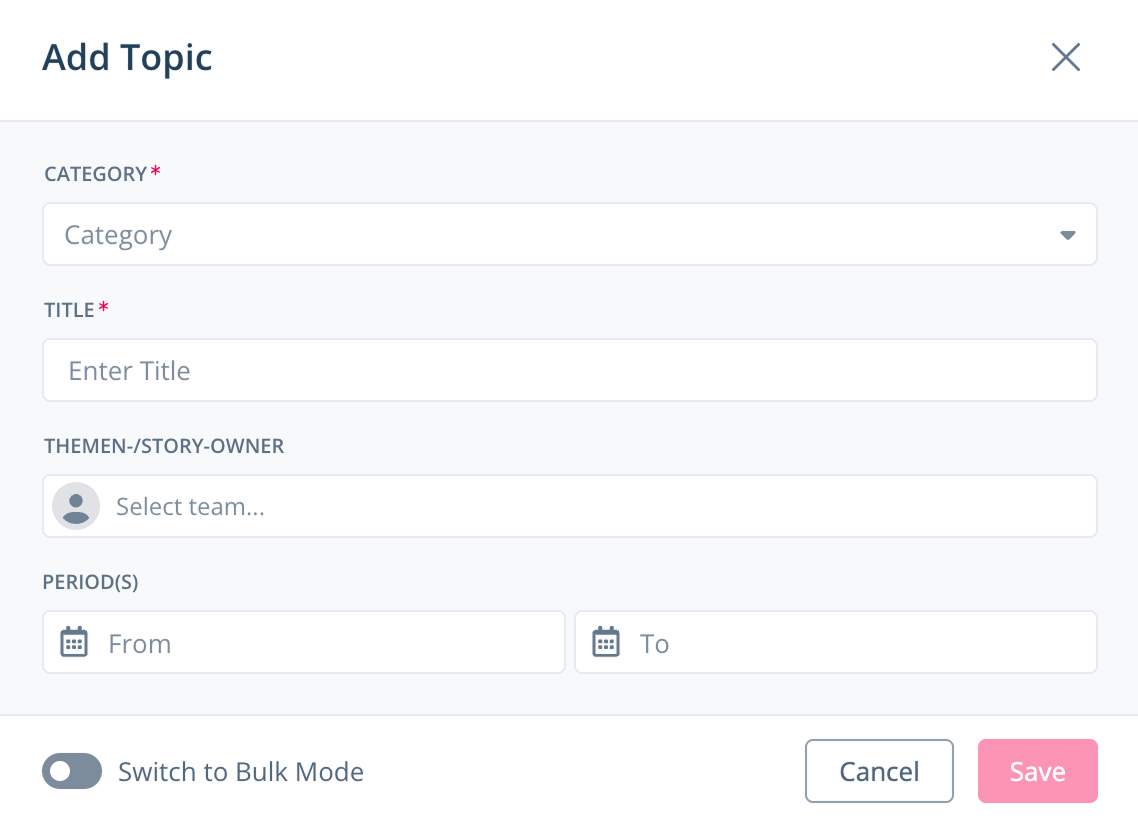
- Optionally, enable Switch to Bulk Mode to create several topics, stories, or articles at once.
- Click Save.
You have created a new object. It appears in the list according to the current sorting. To edit it, click its title and make your changes in the card that opens.
New categories always appear at the end of the list, since categories can only be sorted manually.
Edit Objects
To edit an object in the topic architecture, click its title and make your changes in the card that opens. For topics, stories, and articles, the three-dot menu offers more options:
- Open in full view
- Copy URL
- Duplicate
- Delete
- Navigate to Topics > the object you want to edit.
- Click the three-dot menu.
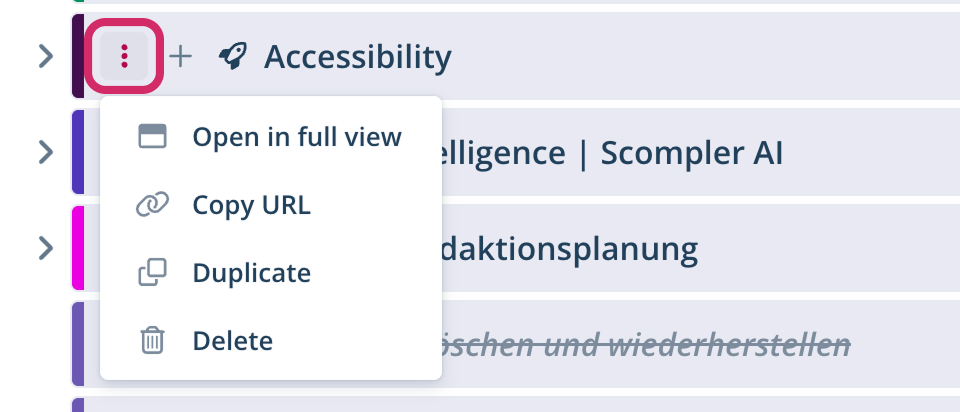
- Select the option you want.
You have edited the object using the three-dot menu. You can use it the same way for any other object.
To edit several stories or articles at once, select the checkboxes in their rows. The available options depend on the object type:
Stories:
- Edit: Change the status, topic, secondary topics, personas, and content models for all selected stories
- Delete
Articles:
- Edit: Change information in the Info and Strategy tabs for all selected articles
- Export: Download the selected articles as a Word file (.docx) based on your active filters and settings, or create a new article from them
- Delete
- Duplicate