
Categories form the basis of your work in Scompler. It is therefore important that you can configure them according to your strategy and the requirements of your daily tasks.
When you click on a category, a pop-up window opens in which you can configure the display and properties of the category in the topic view according to your requirements. Define the name, mission, icon, and color, and enter the category owner and a description. You can also set an overall budget for all underlying elements. Use the slider to decide whether all topics under the selected category should have the same color.
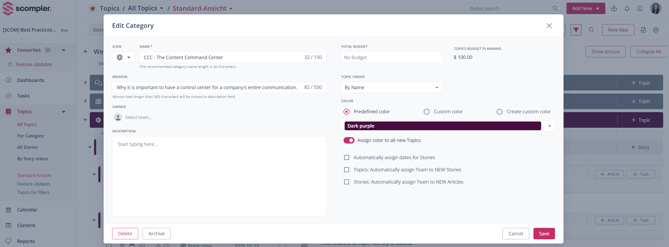
Tip: Using "Topic Order" you can determine the order in which the topics of the selected Category should be displayed: alphabetically, manually, by name, by deadline or by integrated Topic Scoring (This function is currently only available on request).
Further settings
Here are three options that you can use to determine how the content linked to the selected Category is displayed in the topic view:
- Automatically assign dates for stories: the run times for the stories are automatically generated from the deadlines of the articles.
- Topics: Automatically assign Team to NEW Stories: transfers the assignments entered in the topics to the new stories.
- Stories: Automatically assign Team to NEW Articles: transfers the assignments entered in the stories to the new articles.