
AI co-workers take over writing, reviewing, and monitoring tasks in your project. Set them up once with a role, in your workflows, and in the default teams of your content types, and they take over these steps in every new article without being assigned manually.
Prerequisite:
To have an AI co-worker assigned automatically in every new article, complete all three sections in this order: give the co-worker a role, assign this role to workflow steps, and add the co-worker to the default team of your content types.
1. Assign a Role to an AI Co-worker
To work with an AI co-worker efficiently, give it a role, just like a regular team member. You can use one of your existing roles or create a new role specifically for the co-worker. Once it holds a role, you can use this role in your workflows, and the co-worker appears as a suggestion when you fill this role in a team.
- Navigate to Strategy > Team.
- Hover over the AI co-worker and click the edit icon.
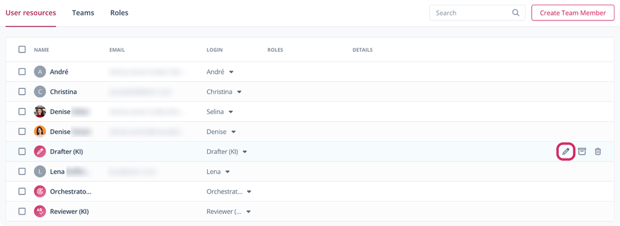
The Edit team member dialog opens. - Under Roles, select one or more roles.
- Click Save.
You have assigned a role to the AI co-worker.
To create a new role for the co-worker, first click Create New Role in the Roles tab.
2. Assign a Workflow Step to an AI Co-worker by Default
In a workflow, each task has a responsible role. Select the co-worker's role for the tasks it should take over. Once you have also added the co-worker to the default team of a content type, it takes over these tasks in every new article of this type that uses the workflow.
- Navigate to Strategy > Workflow.
- Click the workflow you want to change.
- For the task the co-worker should take over, select the co-worker's role under Responsible Role(s). You can select several roles per task.
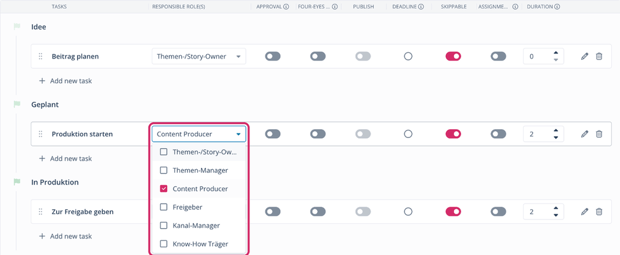
You have assigned the workflow step to the AI co-worker's role.
3. Add an AI Co-worker to the Default Team of a Content Type
If an AI co-worker is part of the default team of a content type, it is part of the team of every new article of this type.
- Navigate to Strategy > Content Types.
- Click the edit icon next to the content type.
- Click the Predefined Team tab.
- Next to the role, click Select team… and select the AI co-worker.
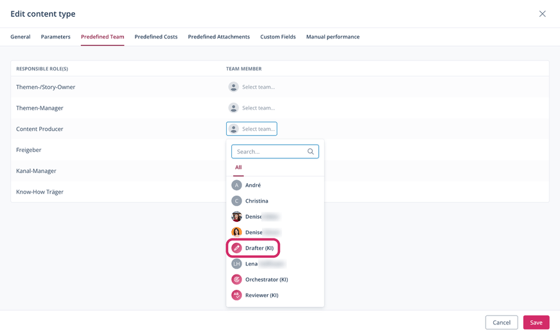
- Click Save.
The Confirm saving the Content Type dialog opens. - Click Proceed.
You have added the AI co-worker to the default team. In new articles of this content type, it is now assigned automatically to the workflow tasks of its role. Learn more about following and steering the work of an AI co-worker.