
With Scompler AI Memory, Scompler AI remembers information about you and the way you work across chats. This includes your role, preferred formats and ways of working, tone, guidelines, and instructions. In short, Scompler AI remembers anything that is useful for your recurring work in Scompler.
Memory is turned on for you by default. If you don't want to use it, you can turn it off for yourself at any time.
Prerequisites
- You have activated Scompler AI
- You have AI credits available
- Your user group has Scompler AI permission enabled
- The Memory feature is activated for your project
Save Information to Memory
Scompler AI only saves information about you that will still be relevant in future, unrelated chats. It does not save one-off requests or the status of an object. Learn more about which information Scompler AI saves automatically.
- Click Scompler AI in the top navigation.
Scompler AI opens. - In the chat, ask Scompler AI to remember a piece of information, for example: "Remember that we always use our module names in English."
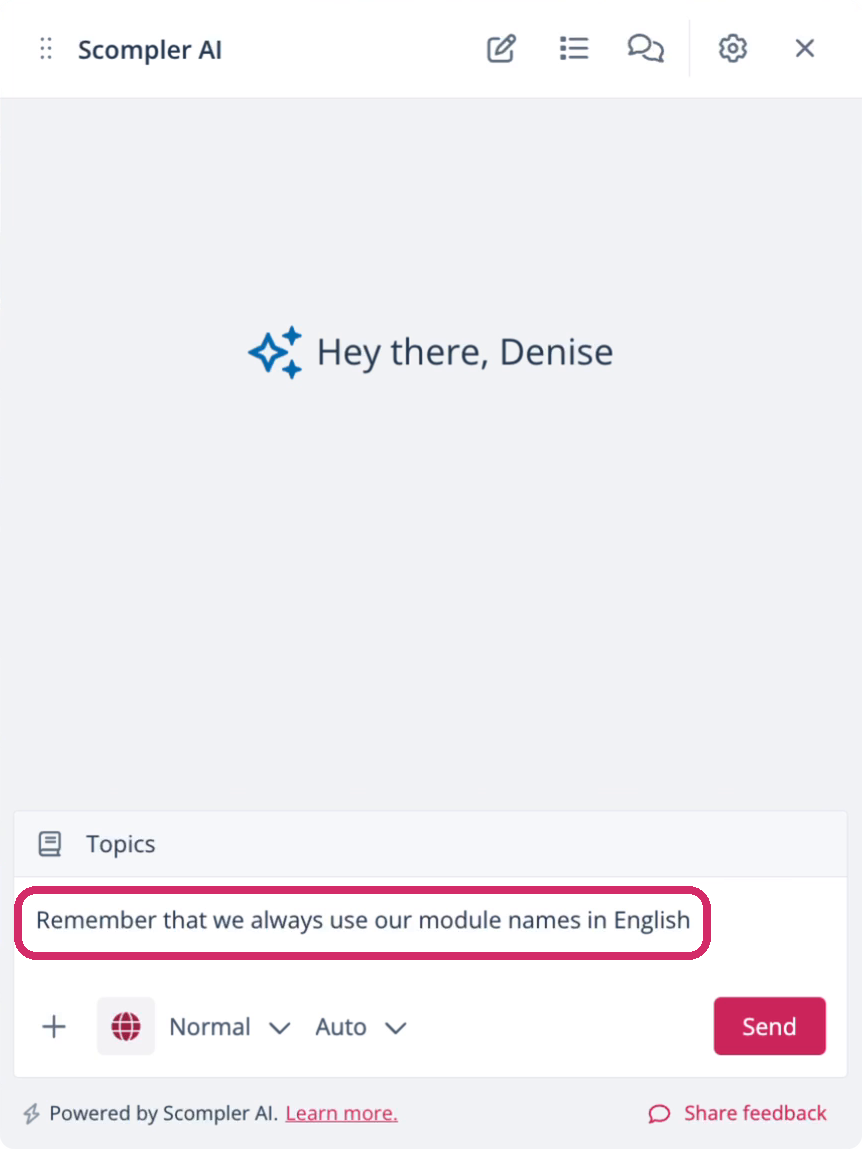
Scompler AI saves the information and confirms it in the chat.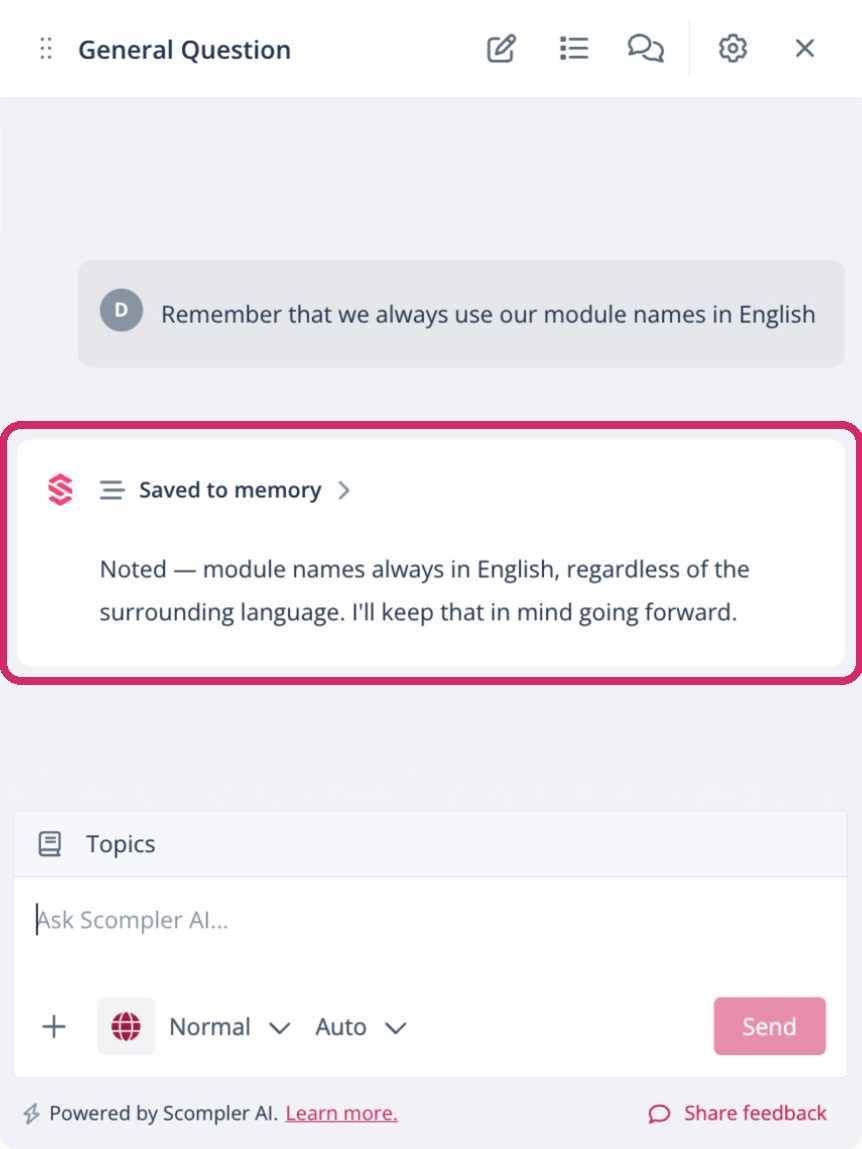
You have saved a piece of information to the memory feature. Scompler AI uses it in future chats whenever it is relevant to your request. You can view and delete saved memories at any time.
If you share several pieces of information at once, Scompler AI may save them as separate memories.
View Saved Memories
- Click Scompler AI in the top navigation.
Scompler AI opens. - In the Scompler AI toolbar, click the gear icon > Memory.
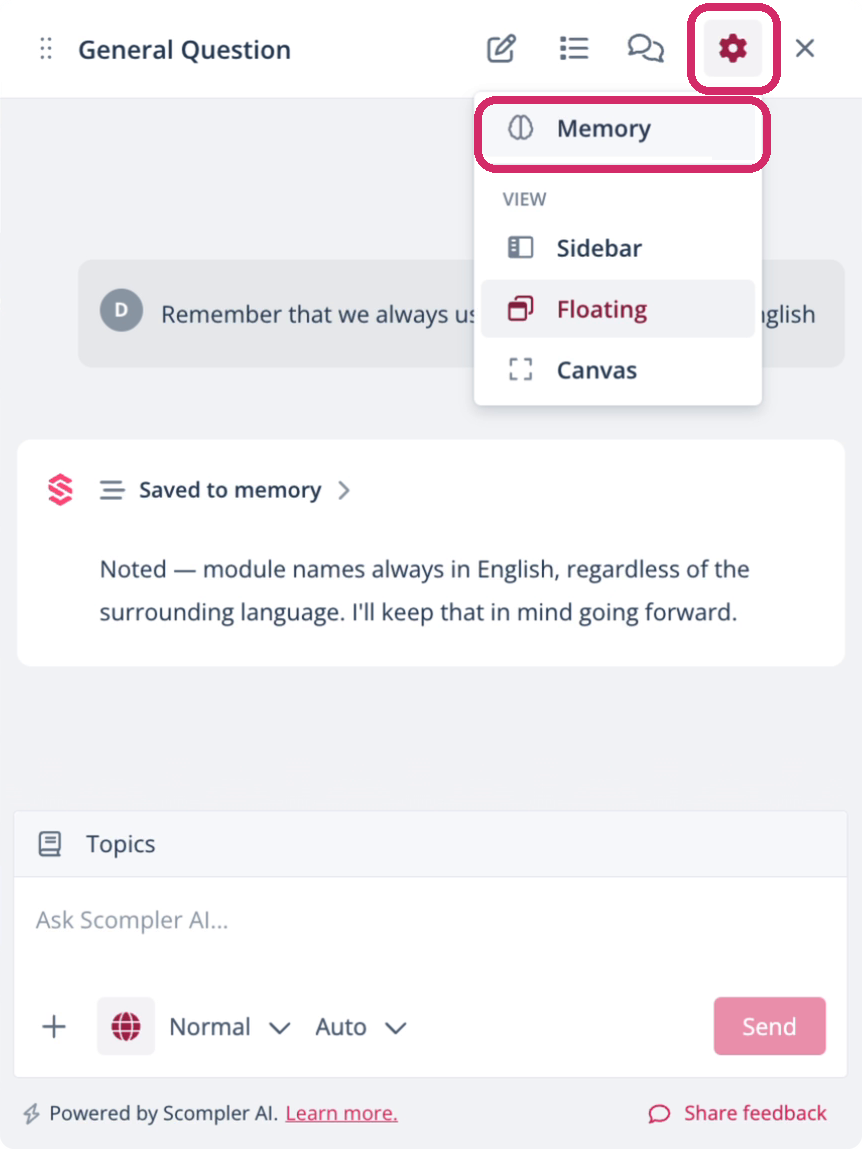
The Memory page opens, displaying your saved memories. - Optionally, search your memories, filter them by type, or sort them by date.
- Optionally, if applicable, click Details below a memory to display the full text.
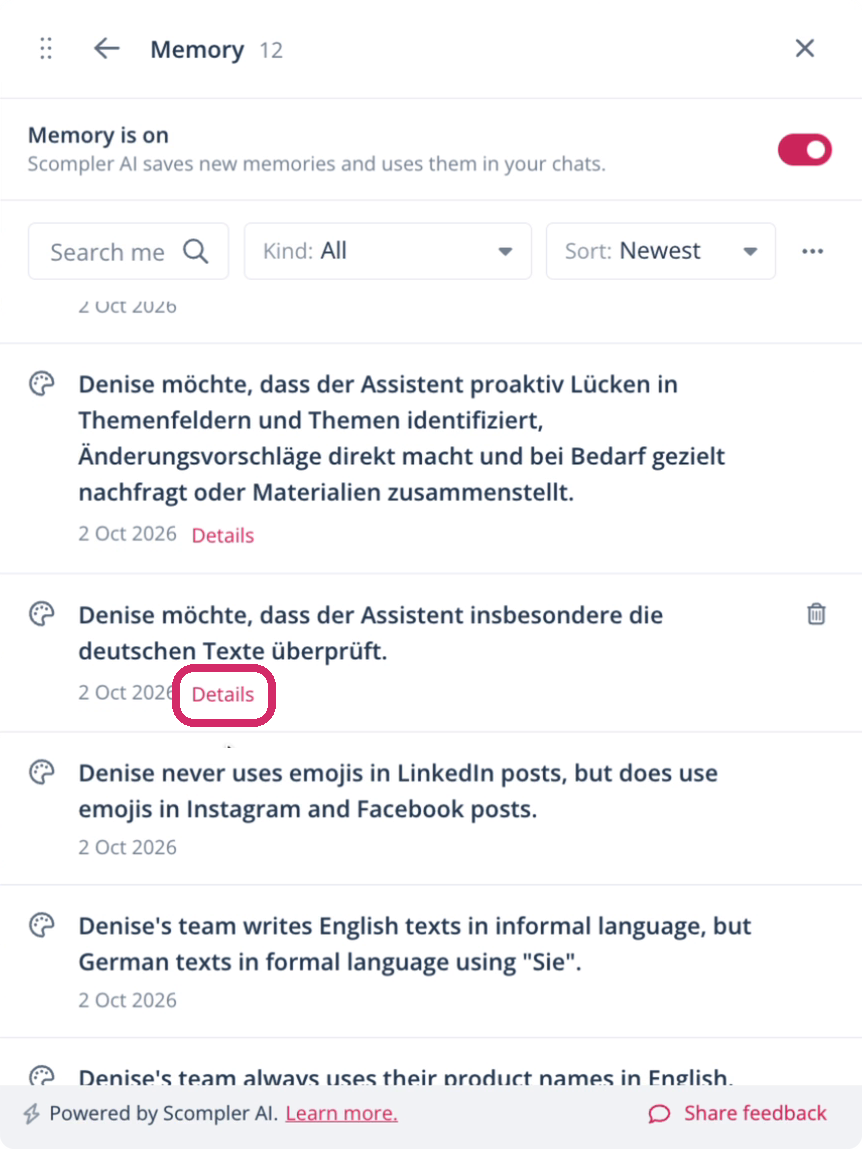
The full text expands below the summary.
You have viewed your saved memories and their details.
Delete a Memory
You can delete saved memories if they are no longer valid.
- Click Scompler AI in the top navigation.
Scompler AI opens. - In the Scompler AI toolbar, click the gear icon > Memory.
The Memory page opens, displaying your saved memories. - Hover over the memory you want to delete and click the trash icon.
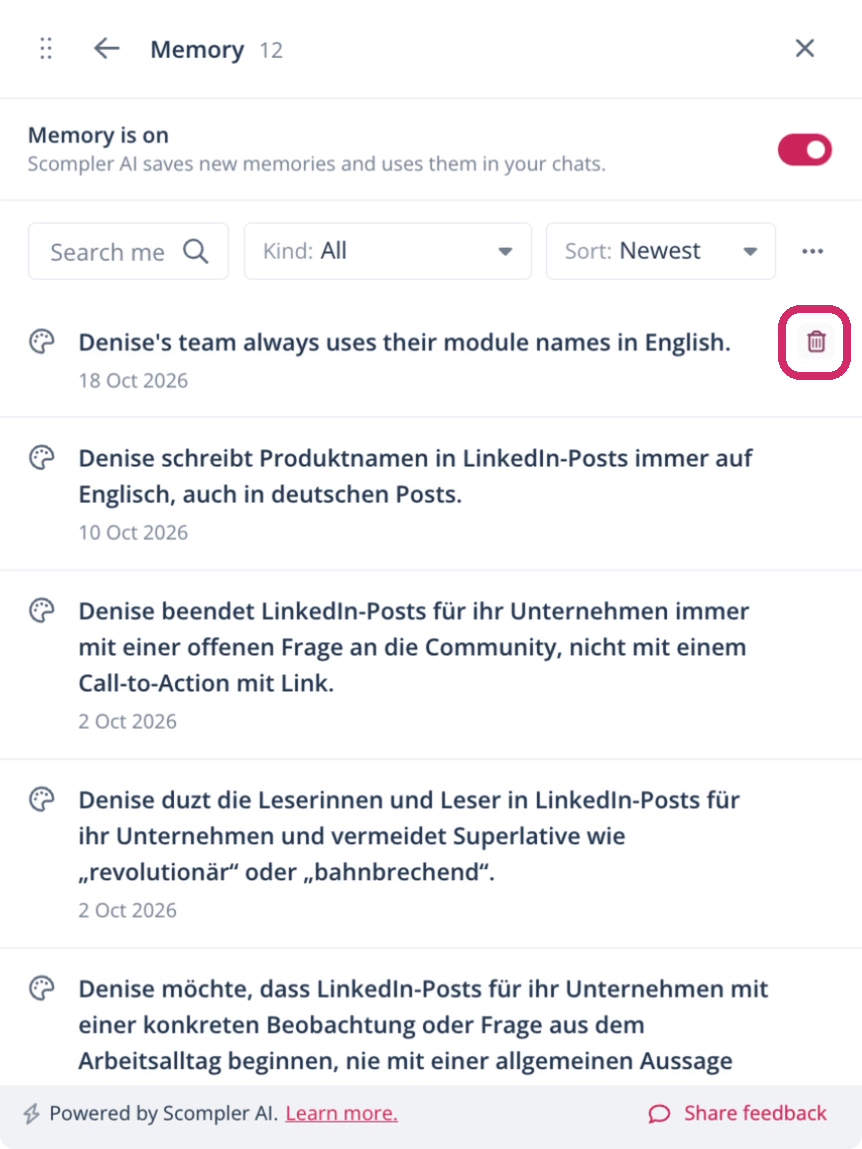
The Delete this memory? dialog opens. - Click Delete to confirm.
You have deleted the memory. Scompler AI no longer uses it, starting from your next message.
Turn Off the Memory Feature
If you don't want to use the memory feature, you can turn it off for yourself.
- Click Scompler AI in the top navigation.
Scompler AI opens. - In the Scompler AI toolbar, click the gear icon > Memory.
The Memory page opens. - Turn the Memory toggle off.
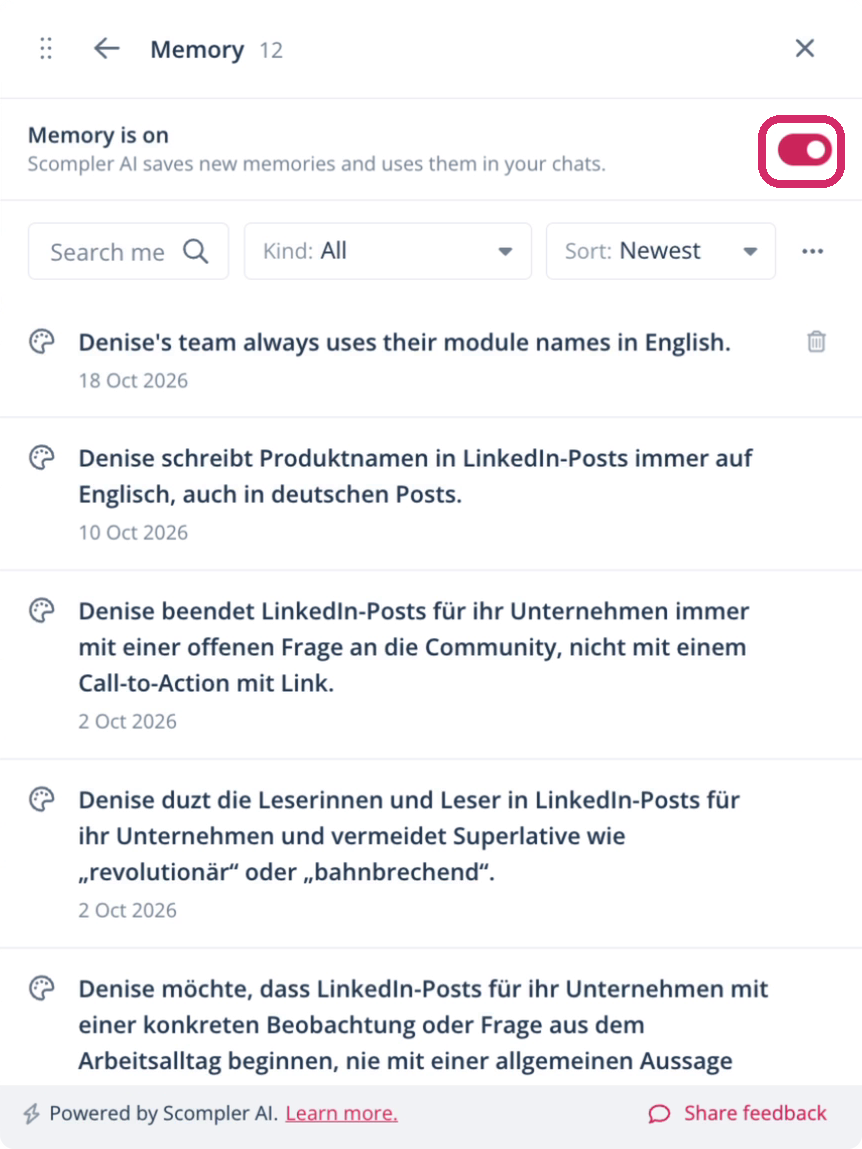
The Turn memory off? dialog opens. - Click Turn off to confirm.
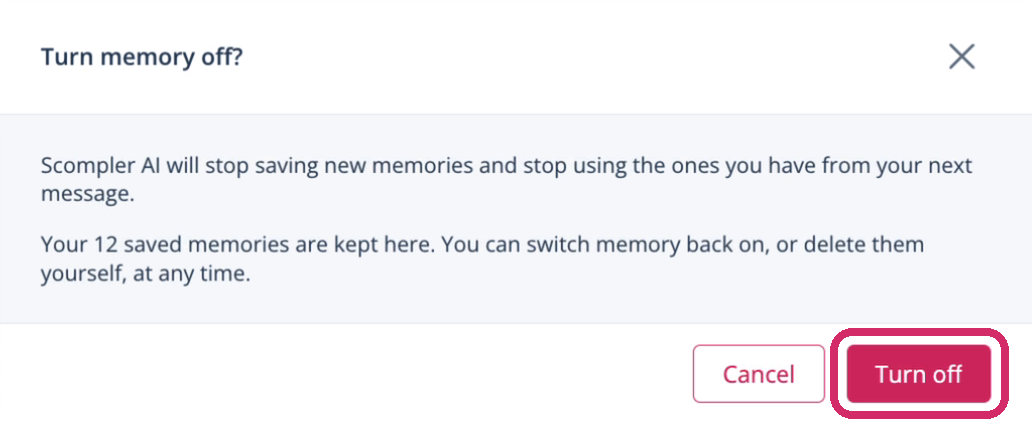
You have turned the memory feature off for your chats. You can turn the memory feature back on at any time.
When you turn memory off, Scompler AI stops saving new memories and using existing ones, starting with your next message. Your saved memories are kept, and you can see them on the Memory page.