

Scompler AI supports content creation directly within the article workflow by helping you generate, revise, optimize, and adapt article texts. Based on the available article context, strategic settings, personas, content models, and writing styles, the AI generates content suggestions aligned with your communication goals.
Prerequisites:
- You are using the Scompler PRO package
- You have activated Scompler AI
- You have AI credits available
- Your user group has Scompler AI permission enabled
Generate or Improve Article Texts
Watch this video to learn how to generate article text. Alternatively, you can also refer to the step by step instructions below.
- Open the article for which you want to generate or improve the text.
- Click AI.
Scompler AI opens. - Click Generate or improve my Article text.
Scompler AI proposes a set of text variants. If missing context is identified, the AI might ask you to provide more information via the chat. - Click Generate all three variants, or, if you want to define specific requirements for the generated text, enter your instructions in the chat.
Scompler AI starts the generation of the text variants. - Click the arrow next to a text variant to view its details.
- Click Save for your preferred text variant.
The text variant is saved to your article.Saving another variant later replaces the previously saved version.
You have used Scompler AI to generate or improve article text. You can now access the copy in the Articles tab.
Factors Considered During Generation or Improvement of Article Text
Scompler AI considers the following factors during the generation or improvement of article text:
- Article title, description, and existing text
- Attachments
- Story context
- Channel settings
- Selected strategy options
- Personas
- Content models
- Content type
- Top-performing content patterns
- Language preferences from custom writing styles
Optimize Texts in the Text Editor
Scompler AI is also available directly within the text editor to help you revise and optimize content while writing. Unlike context-aware Scompler AI skills, these editor commands operate only on the selected text and do not use additional project information.
- Open the article for which you want to optimize the text.
- Navigate to the Article tab.
- In the editor toolbar, click the AI icon.
A dropdown menu with AI options opens.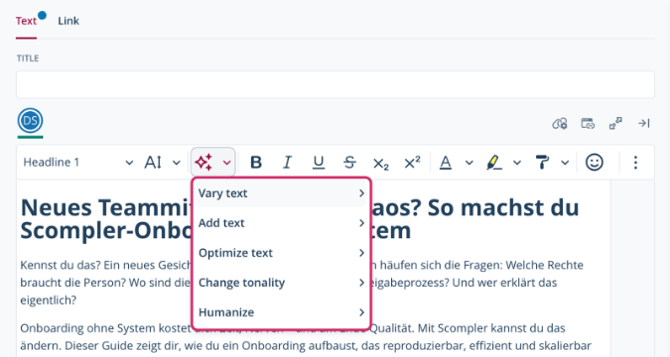
- Select an option from the dropdown menu.
The AI Commands dialog opens, displaying the generated text optimzation.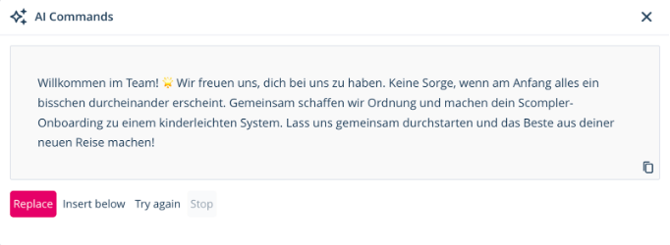
- Optionally, click Try again to refine the suggestion.
- Click Replace to replace the previous text with the AI suggestion or click Insert below to keep both, the previous text and AI suggestion in the text editor.
You have optimized a text directly in the text editor.