Upload Frontify Assets to Topic, Story and Article Cards
You can add assets from your Frontify library to a topic, story or article card.
- Navigate to the topic, story, or article you would like to add a Frontify asset to.
- Navigate to the Attachments tab.
- Under Files, click Choose File.
- From the dropdown menu, select Frontify.
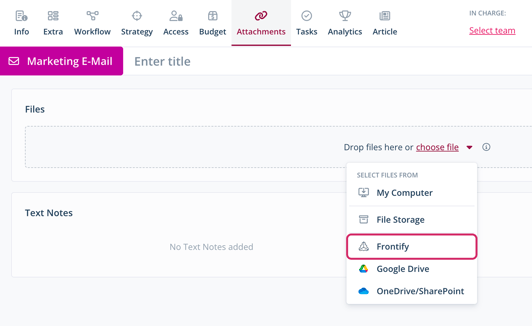
A dialog with available Frontify assets opens. - Select an asset.
You have uploaded an asset from your Frontify library. In article cards, you can also upload files right within the editor by clicking the folder icon.
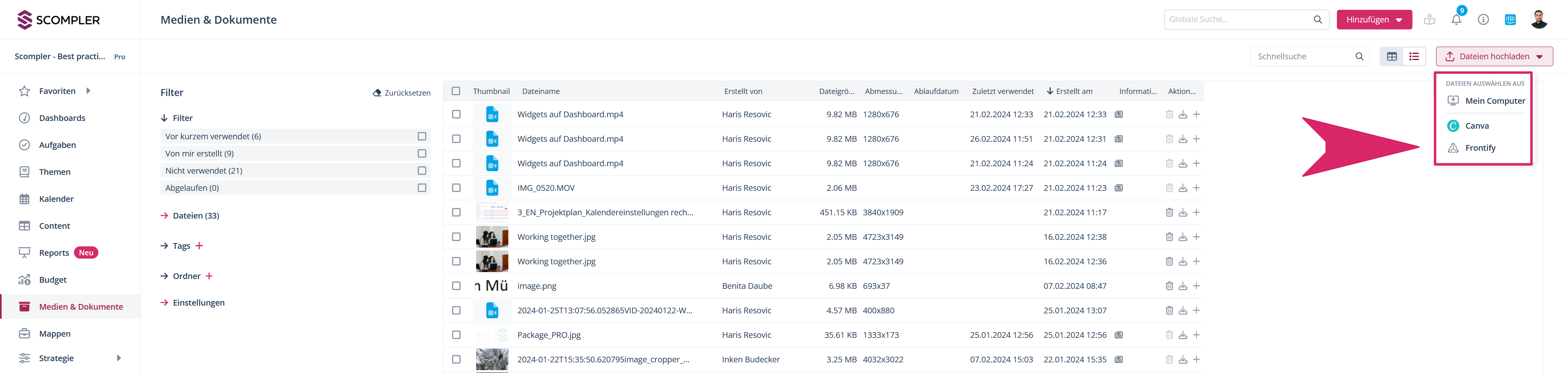
Upload Frontify Assets under File Storage
You can also add assets from your Frontify library in File Storage.
- Navigate to File Storage.
- Click Choose File.
- From the dropdown menu, select Frontify.