With the media editor, you can edit images and videos directly in Scompler, for example in the article card of Social Media articles, Staffbase articles, or in File Storage. Scompler can also adapt images automatically to the requirements of each social network.
The media editor offers the following tools:
- Crop: crop freely or to a predefined format, and rotate or flip
- Filter: apply a filter
- Finetune: adjust brightness, contrast, saturation, exposure, temperature, gamma, clarity, and vignette
- Markup: draw, add shapes, text, or stickers (if you rotate or flip the image, these elements rotate and flip with it)
- Redact (images only): pixelate areas you want to hide, for example faces
- Resize: change the width and height
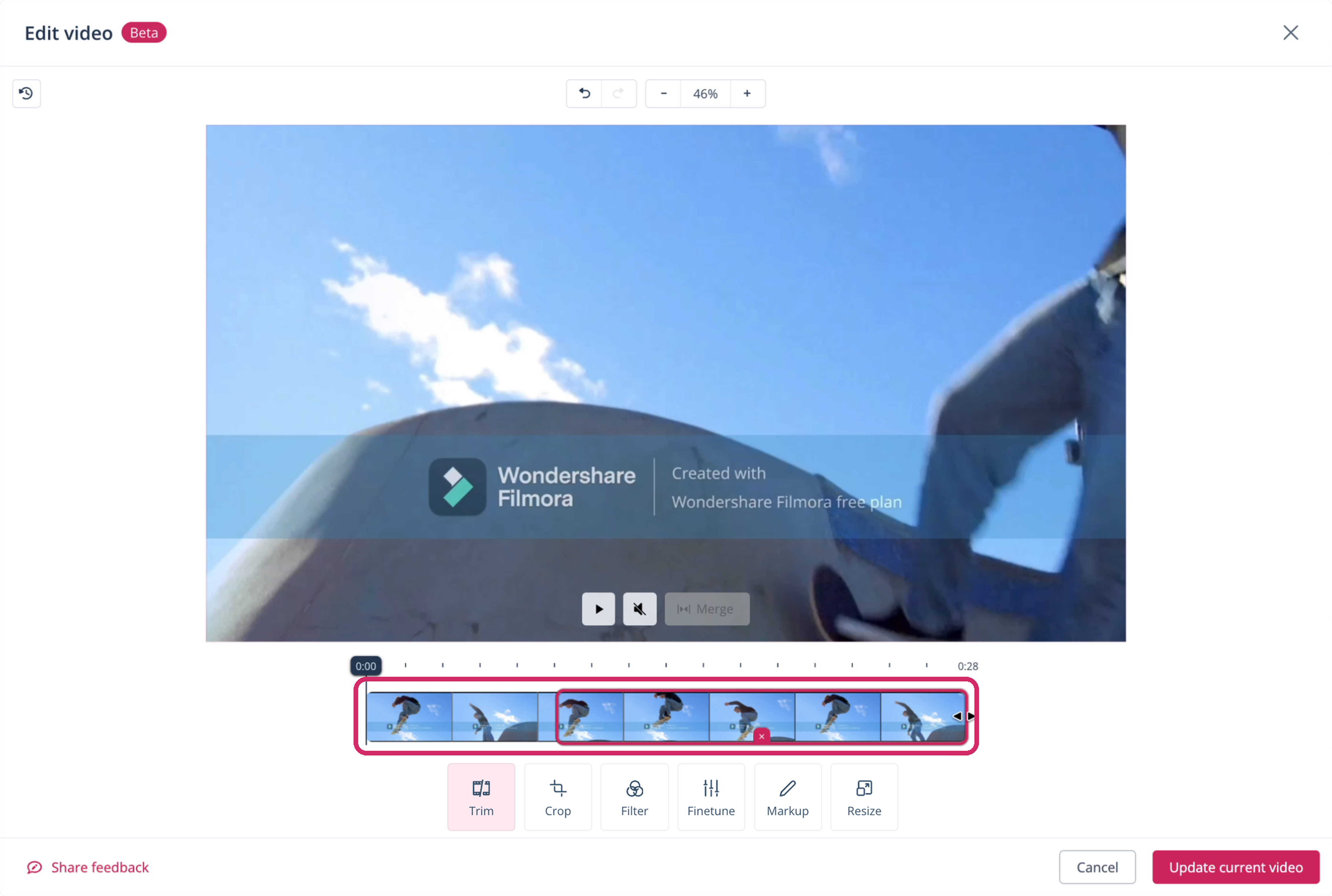
- Trim (videos only): cut a video to the part you want to keep, or split it to cut out parts in between
Prerequisite:
- You are using the Scompler PRO package
Open the Media Editor
You can open the media editor in two places:
- In the Article tab of articles with most content types
- In File Storage, for any image or video
- Open the article card with the image or video you want to edit or open it in File Storage.
- Click the edit icon.
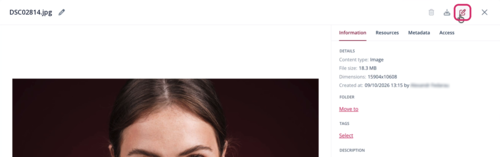
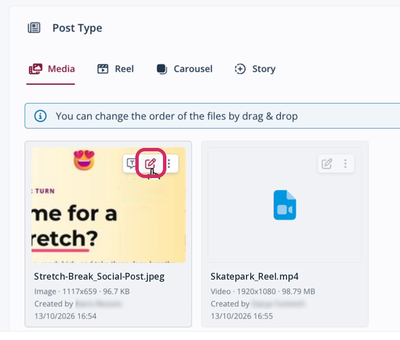
The Edit image or Edit video dialog opens.
You have opened the media editor.
In an article, the edit icon appears when you hover over the image or video. In File Storage, the edit icon is at the top right of the file preview.
Edit an Image
- Open the image you want to edit in the media editor.
The Edit image dialog opens. - Select the editing tool you want to use.
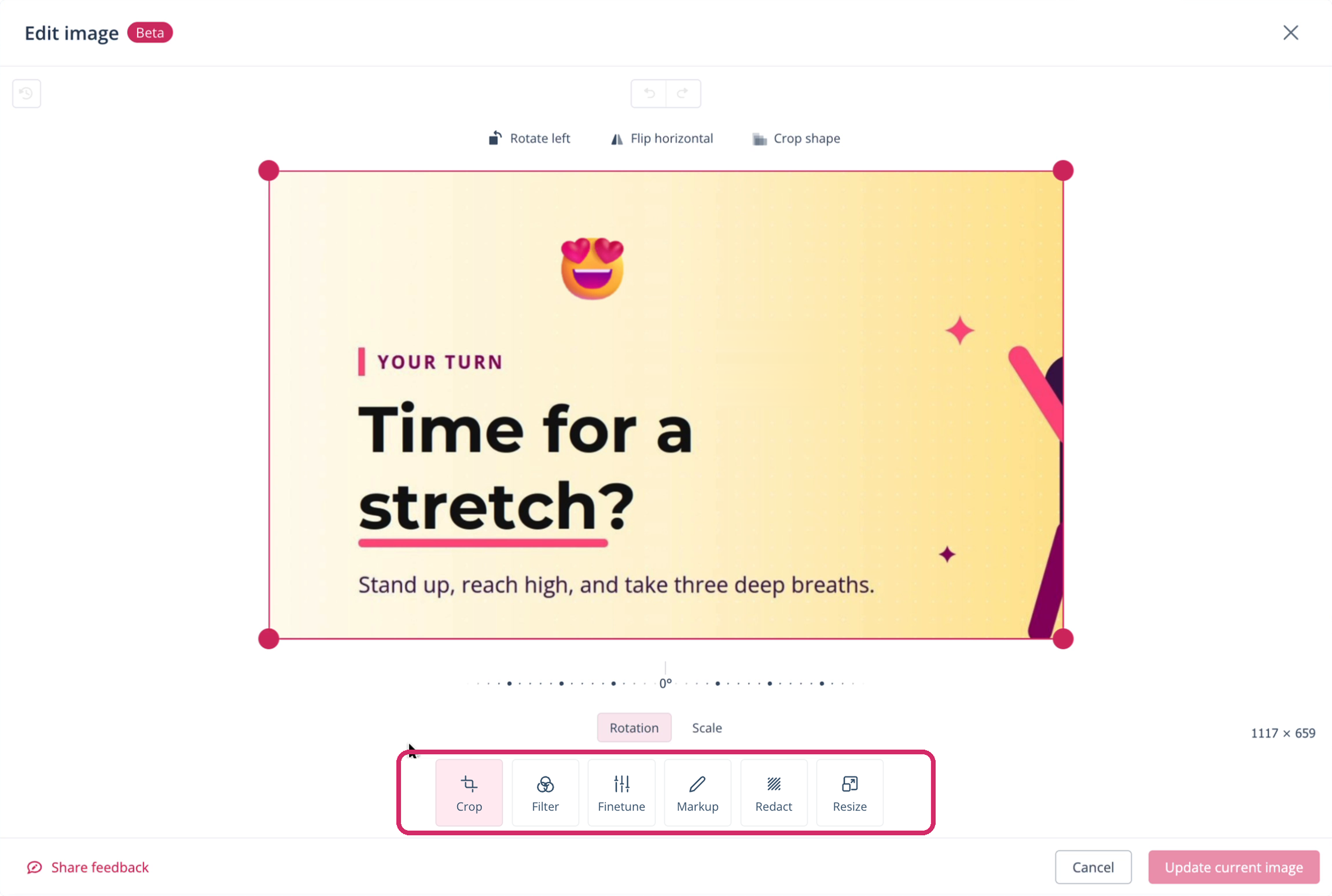
- Edit the image.
- Save your changes:
- In an article: Click Update current image. If the Notice dialog opens, click Proceed.
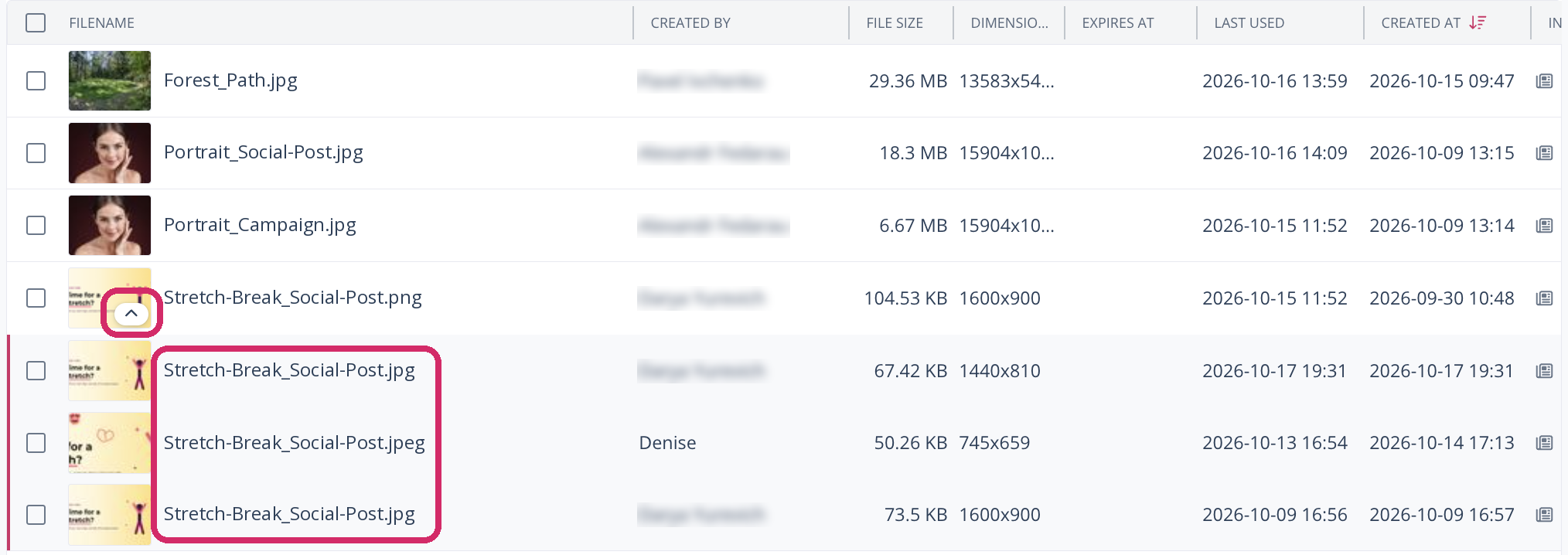
- In File Storage: Click Save as new version, change the suggested file name if needed, and click the checkmark icon.
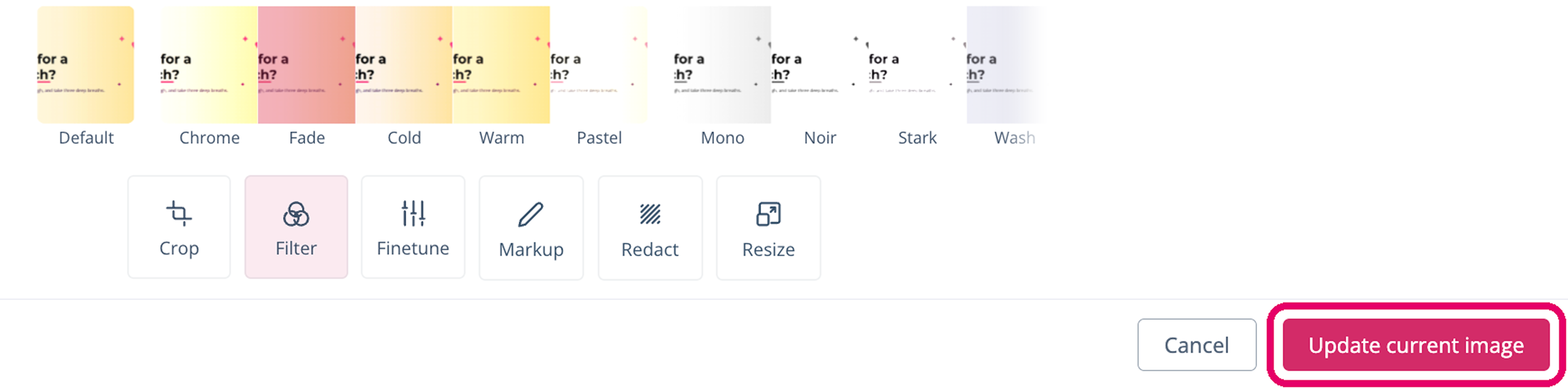
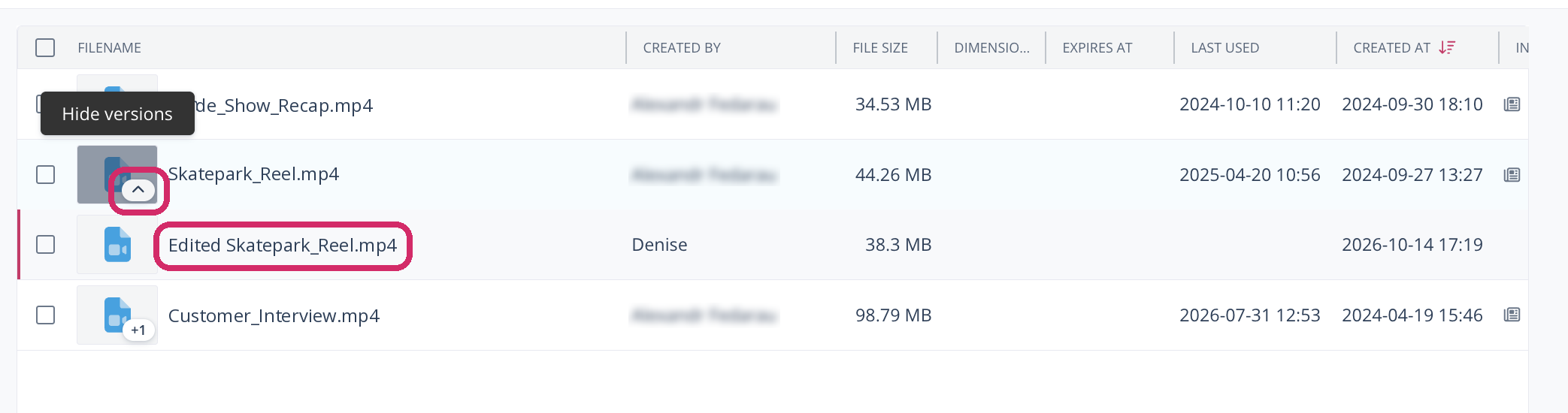
You have edited the image. The original file stays unchanged. The edited image is saved as a new version in File Storage, shown as a number on the thumbnail, for example +1.
Undo Changes
To undo or redo changes, use the arrows at the top of the media editor. To discard all changes, click the reset icon at the top left.

If files in an article don't meet the requirements of the selected network, the Article tab shows the message Some files don't meet the requirements. Hover over the marked ones for details. Click Adjust all to let Scompler adjust all marked files. If a file still has a red adjust icon, fix it in the media editor.
Edit and Trim a Video
- Open the video you want to edit in the media editor.
The Edit video dialog opens. - Select the editing tool you want to use, for example Trim.
- On the timeline, drag the handles at the start or end of the video to select the part you want to keep.
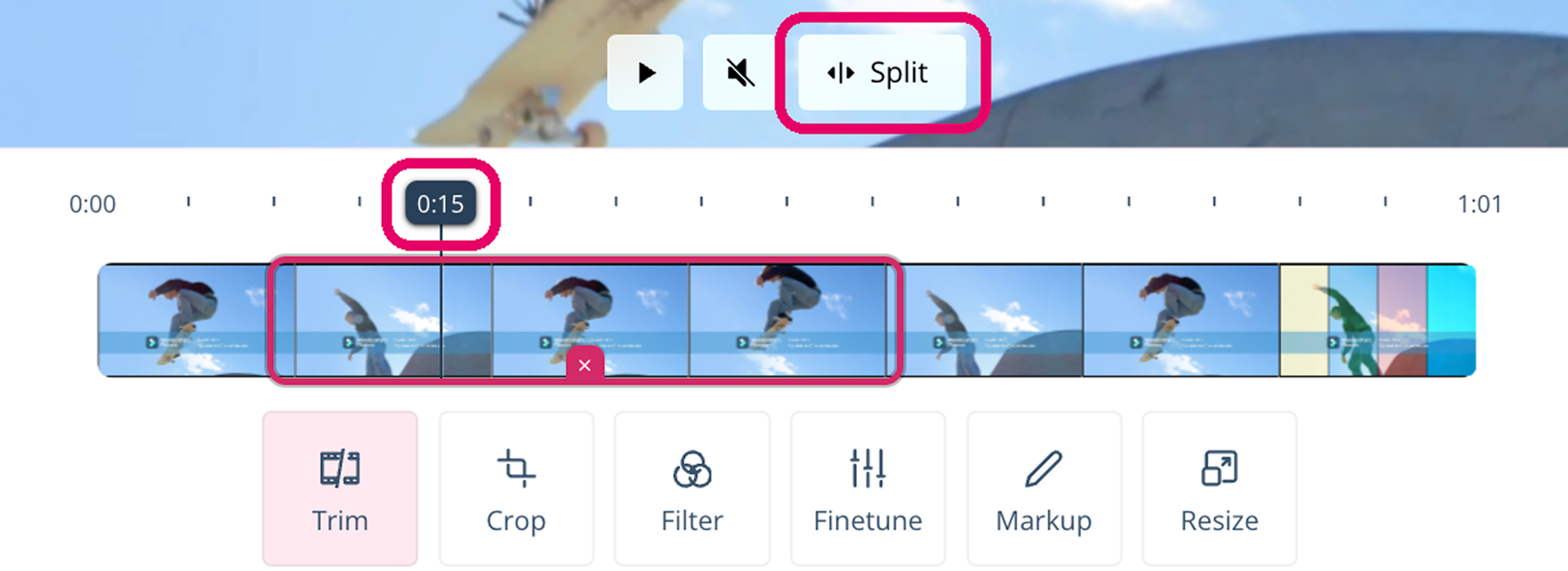
- To cut out a part in between, place the playhead where you want to split the video and click Split. Then drag the handles of the parts so that only the parts you want to keep are selected. To undo a split, place the playhead on the split point and click Merge.
- Use other editing tools, if needed.
- Save your changes:
- In an article: Click Update current video. If the Notice dialog opens, click Proceed.
- In File Storage: Click Save as new version, change the suggested file name if needed, and click the checkmark icon.

You have edited the video. If you split the video, the selected parts are joined and play one after another. The original file stays unchanged, and the edited video is saved as a new version in File Storage, shown as a number on the thumbnail, for example +1.
Activate Automatic Adjustment
Each social network accepts only certain files, for example Instagram only JPEG images up to 8 MB. With automatic adjustment, Scompler converts, compresses, resizes, or crops your images to these requirements when you publish them.
Automatic adjustment currently applies to images only. Support for videos will be available soon.
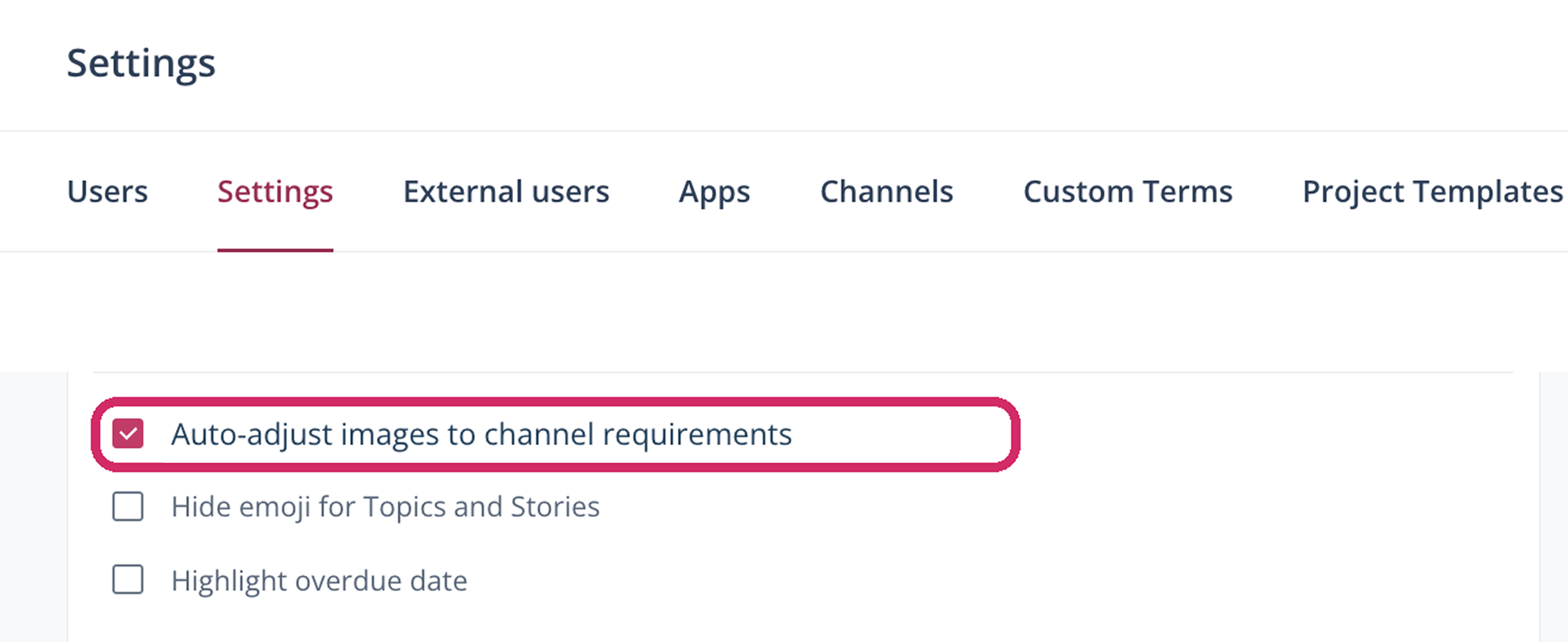
- Navigate to Project Settings > Settings.
- Check the checkbox Auto-adjust images to channel requirements.
- Click Save.
You have activated automatic adjustment.