How do I manage the permissions of the user group?
Manage the permissions of all user groups in your project and determine what the users can do.
When creating new users in Scompler, you should assign the appropriate user group (Administrator, Editor, Read-Only etc.) so that you can manage the permissions of each user group and thus decide which users have access to which sections and elements of your project.
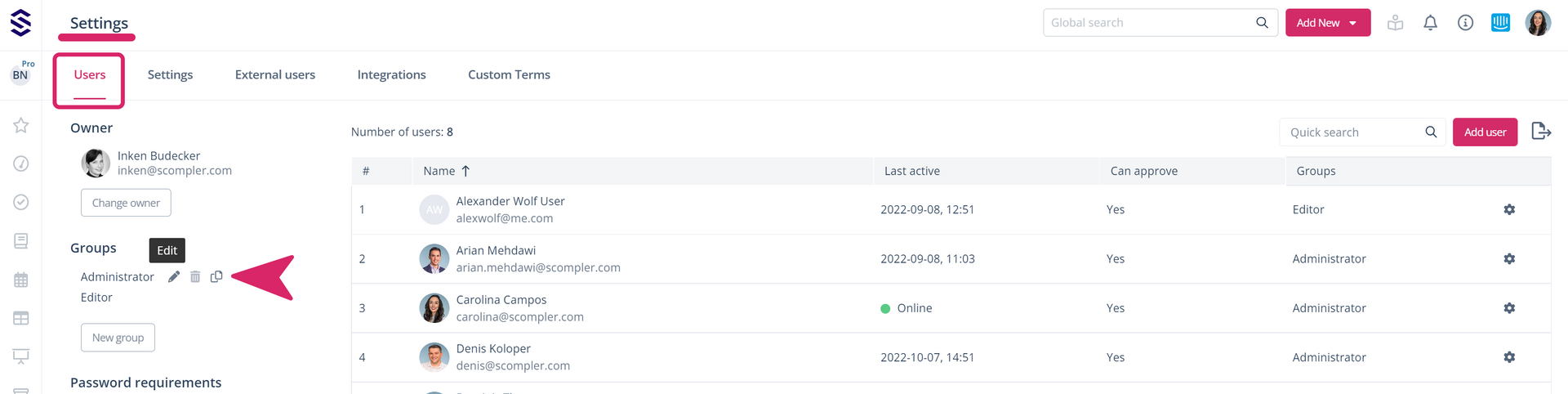
To manage the permissions of the user groups, go to the project settings and open a user group by clicking on the pencil icon
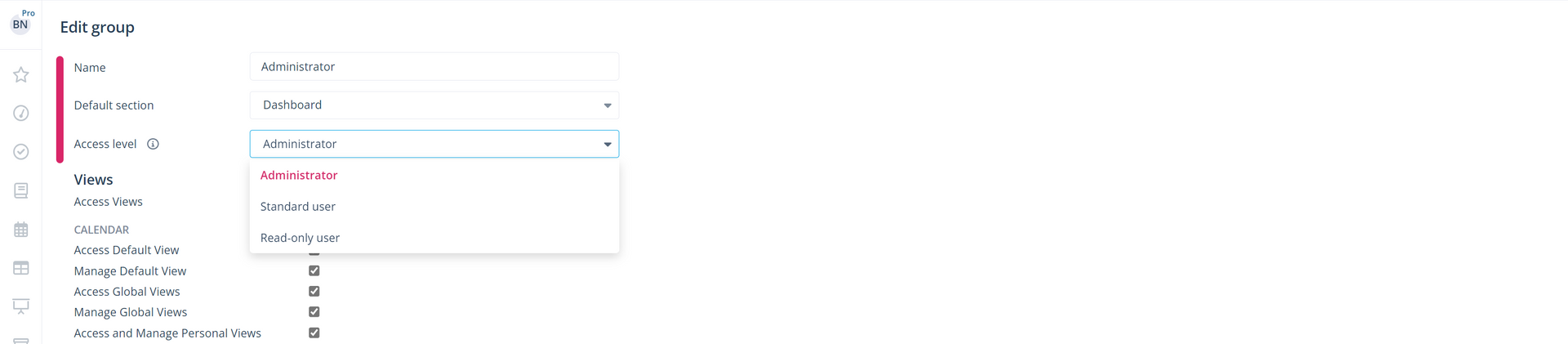
Set the name of the group if it does not already exist
Select the section where the users of the group should start after logging into Scompler
Open the drop-down menu by "Access level" field and select the level the group should have: Administrator, Editor or Read-Only
The permissions in Scompler are divided into sections:
Views: Here you can manage access to the views created in each section.
Content: Refers to the permissions for creating and managing topics, stories and articles.
Delete only own objects: Here you can decide which items the users of the selected group can delete.
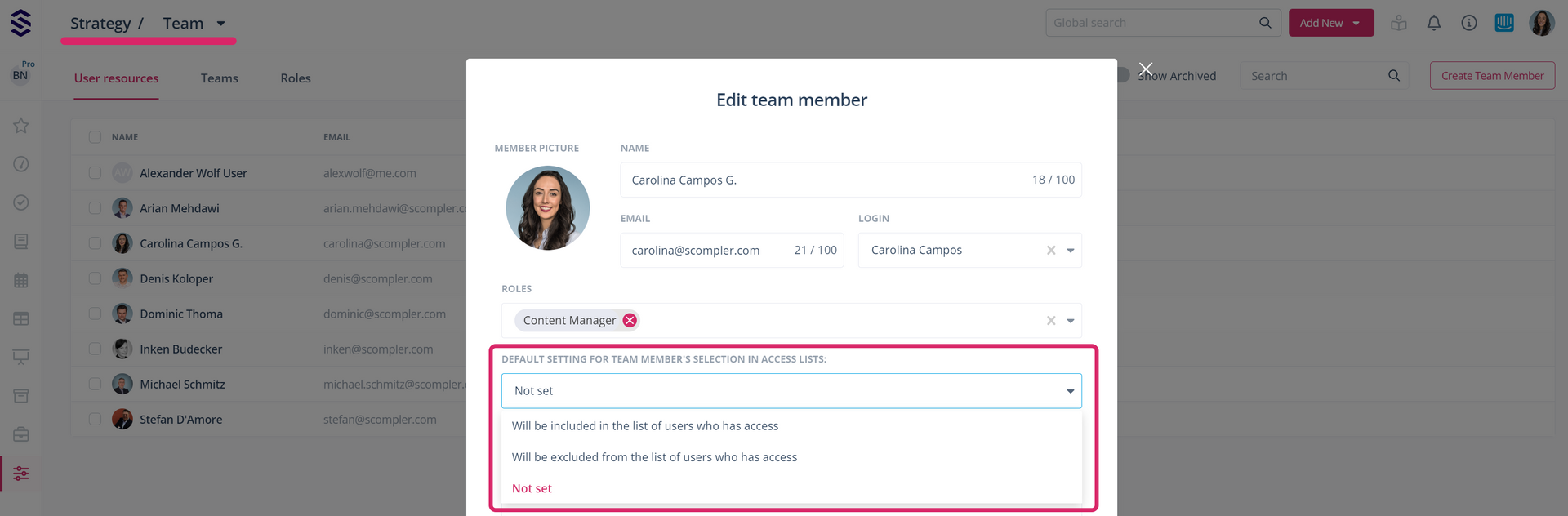
Content Rights Management: Here you hide the default settings for selecting team members with access to the topic, story and article cards in the Strategy - Team section, as well as the “Access” tab in all cards.
Content card: Here you define what is displayed in the article card.
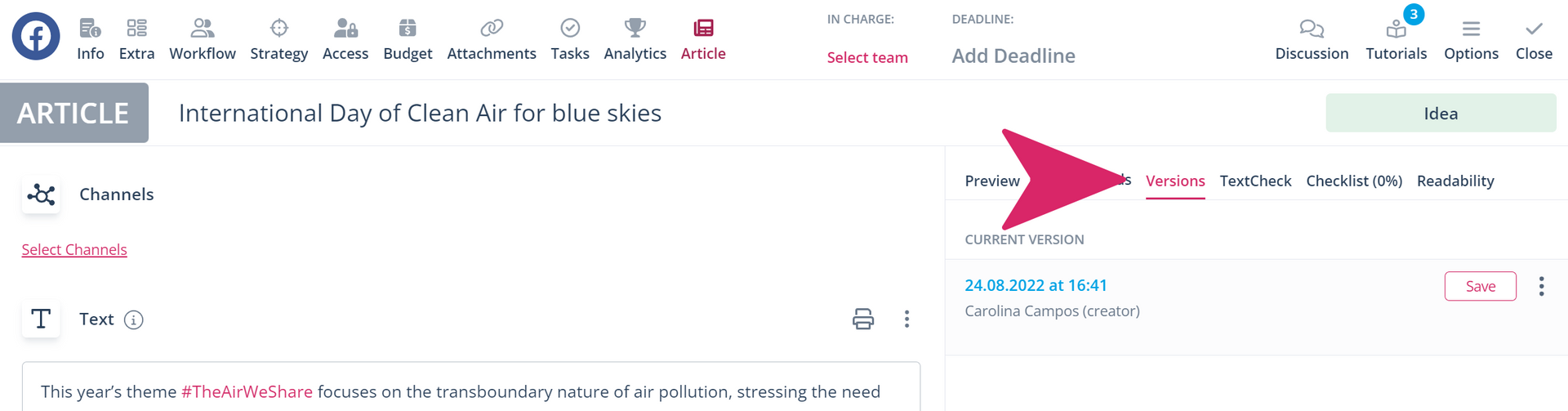
Article versions: This indicates whether versions of an article can be edited. The tab "Versions" is hidden or shown on the article card.
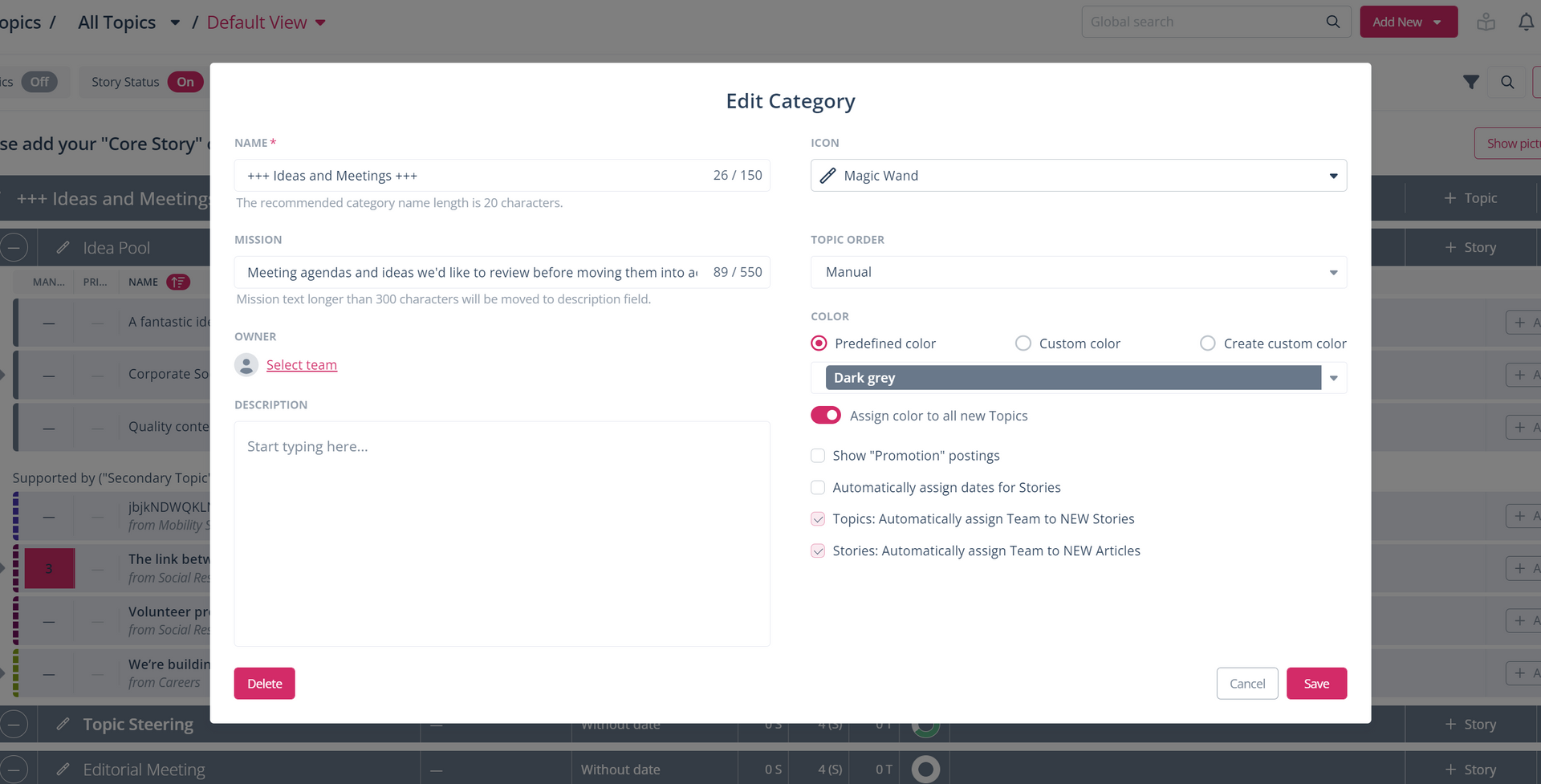
Category Card: This is the settings window of the category panel.
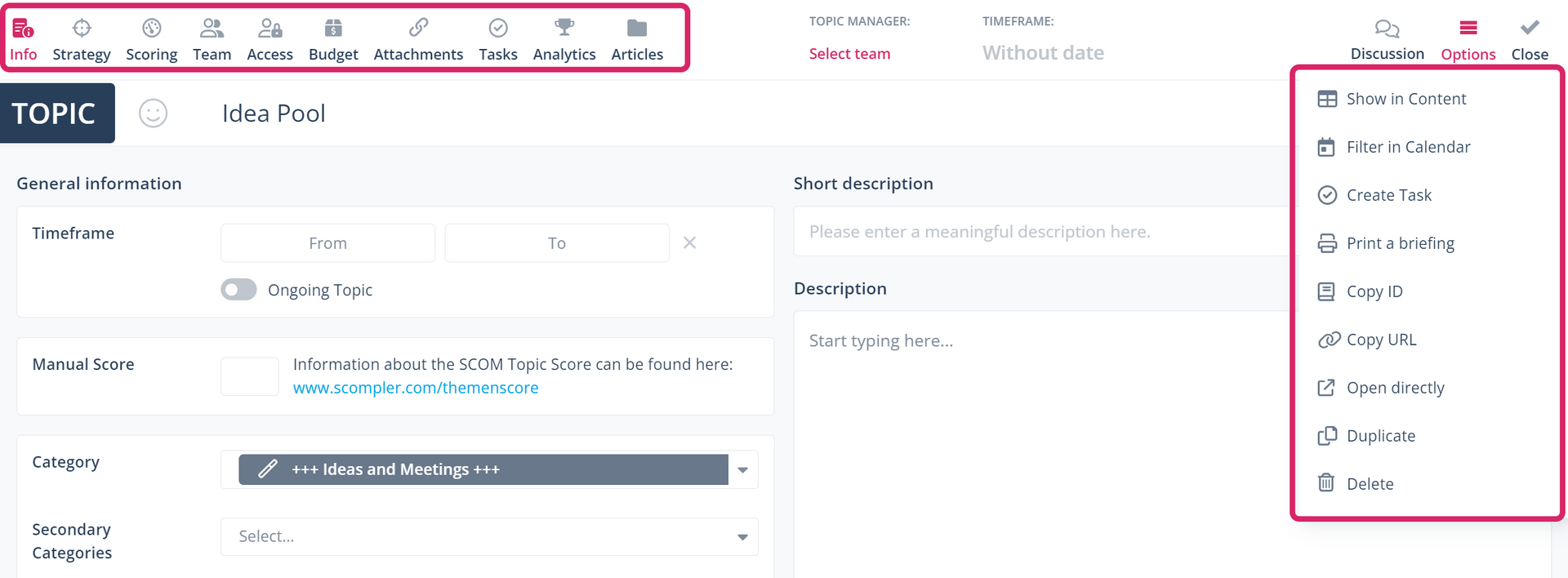
Topic Card: This is where the available functions in the topic card are defined.
Story Card: This category determines what is displayed in the story card.
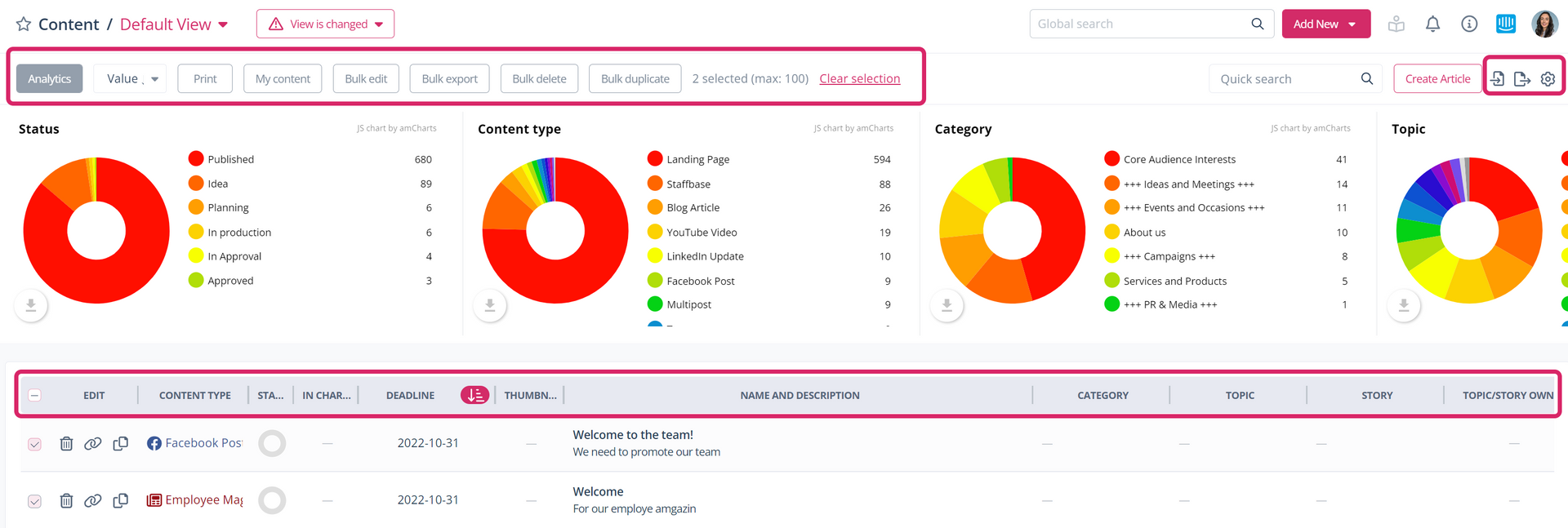
Content: This is where you enable the functions that are available in the content section.
Topics: Here you can decide which functions are displayed in the topic view.
Calendar: Here you can decide which functions are available in the calendar views.
Tasks: Here you enable the functions that are available in the tasks section.
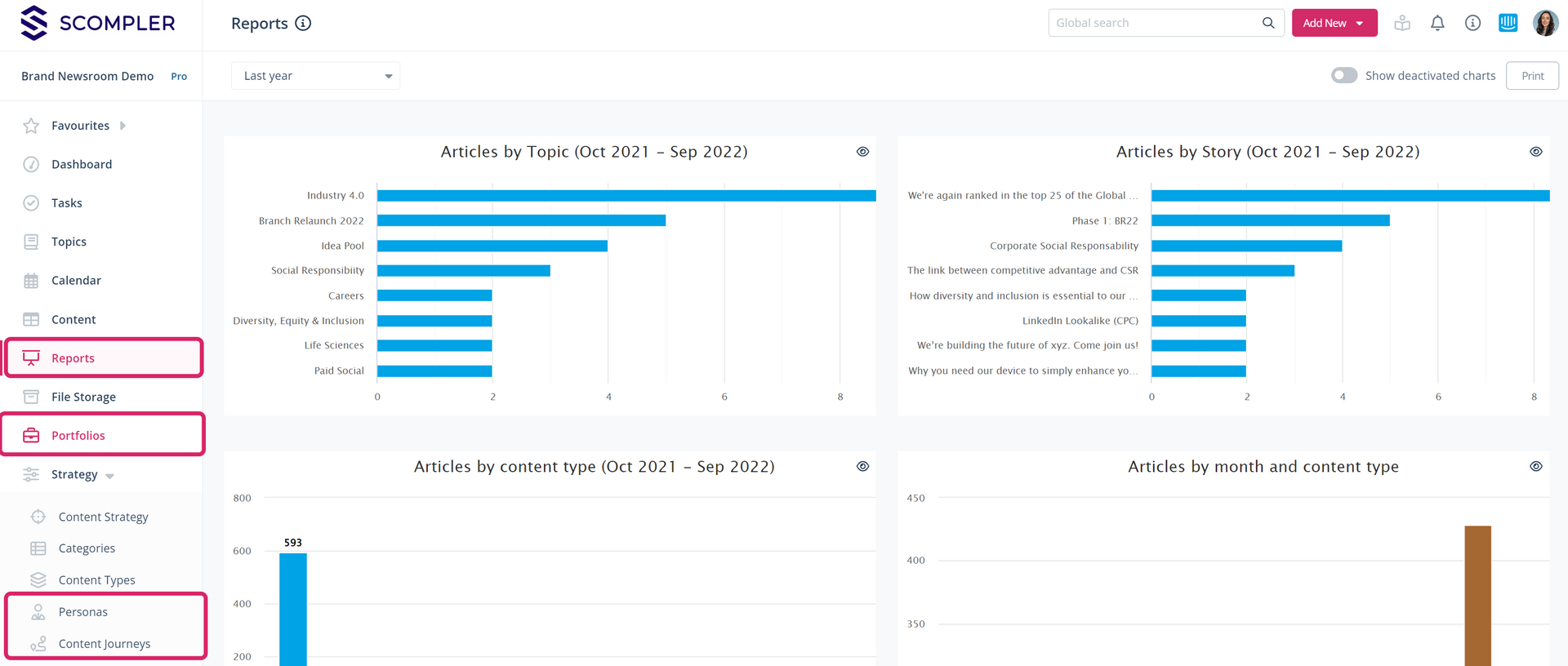
Portfolios: Here you set the permissions for displaying and editing portfolios.
Personas: Here you can assign permissions for creating and editing personas in the strategy section.
Content Journeys: Here you can assign permissions for creating and editing content journeys in the Strategy section.
Reports: Here you determine whether the "Reports" section is displayed in the left navigation menu.
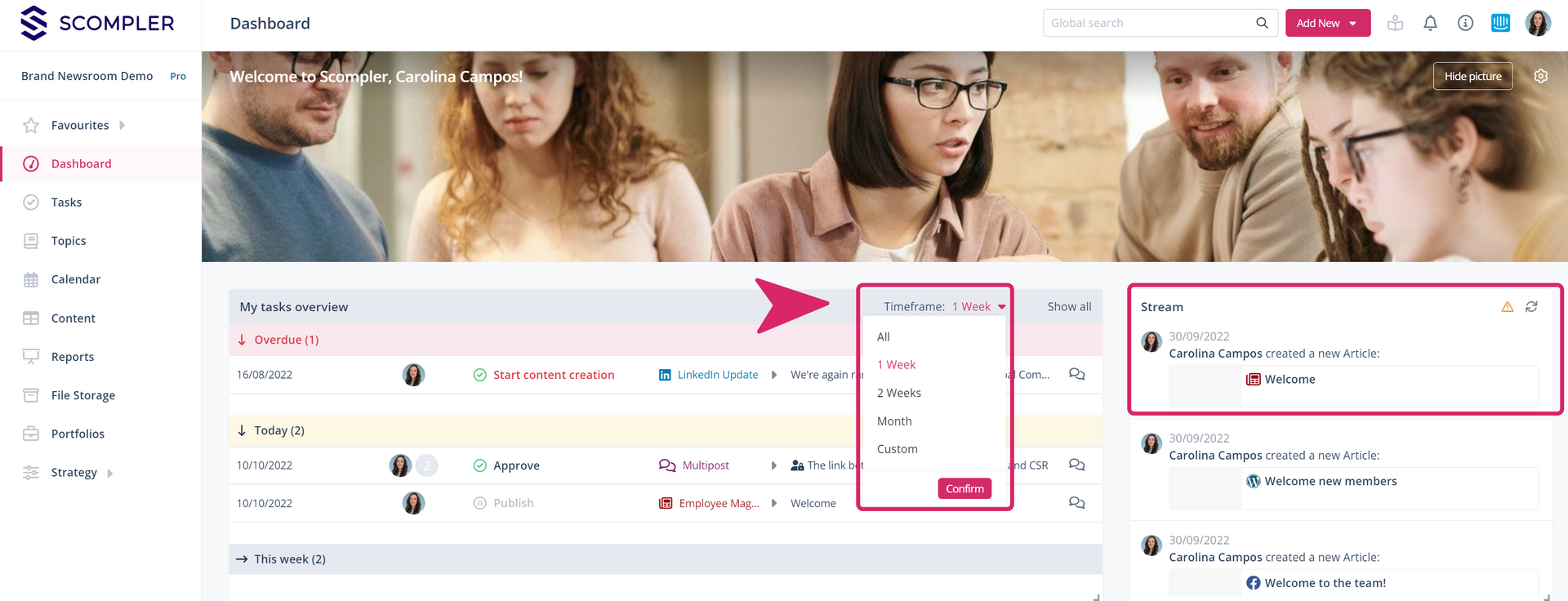
Dashboard: This refers to the functions that are displayed on the dashboard.
File Storage: Here you determine whether the user has access to the file storage and what actions they can perform there.
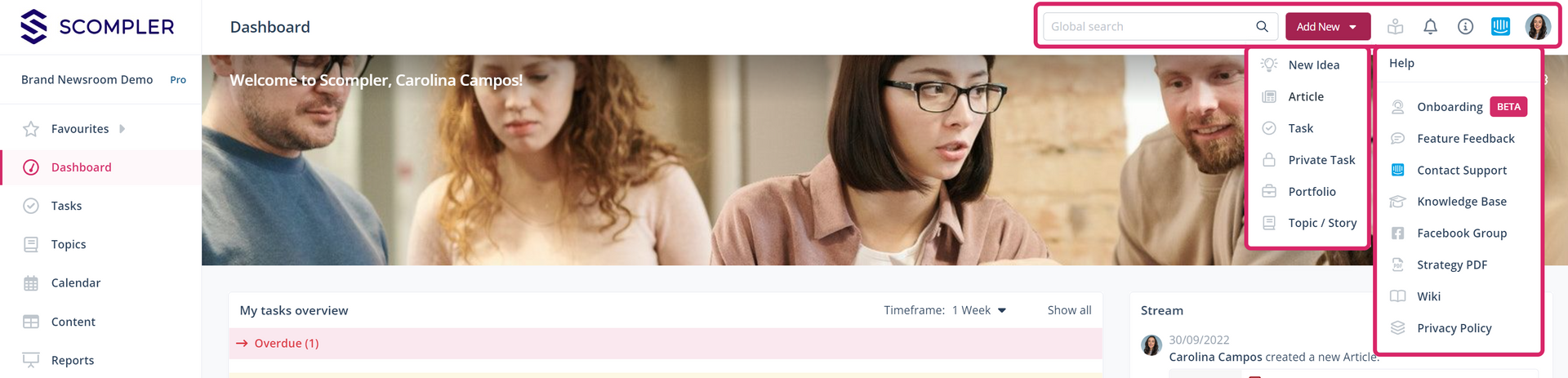
Header: This refers to the available functions in the top navigation bar.
Tutorials: This determines whether the tutorials that Scompler makes available in each project are displayed.
Content Strategy: This refers to the setting of all modules in the Strategy section.
Language: This refers to the functions related to the project language and the corresponding module in the Strategy section.
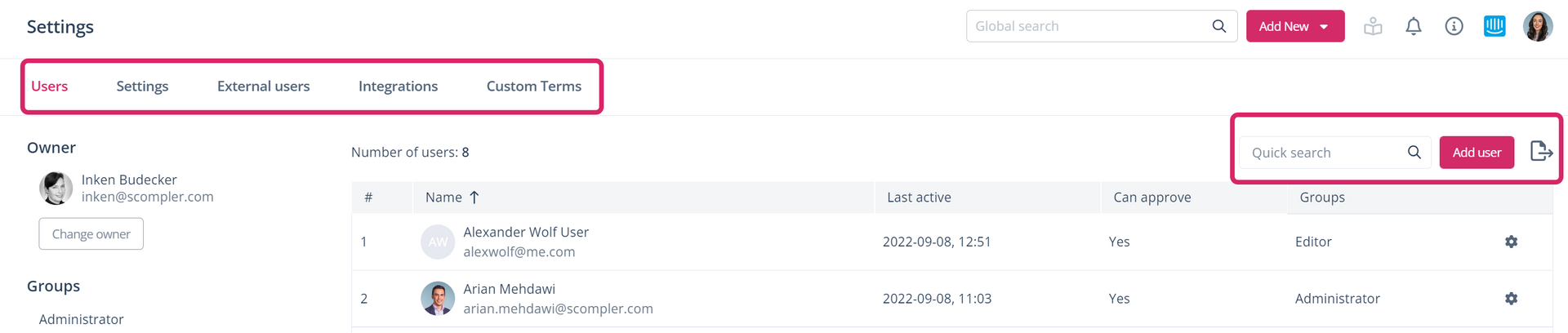
Settings: Here you can assign access to the project settings, user administration, user groups and the tabs "External user", "Integrations" and "Custom Terms".
» Note: To access the user administration and user groups, the permissions "Manage users" and "Access user page" should be activated.
Budget: This refers to the management of the budget in the Strategy section.
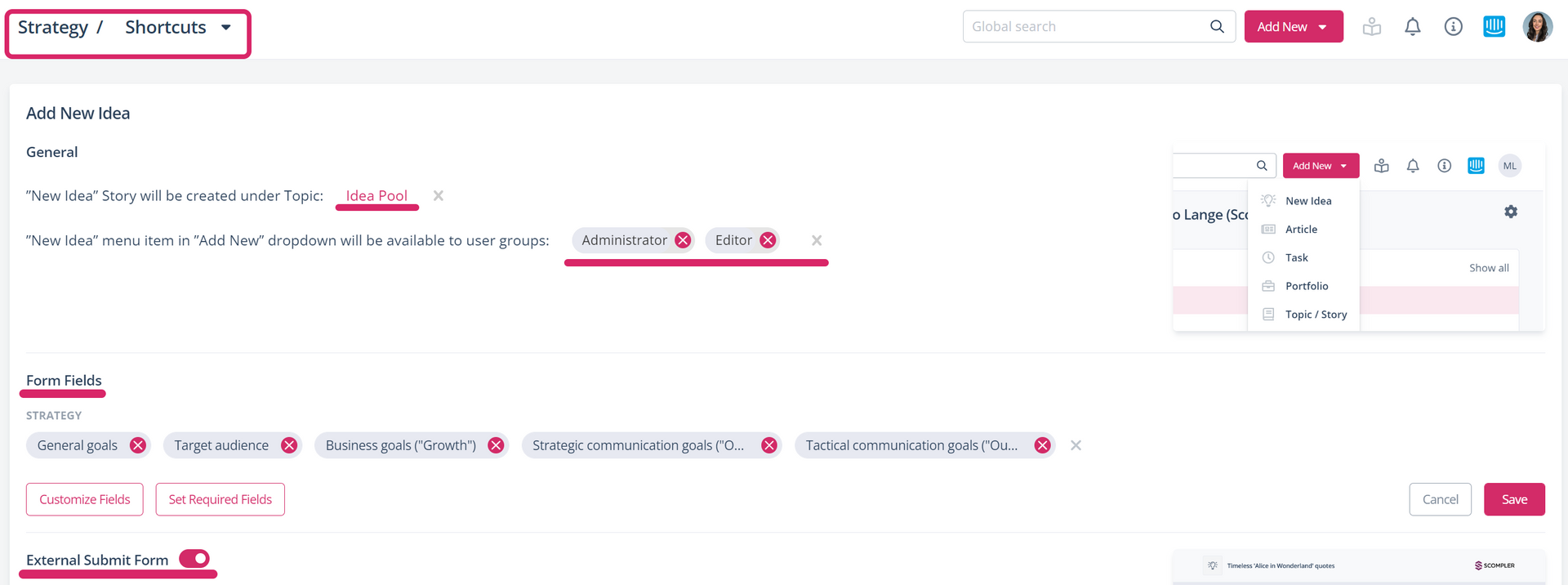
Shortcuts: Here you determine whether the user has permission to access and manage this module in the Strategy section. For example, the authorisation to create the link to the external form for submitting new ideas.
Favourites: Here you manage access to shared views that are marked as favourites.
Third-party integrations: This refers to the integrations that Scompler provides, e.g. DeepL
Topic Scoring: Here you can grant permission to edit the integrated Topic Scoring questionnaire in the Strategy section.
Custom Fields: This refers to the creating and managing of article fields for article cards.
After you have activated the necessary permissions in the group, click on "Save" to apply the changes
![scompler-logo-white@2x.png]](https://kb.scompler.com/hs-fs/hubfs/scompler-logo-white@2x.png?height=40&name=scompler-logo-white@2x.png)