![scompler-logo-white@2x.png]](https://kb.scompler.com/hs-fs/hubfs/scompler-logo-white@2x.png?height=40&name=scompler-logo-white@2x.png)
The status of stories can vary depending on the individual processes of each company. In the Strategy section, under the “Story Status” menu, you can adapt the story statuses of your project to match your internal workflows.
On the “Story Status” page, you can define the names of the statuses, deactivate statuses you do not need, assign a color to each status, and add a description. To edit a status, hover over the desired status and click the pencil icon. Repeat this step to add or change a description.
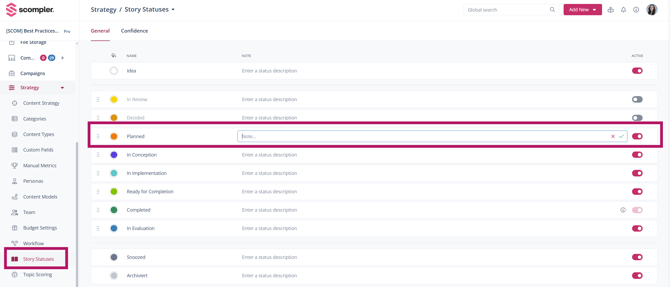
To change the color, click on the predefined color of the respective status and select the desired color.

Activate or deactivate a status using the toggle switch in the “Active” column. The pink color indicates that the status is active.

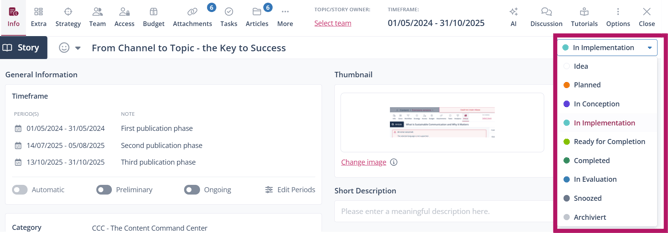
These changes are automatically reflected in the story card.
Note: To deactivate a status that is currently used in existing stories, you must first manually change the status of those stories and then deactivate the status. The Kanban board helps you identify and change the status of stories more quickly.
Display the status of topics and stories more clearly
In the Topics view, you can display the status of topics and stories in the following ways:

-
Chart: Pie charts are displayed, where the color green indicates that the story or topic is in progress. Once the card is completed, the pie chart is replaced by a green checkmark.
-
With text: The status name you defined and its color are displayed.
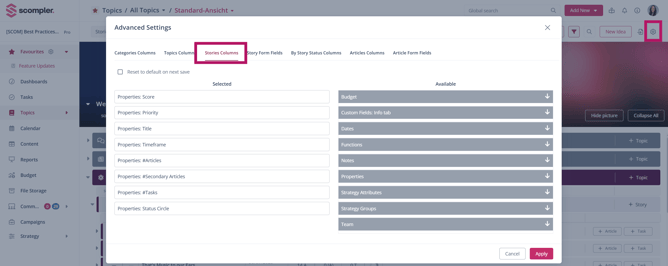
To customize your views, click the configuration wheel, select the tabs “Topic Columns” and “Story Columns,” and open the “Properties” category. All available options that you can add will be displayed. Select “Status Text” or “Status” and drag it to the desired position in the left column. Click “Apply” to save your changes.