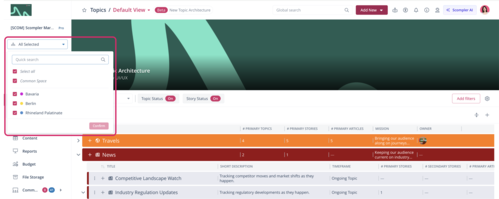
Setting up divisions takes just a few steps: grant permissions, create divisions, add users, and assign objects. After that, each user can choose which divisions they see.
Divisions are a view filter, not an access restriction. Assigning someone to a division doesn’t grant or remove any permissions, and users without the division permission see all content. For confidential content, use the regular access rights.
Prerequisite:
- You have administrator rights
Step 1: Enable Divisions
Enable the Divisions feature in the project settings.
- Navigate to Project Settings > Settings.
- Under Divisions, enable Turn Divisions feature on.
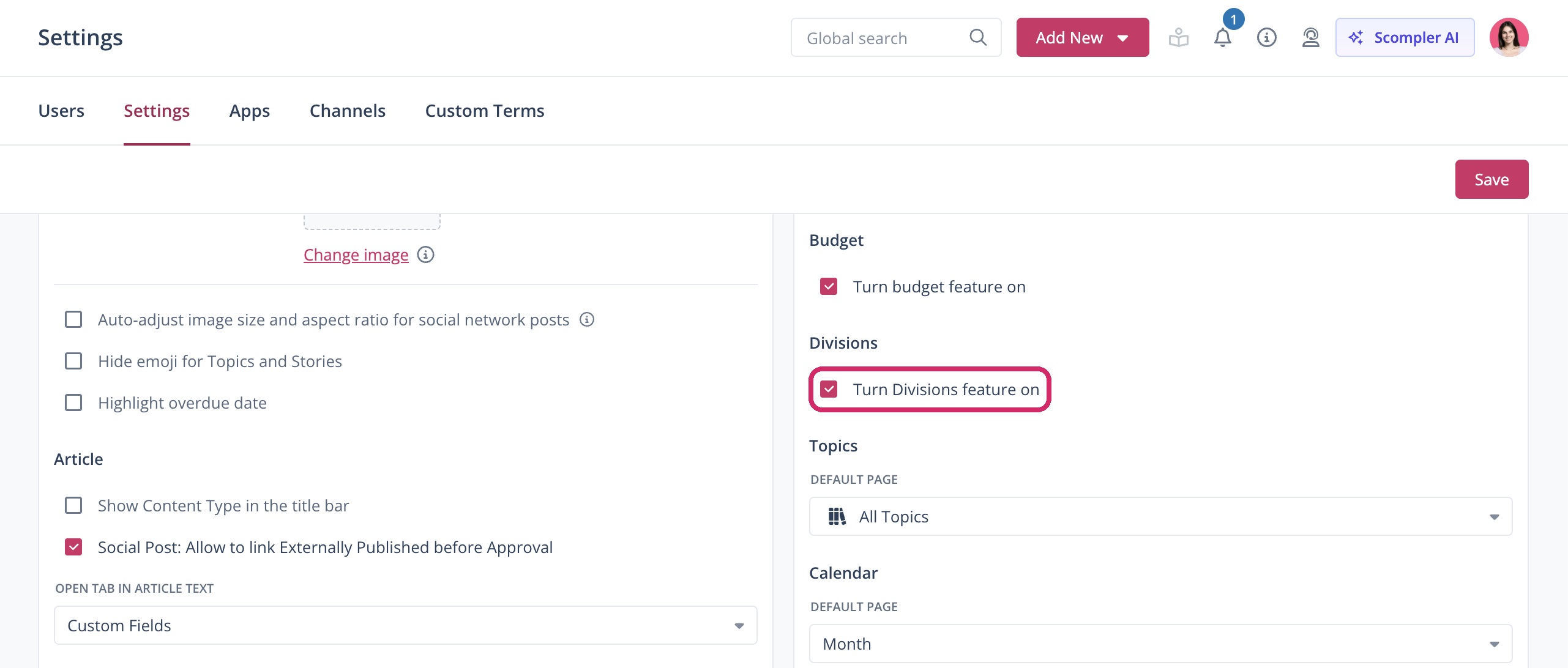
- Click Save.
You have enabled divisions for your project. You can now set them up for your users.
Step 2: Grant Permissions
For each user group, grant the permissions required to use the Divisions feature.
- Navigate to Project Settings > Users > the user group that needs the Divisions feature.
- Under Divisions, enable Access Divisions.
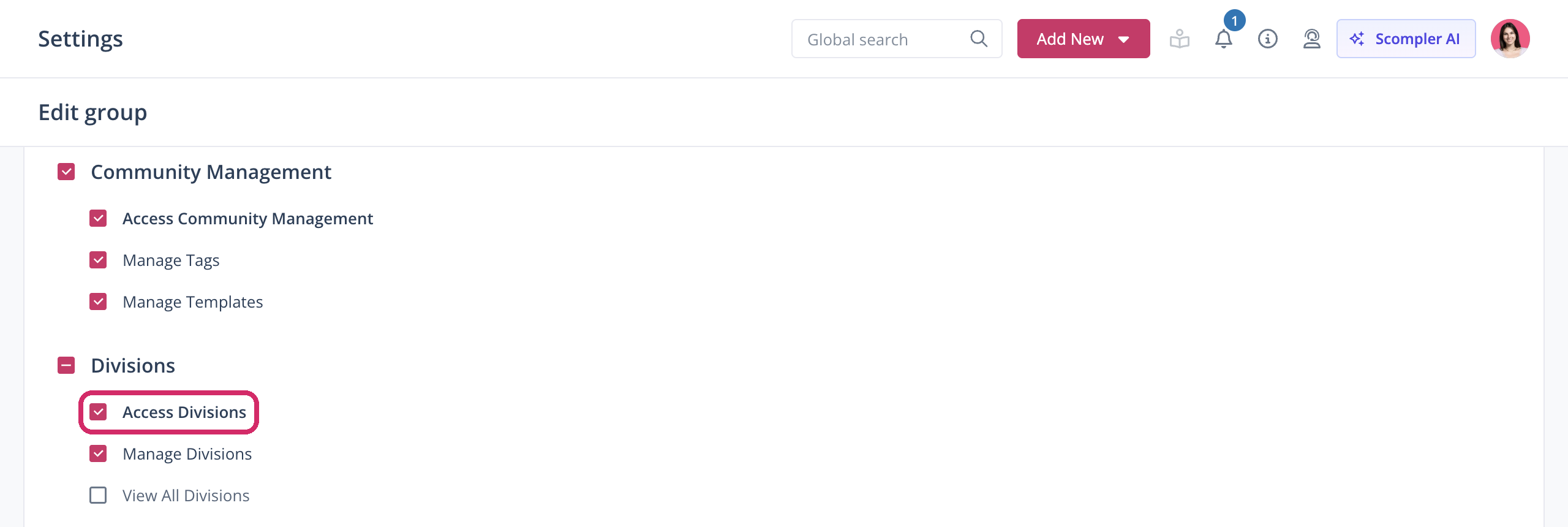
- Optionally, enable the following options:
- Manage Divisions for groups with management rights
- View All Divisions for groups that should see all divisions in the selector
- Click Save.
You have given the group access to divisions and any other permissions it needs. Repeat these steps for every group that needs the feature.
Step 3: Adapt the Term (Optional)
If “division” doesn’t fit your organization, you can rename it.
- Navigate to Project Settings > Custom Terms.
- Under Term, click the Select Terms dropdown menu.
- Select the term Division.
- Enter the term you want under Singular and Plural.
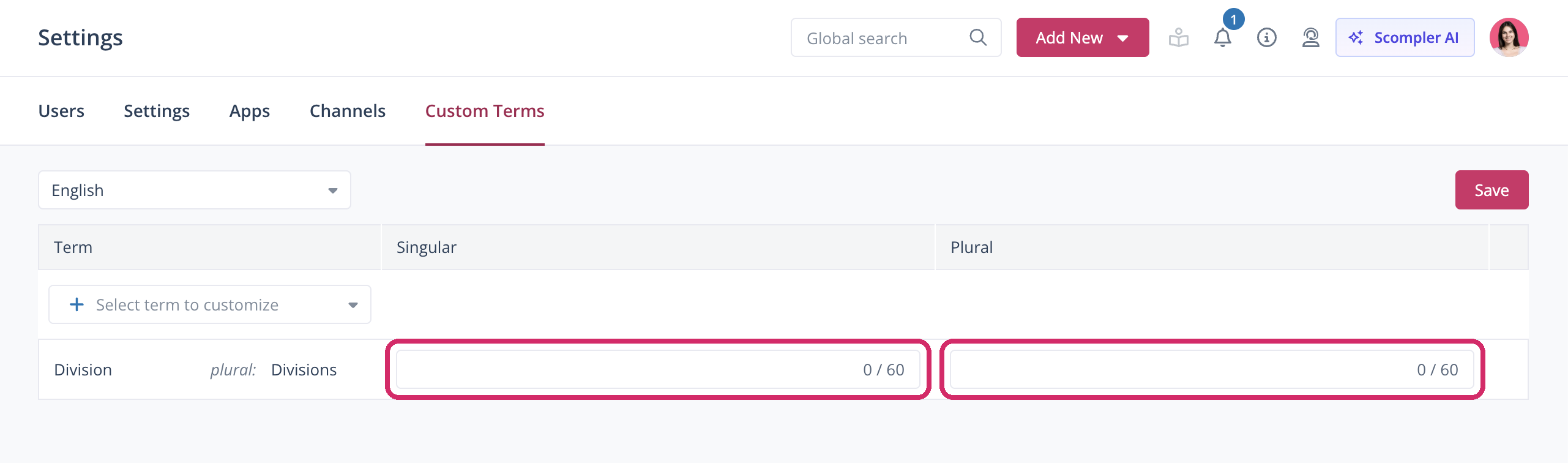
- Click Save.
- Optionally, select another language in the language selector and adapt the term for that language too.
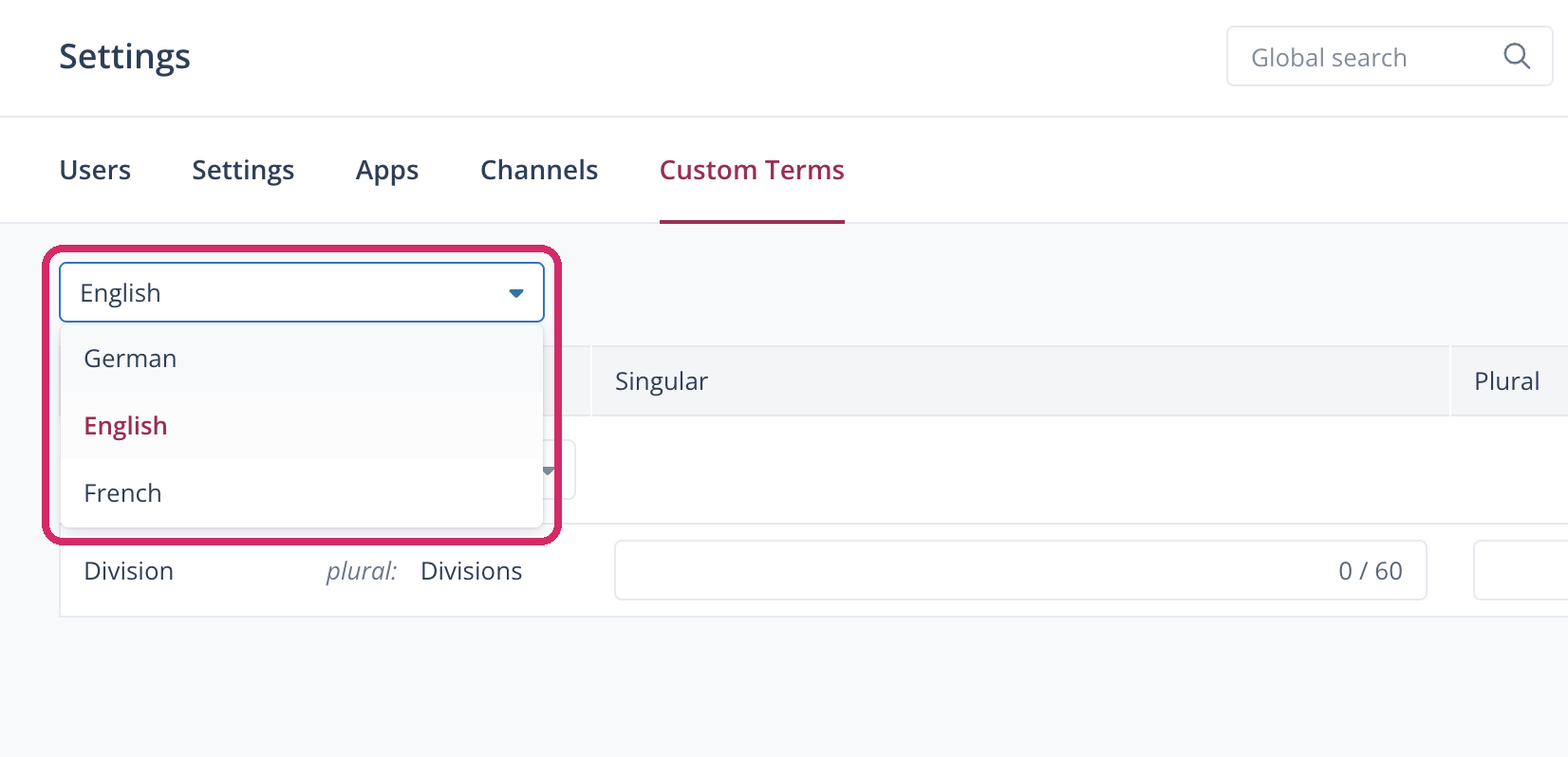
The table shows a new row for the term.
You have adapted the term. Scompler now uses it in all labels, including the selector, the permissions, and any language versions you adapted.
Step 4: Create Divisions
- Navigate to Strategy > Team > Divisions.
- Click Create new Division.
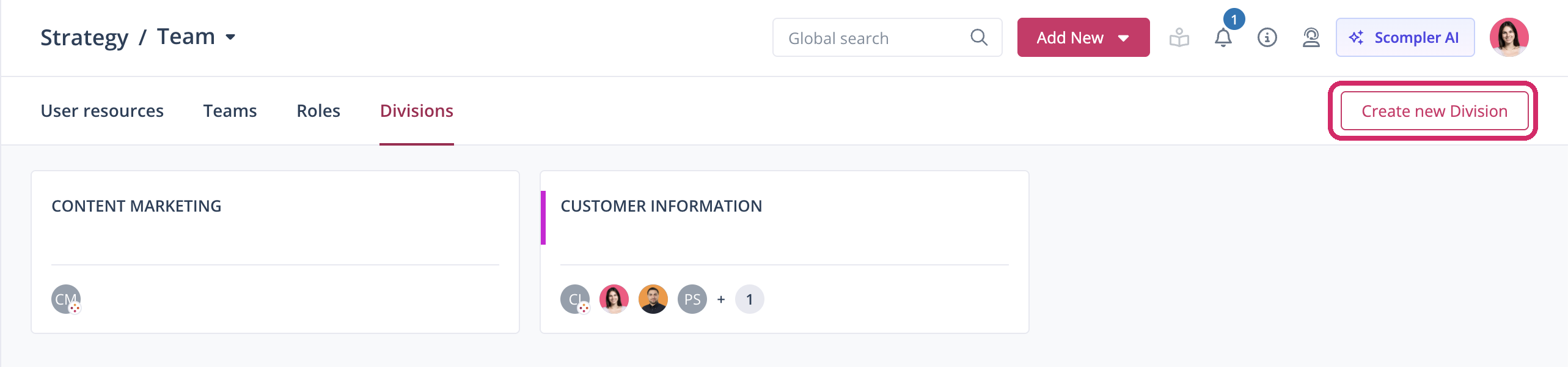
The dialog for creating a division opens. - Enter a name for the division.
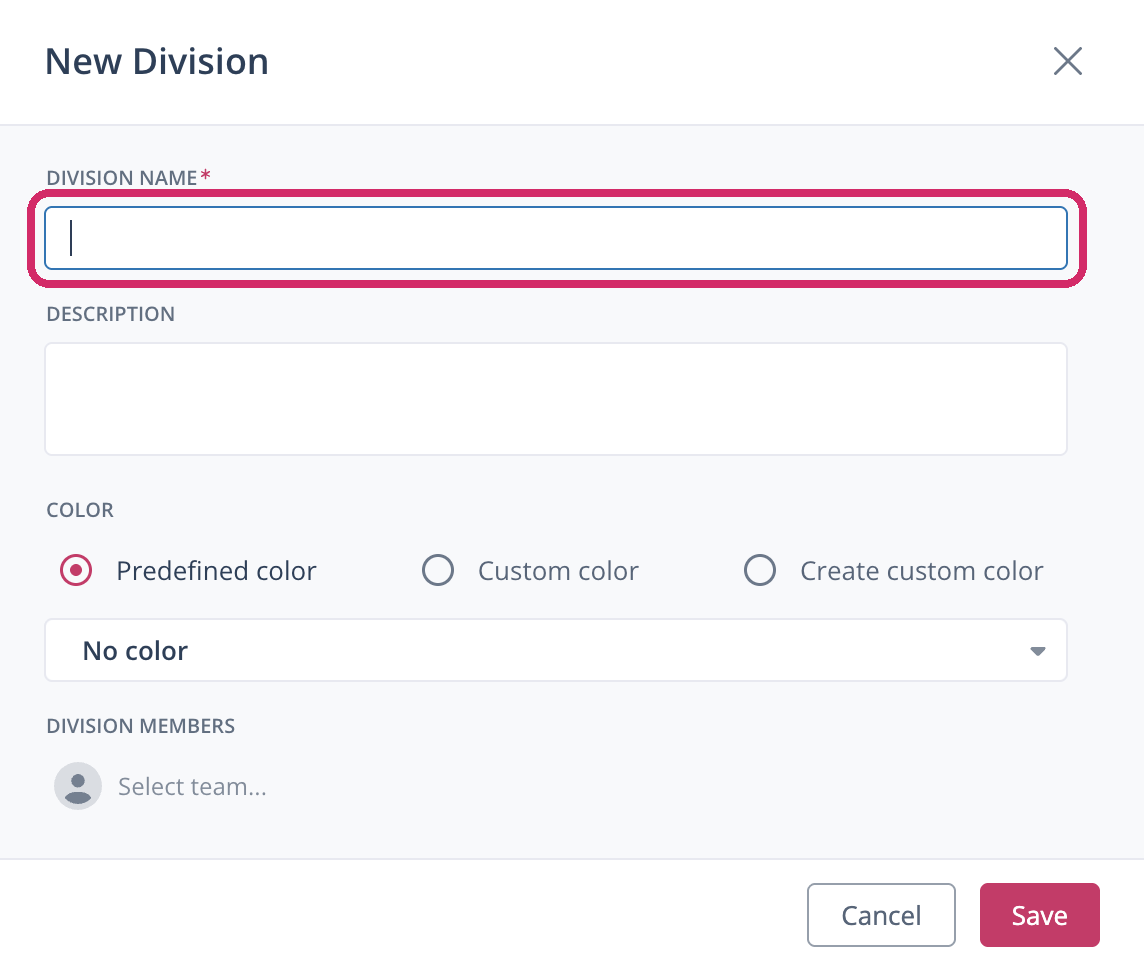
- Optionally, enter a description and select a color.
- Optionally, add teams or individual users as members right away.
- Click Save.
Repeat these steps for every division you want to create.
You have created a division. You can edit it at any time to add more users or entire teams. All members of an assigned team automatically belong to the division.
A user can belong to several divisions.
Step 5: Assign Categories and Content Types
- Open the category or content type you want to assign to a division.
- In the Divisions dropdown menu, select the divisions you want.
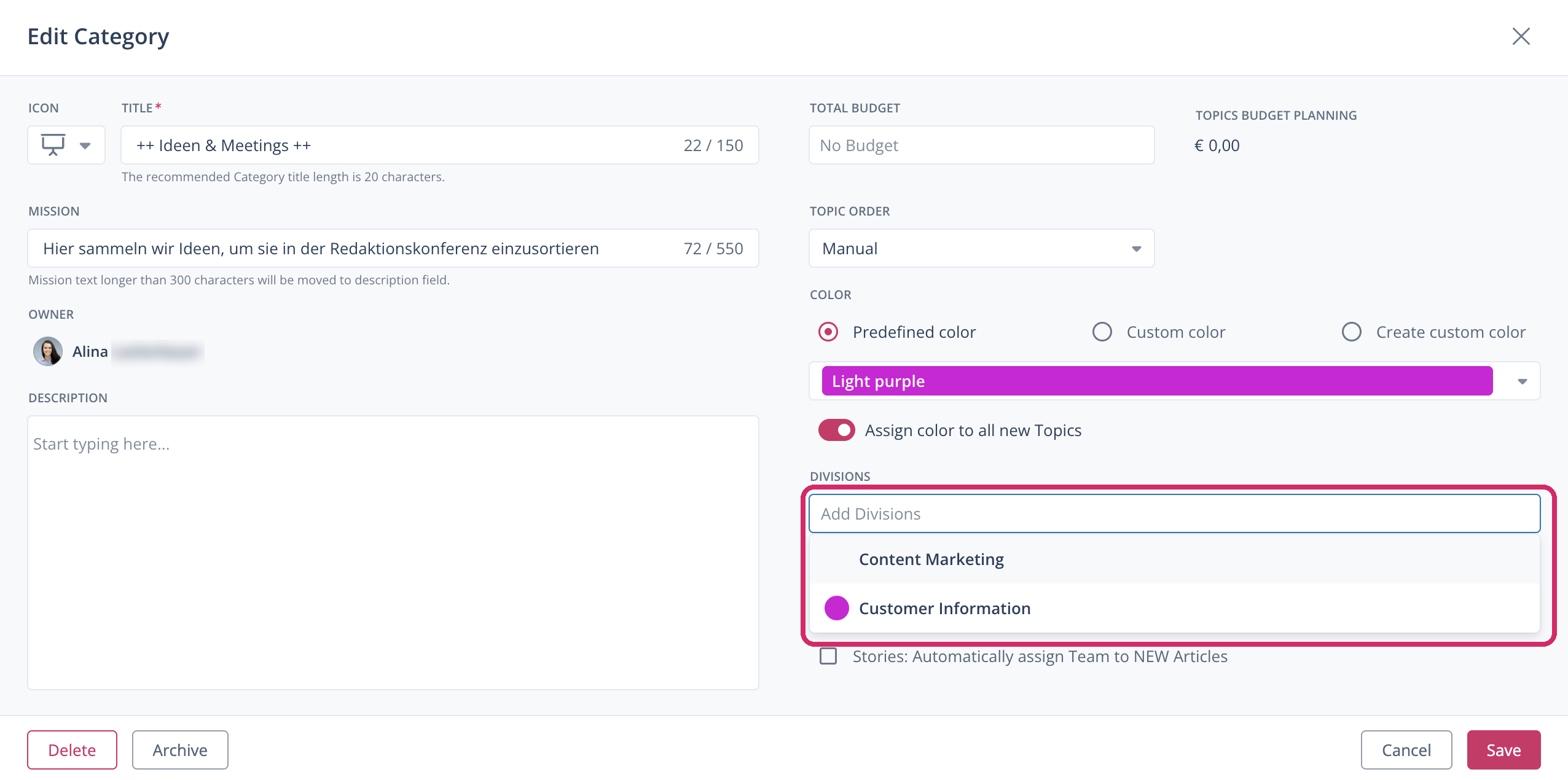
- Click Save.
You have assigned the category or content type to the selected divisions. Objects without a division belong to the shared space.
Step 6: Check the Setup
Log in as a test user who only has the Access Divisions permission. Check that the division selector appears below the project name and shows the user’s own divisions and the shared space, and that the lists of users, teams, content types, and categories only show these divisions.