This article describes the previous version of the Topic Architecture. The new Topic Architecture is available as a beta and can be activated at any time: it is faster, more organized, and brings all previous 4 levels together in one view. Learn more about the new Topic Architecture.
Ensure that the Fbulk editing feature is available to all needed user groups. You can find the respective permissions under Project Settings > Users > Groups > Topics > Column: Bulk Edit Stories.
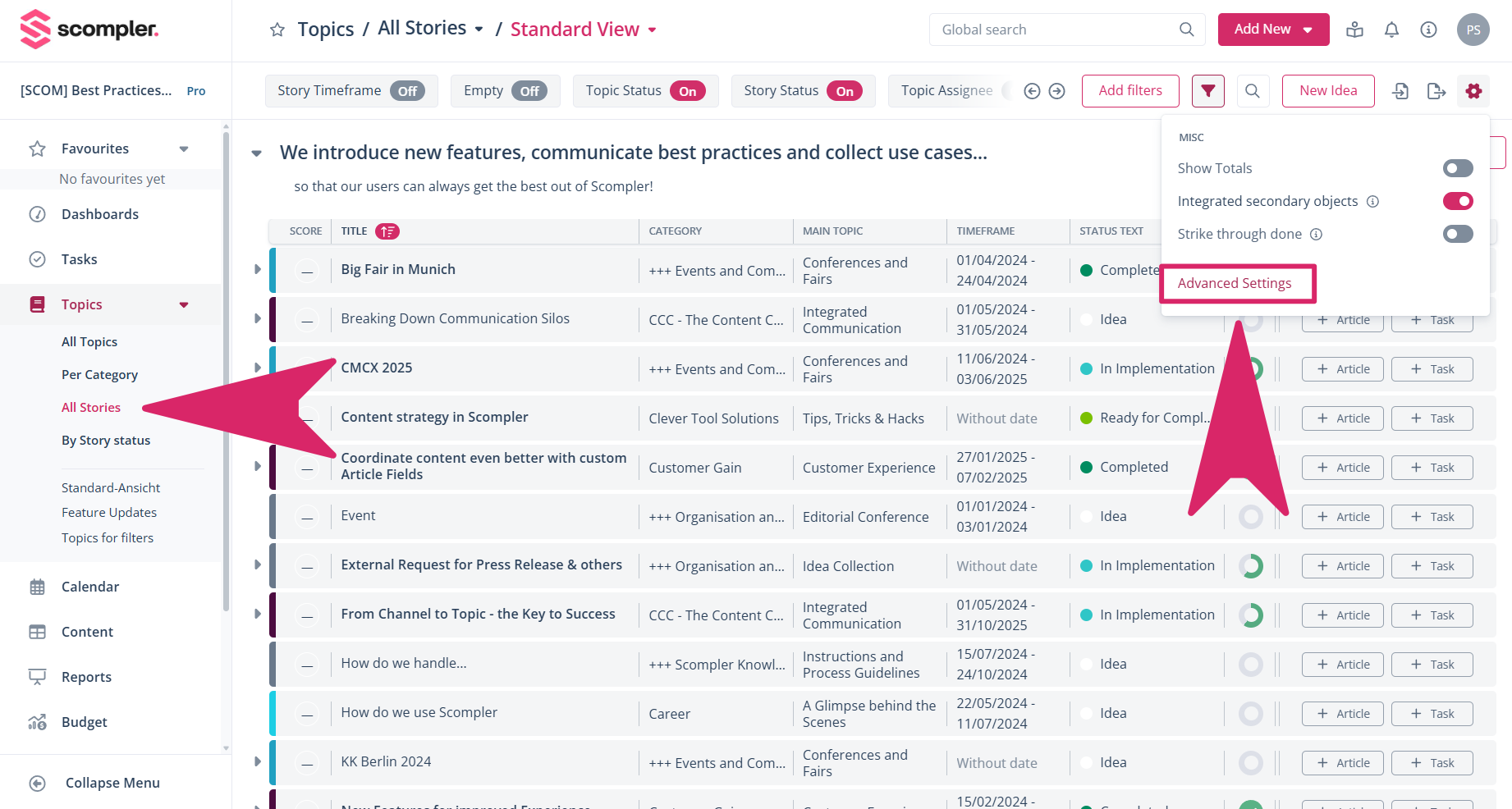
Now switch to the topic view and then to “All Stories.” Click on the small gear icon in the upper right corner and then on “Advanced Settings” in the menu that appears.
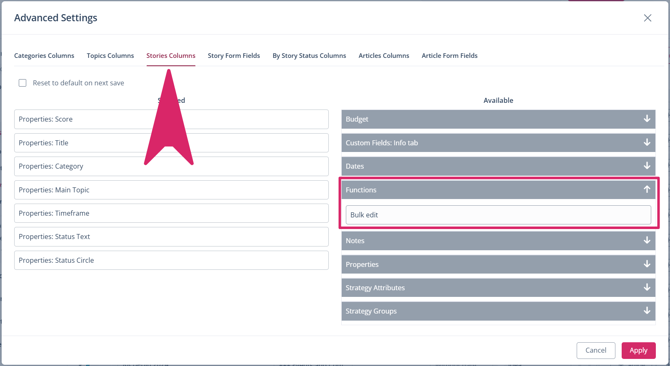
In the pop-up window that appears, click on the “Stories Columns” tab. There you will find the “Bulk edit” entry under “Functions” on the right. Drag it to the desired location on the left-hand side.
Note: Although the position of the bulk editing checkboxes can be freely selected, it makes sense to place them at the top of the list so that, as with most user interfaces, they are located on the left-hand side of the respective stories.
Now you can select multiple stories using the bulk editing checkboxes and either delete or edit them.
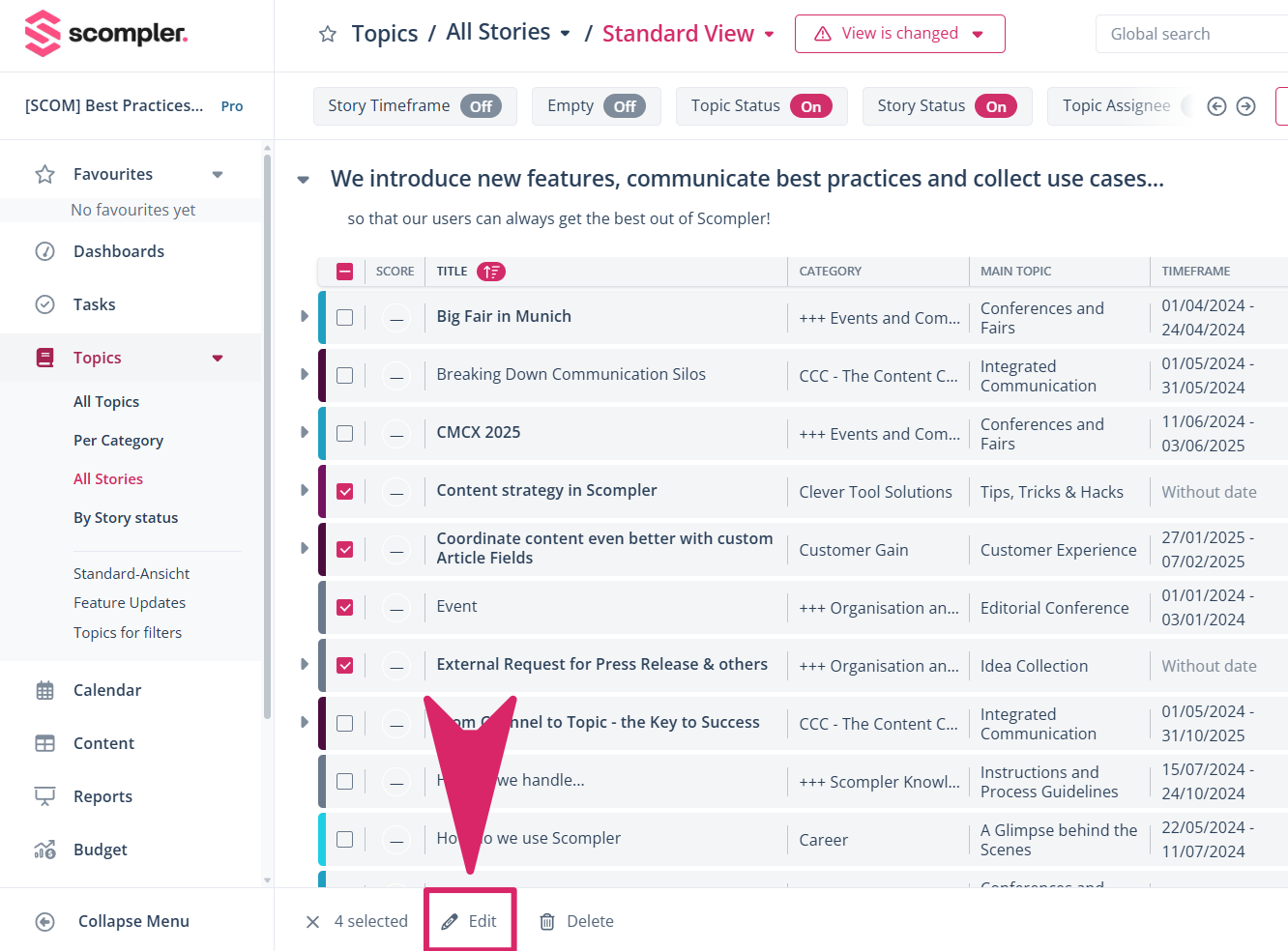
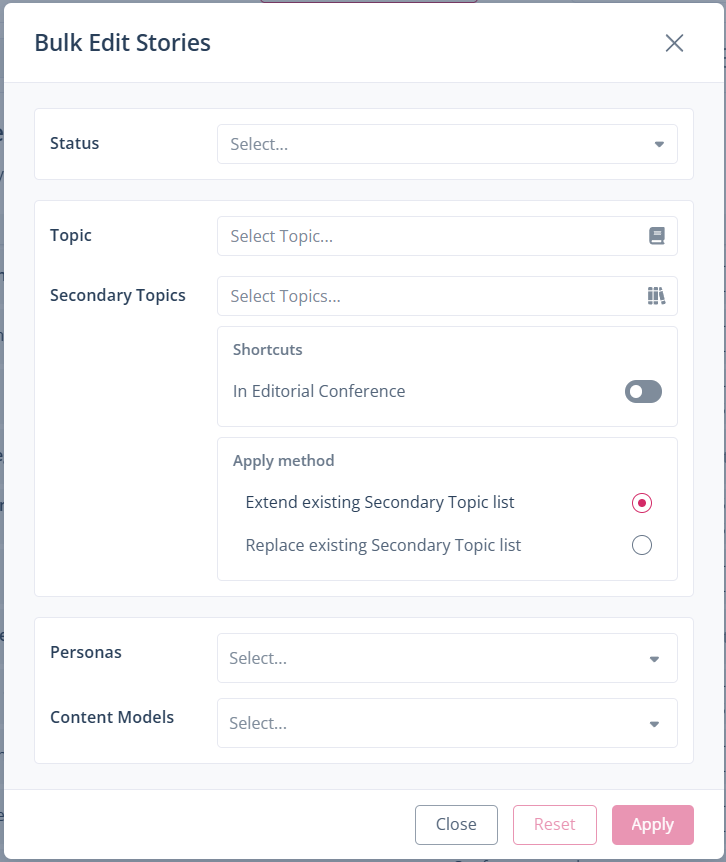
Once you have clicked the edit button, another pop-up appears where you can select the status, topic, secondary topics, shortcuts, personas, and content models for the stories, as well as whether existing secondary topics should be expanded or overwritten.
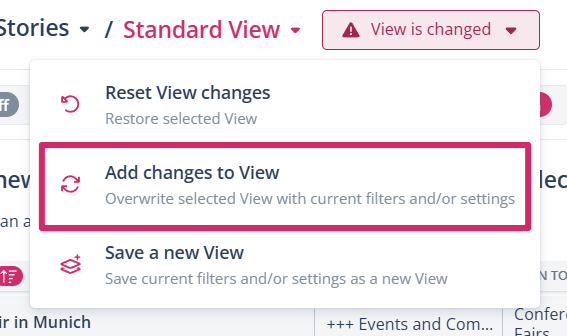
Note: Don't forget to save the view, which has now been expanded to include the bulk editing function, otherwise you will have to repeat the process next time.