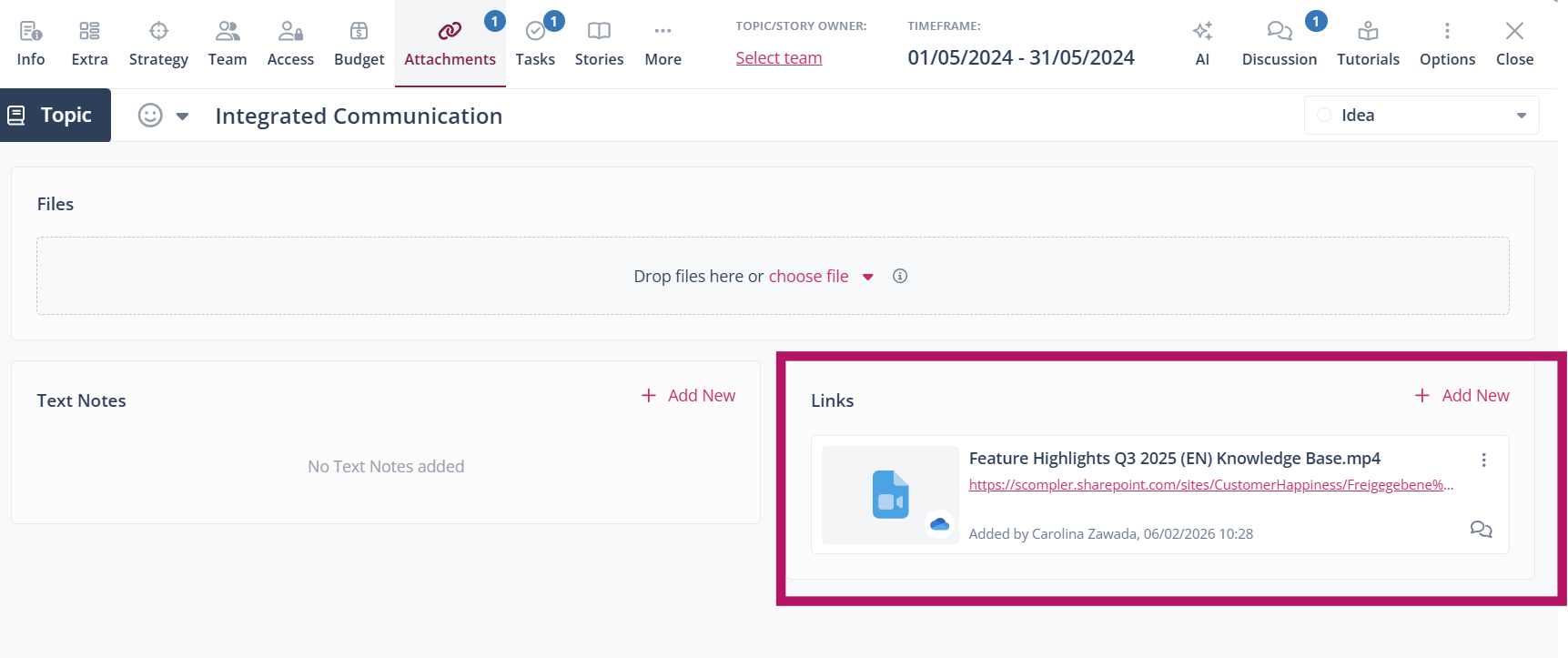
With the Google Drive and OneDrive integrations, you can embed files from your existing file storage systems directly into Scompler without having to re-upload or duplicate them. This allows you to use your files in Scompler while storage, access rights, and maintenance remain within your primary systems.
Ensure that the options Tab: Attachments and Attachments: Links are enabled in the individual sections for topic, story, and post pop-ups in the group settings for all desired user groups.
Adding Files From SharePoint, OneDrive, and Google Drive
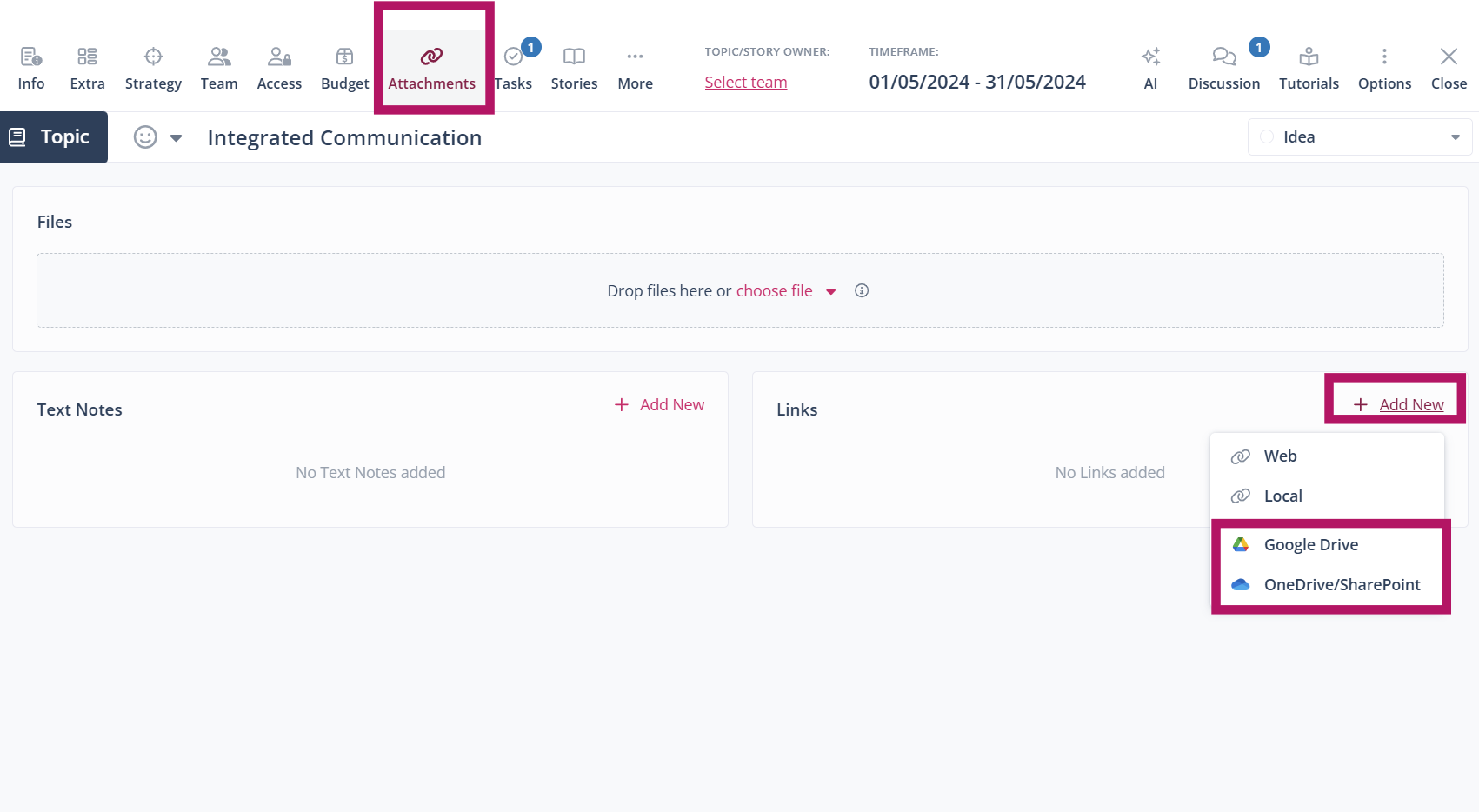
- Open the Topic, Story, or Article card to which you want to add a SharePoint, Google Drive or OneDrive file.
- Navigate to the Attachments tab.
- Under Links, click Add New.
- From the dropdown menu, select Google Drive or OneDrive/SharePoint.
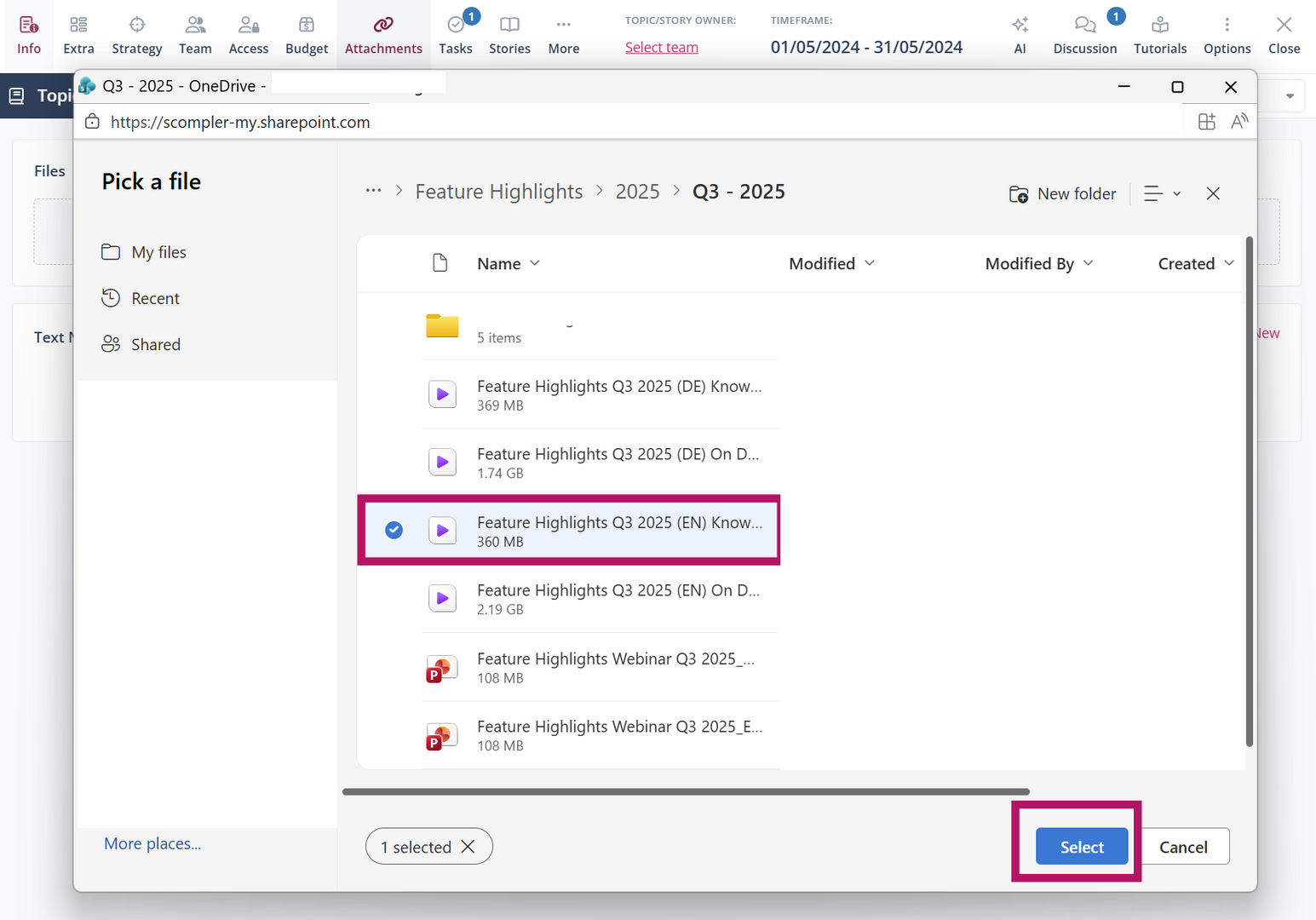
The respective browser opens. - Select the file you want to add and click Select.
You have linked a file. The file is added under Links but remains in its original storage location.
If you are not yet logged in to Google Drive or OneDrive/SharePoint, you have to sign in after step 4. Once signed in, you can access all folders and files available to you, in accordance with your permissions.
Linked SharePoint, OneDrive, and Google Drive files are displayed with a file type icon and a source reference. It is not possible to preview the file in Scompler. Access to the file itself continues to be handled through the respective platform and its permission system.
Unified Link Management in the Attachments Tab
External files from SharePoint, OneDrive, and Google Drive are treated as links in Scompler. These links are centrally displayed alongside web links and local references in the Attachments tab under Links. Thus, all external references for a Topic, Story, or Article are available in one place, regardless of their source. Learn more about local and web links.