
Use the detailed settings in the content type edit mode to customize them to your needs.
The settings described in this article are available exclusively in the edit mode of content types. After creating a new content type, be sure to switch to the edit mode to configure the settings described below.
The settings in the edit mode of content types include:
When creating new content types, only the General, Custom Fields, and Manual Performance tabs are initially available.
General
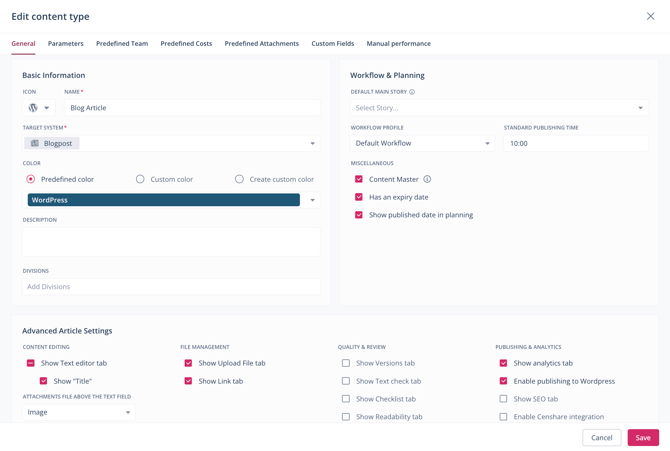
The General tab contains all the basic information about the content type and is available to you as soon as you create content types. The options displayed in the Advanced Article Settings section automatically adapt to the selected target system.
You can adjust all existing settings in this tab and confirm them by clicking Save > Proceed.
Parameters
In the Parameters tab, you can select which strategic parameters should be displayed by default or automatically preselected in the article card.
If you haven’t set up any content attributes yet, refer to this article.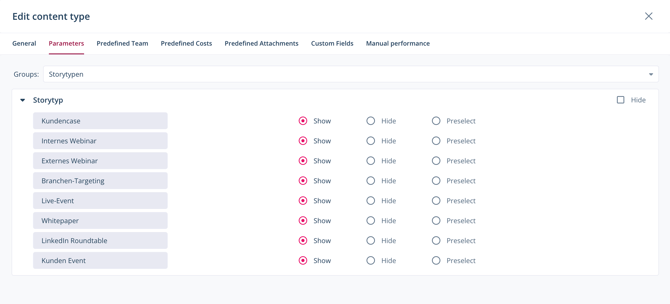
Add Parameters to a Content Type
-
Navigate to Strategy > Content Types.
-
Select the desired content type and switch to the Parameters tab.
-
In the Group dropdown menu, select the group to which the desired parameter is assigned.
-
Click the arrow icon next to the corresponding parameter to expand the associated attributes.
-
For each attribute, select whether it should be shown, hidden, or preselected in the content type.
-
Repeat steps 1–3 for all attributes you want to add to the content type.
-
Click Save.
You have added the selected parameters to the content type. You can now find them in the article card under the Strategy tab. To activate a parameter, click its title. Active parameters are highlighted by color. To deactivate a parameter, click its title again.

Predefined Team
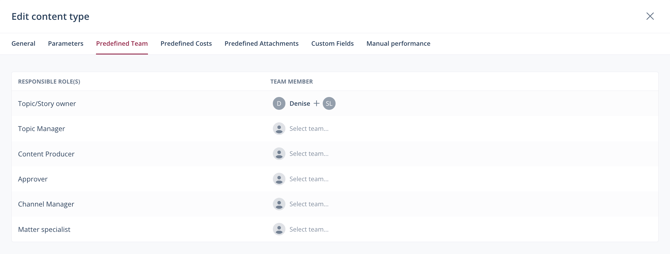
In the Predefined Team tab, you can assign roles to team members or teams for your content types. The selected team members or teams are automatically designated as the responsible users for the respective roles in the workflow whenever an article of this content type is created.
If you haven’t set up any teams yet, go to this article. To learn more about roles, read this article.
Add Predefined Team Members or Teams to a Content Type
- Navigate to Strategy > Content Types.
- Select the desired content type and switch to the Predefined Team tab.
- In the Team Member dropdown menu, select the users or teams you want to assign a role to.
- Repeat step 3 for all roles you want to assign in the context of the content type.
- Click Save.
You have assigned predefined users or teams to the content type for the workflow. Responsibilities are automatically assigned and can be viewed in the article card under the Workflow tab.

Predefined Costs
In the Predefined Costs tab, you can enter known standard costs to ensure accurate budget planning. The costs you enter will appear in the Budget tab of every article created for this content type, as well as in the budget overview.
Learn more about budgets and how to enable and configure this feature.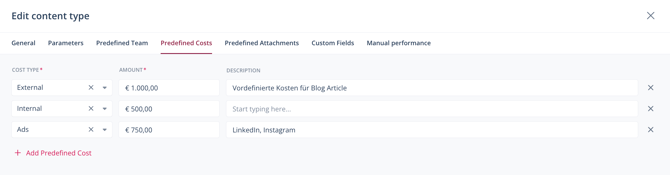
Add Predefined Costs to a Content Type
- Navigate to Strategy > Content Types.
- Select the desired content type and switch to the Predefined Costs tab.
- In the Cost Type dropdown menu, select the respective cost type.
- Under Amount, enter the costs.
- Optionally, under Description, enter a description of the cost factor.
- Repeat steps 3 - 5 for all cost factors you want to define.
- Click Save.
You have defined predefined costs for this content type. These will appear in the Budget tab of every article created for this content type, as well as in the budget overview.

Predefined Attachments
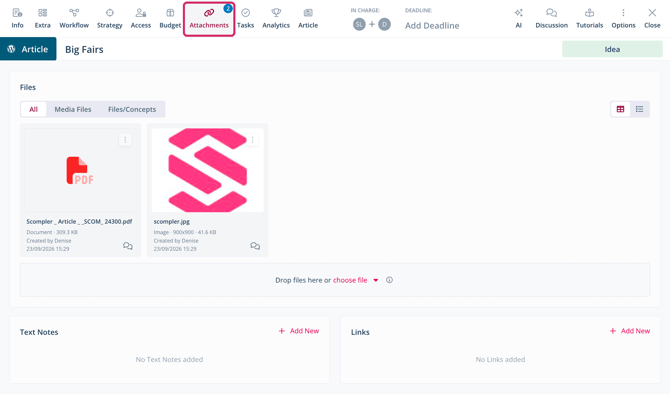
In the Predefined Attachments tab, you can store files that you regularly need for a specific content type. These might include, for example, a style guide with guidelines for that content type or media files that are used regularly. The stored files are automatically linked as shared links in the Attachments tab of all articles of that content type. This applies to manually created articles as well as articles created from ideas, via the mobile app or the public API, via Excel import, or by merging multiple articles.
Imported posts of this content type do not include files in the Attachments tab.
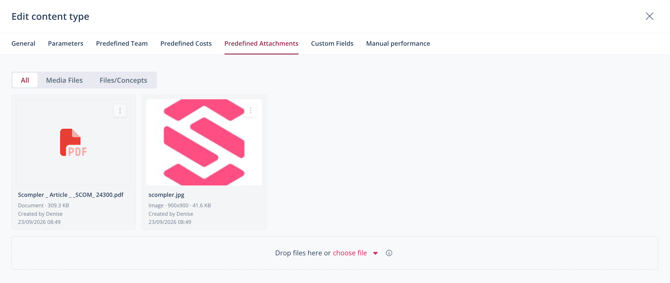
Add Predefined Attachments to a Content Type
- Navigate to Strategy > Content Types.
- Select the desired content type and switch to the Predefined Attachments tab.
- In the Choose File dropdown menu, select the medium you want to choose files from: your computer, File Storage, Canto, Google Drive or One Drive/Sharepoint.
- Select the files you want to attach to the content type.
- Click Select (for File Storage) or the respective button.
- Click Save.
You have saved predefined attachments for this content type. These will appear as shared links in the Attachments tab of every article created for this content type.
Custom Fields
In the Custom Fields tab, you can add custom fields to the article card for your respective content type. These can be added to the Info, Extra, or Article tabs as desired. Custom fields added to the Article tab are displayed in the Custom Fields subtab, to the right of the text field.
Learn more about the creation and configuration of custom fields.
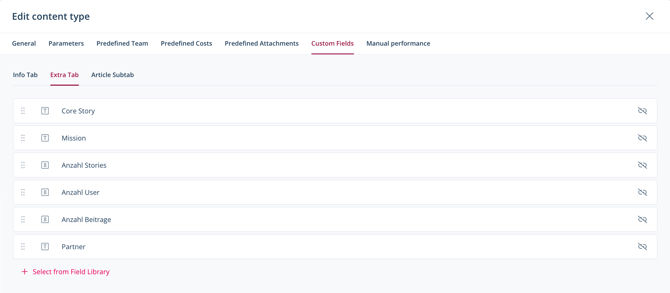
Add Custom Fields to a Content Type
- Navigate to Strategy > Content Types.
- Select the desired content type and switch to the Custom Files tab.
- Navigate to Info Tab, Extra Tab, or Article Subtab, depending on which tab you want to add a custom field to.
- Click Select from Field Library.
The Select from Field Library dialog opens. - Select a custom field. If you have not yet created any custom fields yet, click Add new in Field Library to create one.
- Click Select.
- Click Save.
You have added custom fields to the content type. These will appear in the Info, Extra, or Article tabs of every article created for this content type.


Manual Performance
In the Manual Performance tab, you can assign metrics to a content type that you previously created in the Strategy section. These metrics will then appear in the Analytics tab for all article of that content type.
Learn how to create manual metrics in this article.
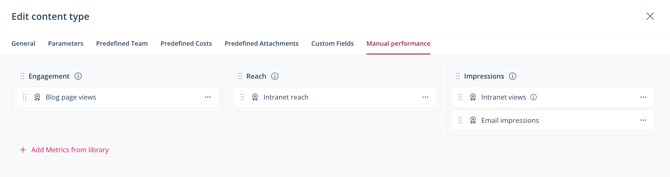
Add Manual Metrics to a Content Type
- Navigate to Strategy > Content Types.
- Select the desired content type and switch to the Manual Performance tab.
- Click Add Metrics from Library.
The Select from Metric Library dialog opens. - Select a manual metric. If you have not yet created any manual metrics yet, click Add new in Metric Library to create one.
- Click Select.
- Click Save.
You have added manual metrics to the content type. These will appear in the Analytics tab of every article created for this content type.
