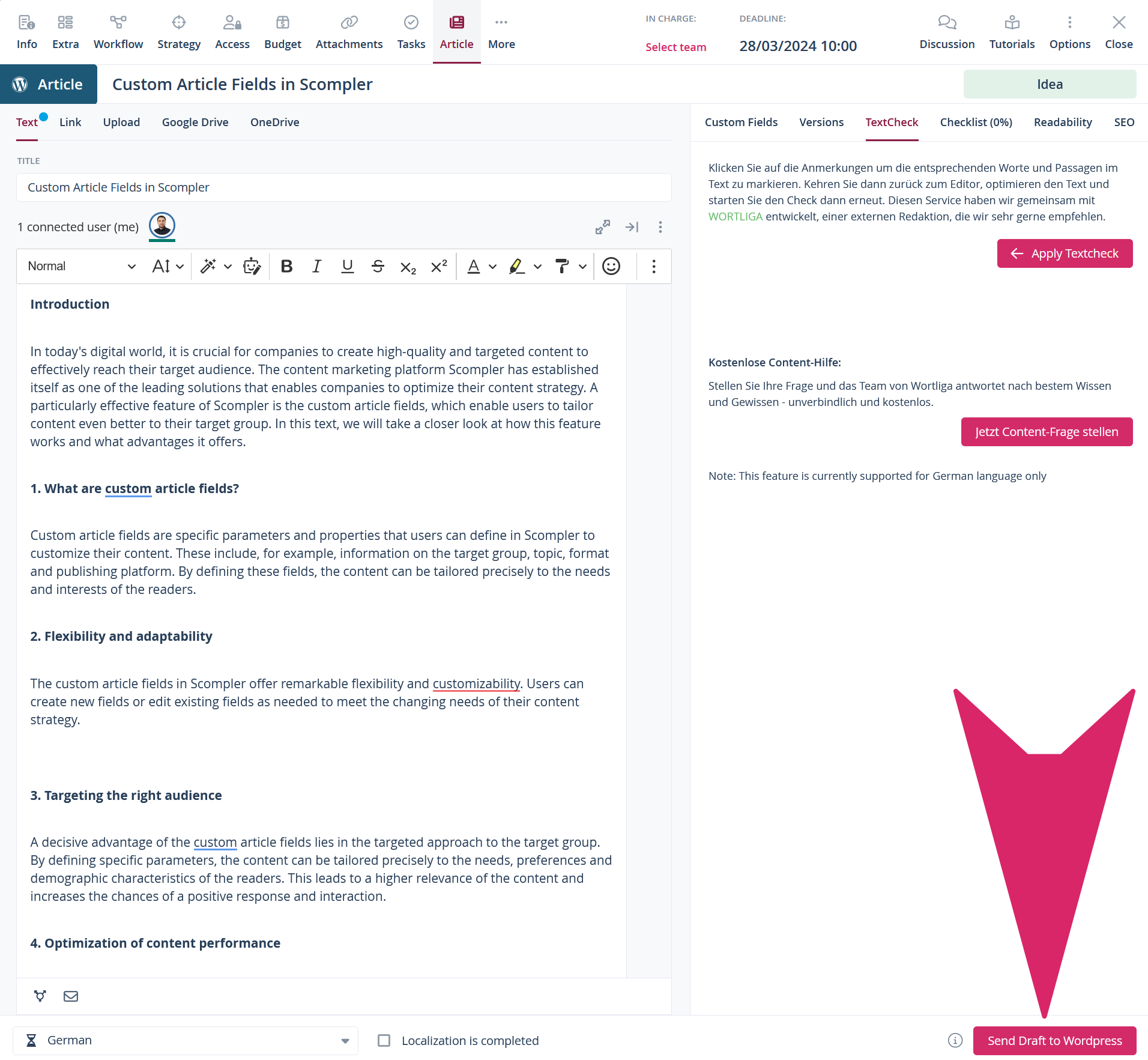
Distinguish between different articles by defining and assigning content types such as Facebook posts, tweets or blog articles. Choose from a predefined list or create your own content types.
In this article:
Adjust Content Types
You can customize the available content types to fit your needs. The following options are available to the right of each content type:
- edit content type
- duplicate content type
- archive content type
- delete content type
There are numerous options available when editing content types, in addition to the options listed during creation.
Additionally, you can adjusted the order in which content types are displayed throughout Scompler. To do this, drag and drop a content type to its desired location.
Create a New Content Type
You can create a new content type if you need an additional one besides those that are part of the predefined list.
Edit the General Settings
- Navigate to Strategy > Content Types.
- Click Create.
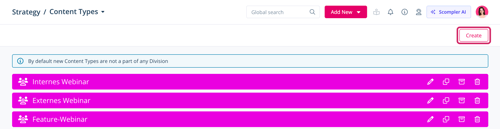
The Create Content Type dialog opens.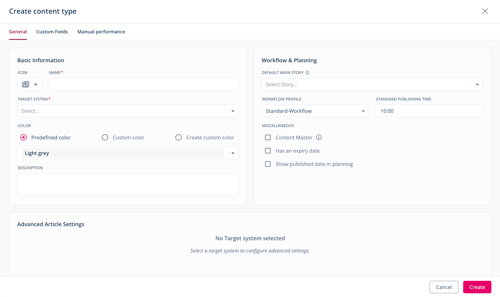
- In the General tab, under Basic Information,
- enter a name for the content type and select the target system (selecting several target systems from the category Social creates a multipost)
- optionally, choose an icon, a color and enter a description
- Under Workflow and Planning, optionally
- set a default main story to automatically assign articles to this story whenever articles of this content type are created or imported,
- select the workflow profile that best suits the content type (available within PRO licenses only)
- select a standard publishing time
- set the content type as content master to ensure that this content type is always displayed at the top of the list of your articles in the story
- set the content type to have an expiry date
- activate the option to show the published date in the planning
- Under Advanced Article Settings, optionally adjust the preselected options. The available and preselected options depend on the target system(s) you selected in step 3.
You have defined the content type's general settings. If you don't want to add custom fields to the Info, Extra or Article tabs or manual metrics to the Analytics tab, click Create. Otherwise proceed with these instructions.
Advanced Article Settings
Depending on the target system(s) selected for the content type, different options are available under Advanced Article Settings. These determine how an article card looks when creating an article of this content type.
-
Target Systems: Custom, Blogpost, Website

- Target System: Staffbase

-
Target Systems: Social
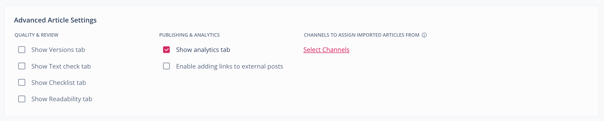 When selecting multiple target systems from the category Social, the option Channels to assign imported articles from is not displayed.
Edit the Custom Fields Settings
You can add additional fields you want to be available in the Info, Extra, or Article tabs within this content type.
- Navigate to the Custom Fields tab.
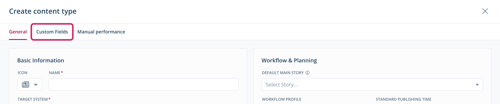
- Navigate to Info Tab, Extra Tab or Article Subtab, depending on the tab you want to add a field to.
- Click Select from Field Library.
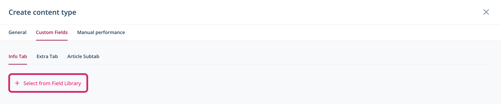
The Select from Field Library dialog opens. - Select a custom field. If you have not yet created any custom fields yet, click Add new in Field Library to create one.
- Click Select.
You have added custom fields to the new content type. If you don't want to add manual metrics to the Analytics tab, click Create. Otherwise proceed using these instructions.
Edit the Manual Performance Settings
You can add additional fields for manual metrics you want to be available in the Analytics tab within this content type.
- Navigate to the Manual Performance tab.
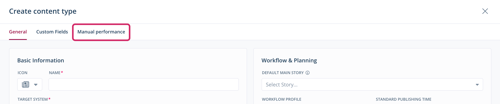
- Click Add Metrics from library.

The Select from Metric Library dialog opens. - Select a metric. If you have not yet created any metrics yet, click Add new in Metric Library to create one.
- Click Select.
- Click Create.
You have added fields to be displayed in the Analytics tab of the new content type and finalized its creation.
Example: Social Media Article
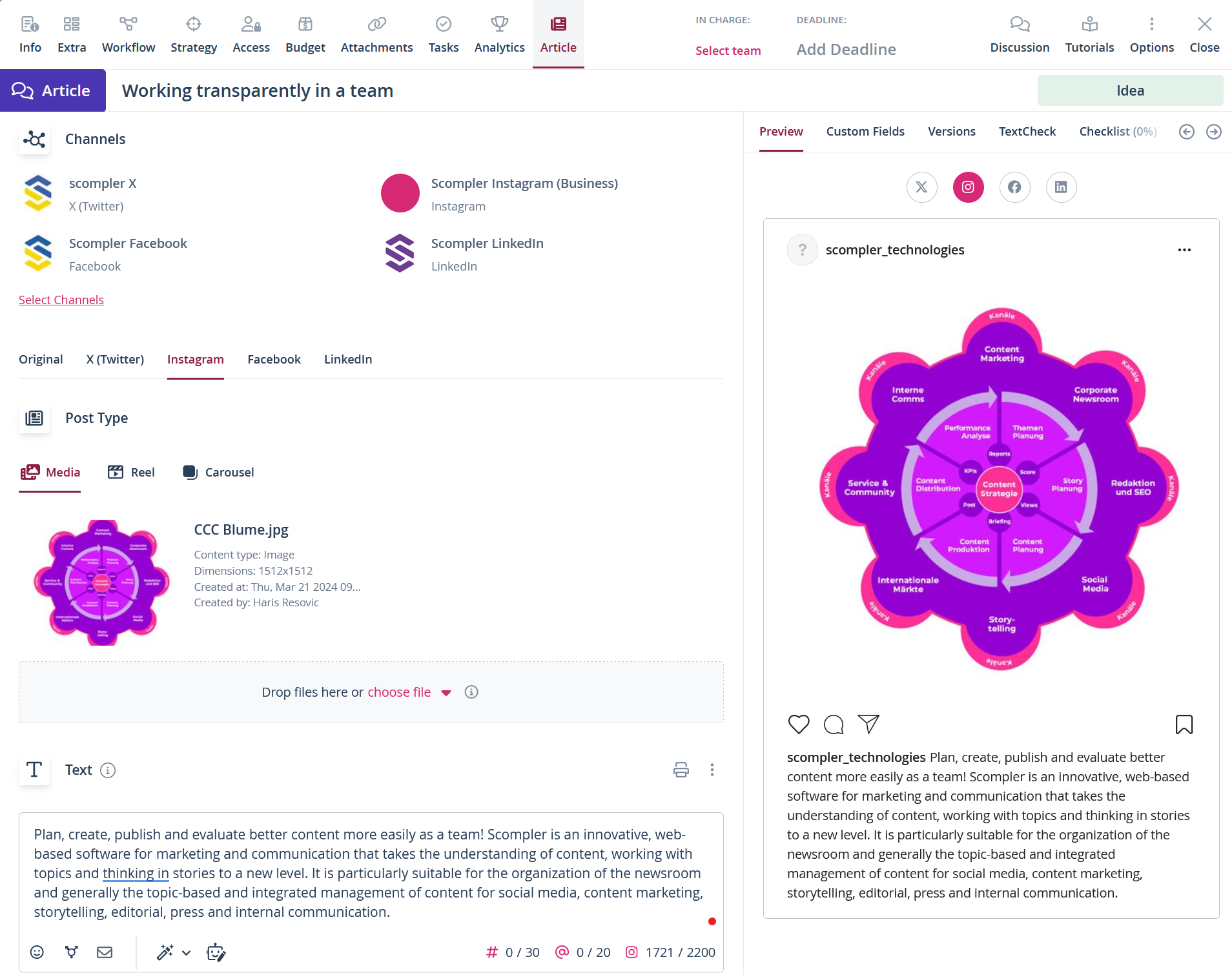
If you have defined your content type with a social target system, the content area in the article card is optimized accordingly. Limited text editing functions are available, and you can preview your posts for the selected channel.
The example below shows an article card for a multipost.
Example: Blogpost/Website Article
If you have defined your content type with a the custom, blogpost, or website target system, the content area in the article card is optimized accordingly. Article cards of this content type offer advanced text editing options. When selecting as a website or blog post and the corresponding integration of your content management system (CMS), you can export your draft text and images directly as a draft to your CMS.
The example below shows an article card for a WordPress article: