
You can integrate your social media channels directly into Scompler. This way you can import already published content from your channels, and publish articles created in Scompler directly. You also get social signals of these articles.
The following article explains how to connect channels for:
Connect a LinkedIn Channel
You can connect both personal LinkedIn profiles and company pages with Scompler.
With the release on August 27, 2026, social signals can also be imported for personal LinkedIn profiles. They can be viewed in the Analytics tabs of topic, story, and article cards and are included in the corresponding Reports widgets. To use this feature, activate it in the settings of the respective channel.
- Navigate to Project Settings > Apps > LinkedIn.
- Under Getting started, click Connect.
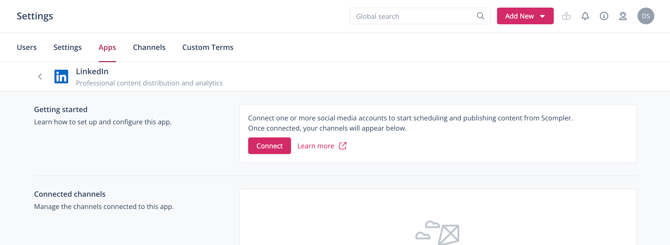
- Follow the instructions on your monitor to complete the connection.
You have completed the connection. The connected channels are listed in the overview under Connected channels and in the Channels tab. To finish the setup of the connection, you can now edit the channel settings.
Connect a Facebook Channel
Direct publications in personal profiles are not possible due to a restriction by Facebook.
- Navigate to Project Settings > Apps > Facebook > Login with Facebook.
The Facebook login page opens.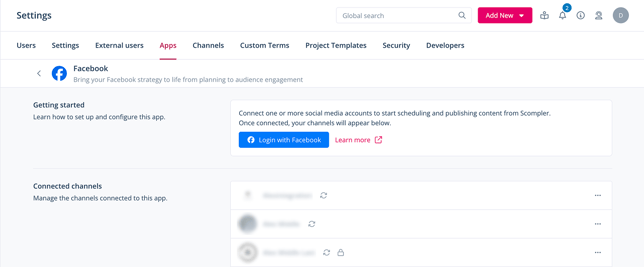
- Enter your credentials.
Note: Logging in is necessary to grant the corresponding authorizations, which are then managed via a token. Login information is not stored and may have to be re-entered when changing or updating a connection. - Authorize the connection to Scompler.
A list with all personal profiles, pages and groups assigned to your Facebook account is displayed. - Select the profile or page which you would like to connect.
Note: If your desired page or group is not displayed, the page or group admin must give your account the rights to access.
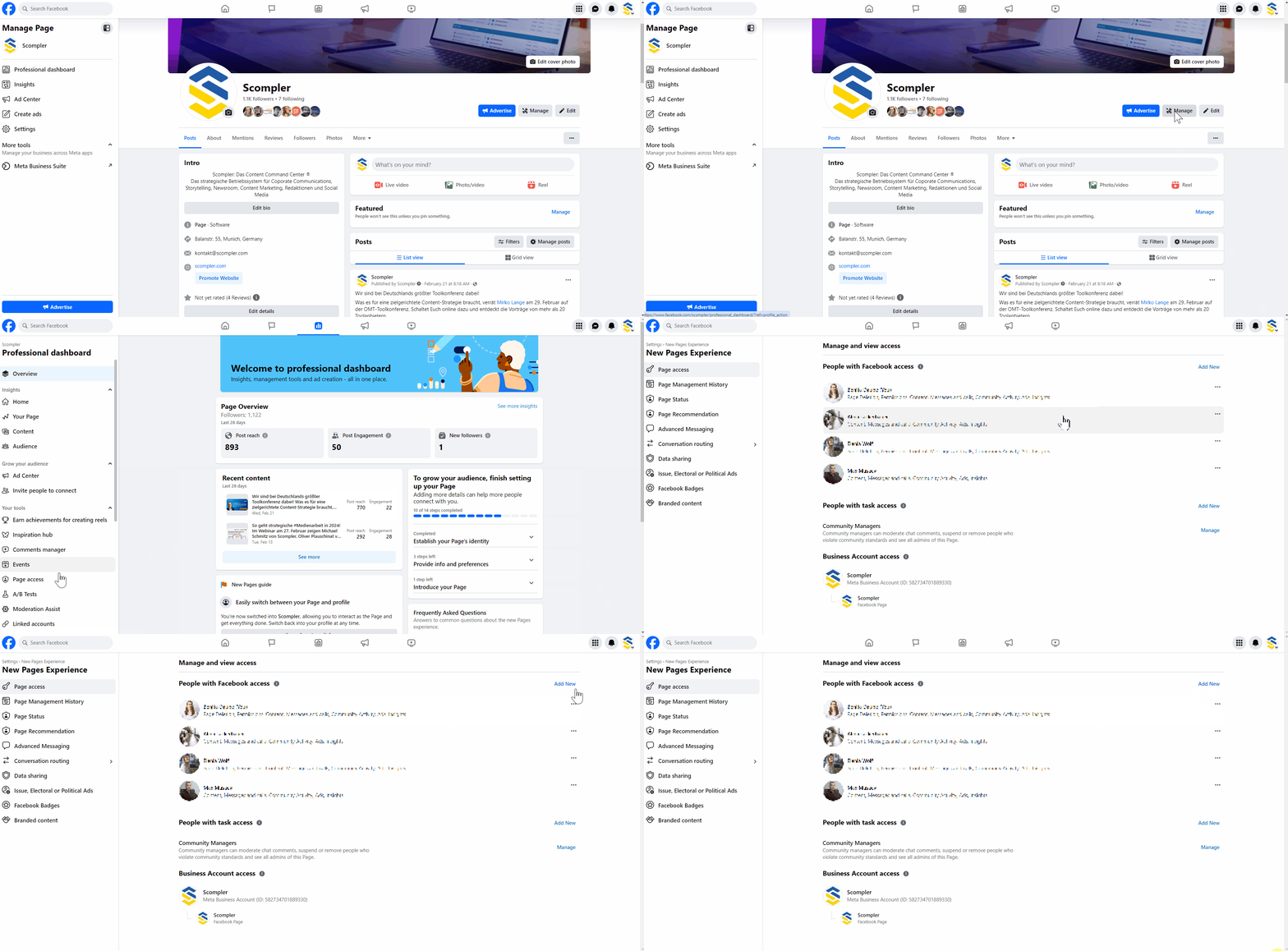
You have completed the connection. The connected channels are listed in the overview under Connected channels and in the Channels tab. To finish the setup of the connection, you can now edit the channel settings.
Connect an Instagram Channel
Publishing from Scompler is only available for business accounts that are linked to a Facebook page. Learn how to switch from a private to a business account.
If your Instagram Business account is not yet connected to a Facebook page, connect a Facebook page to use the full features.
-
Navigate to Project Settings > Apps > Instagram > Login with Facebook.
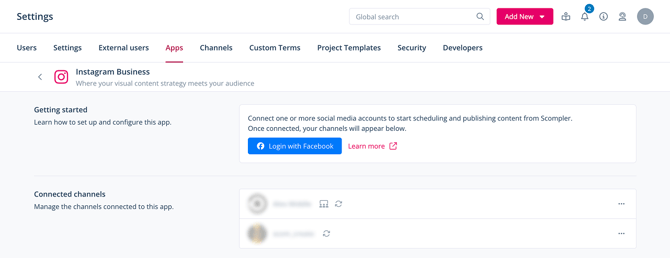
-
In Facebook, on the Business Integrations page under the Scompler integration, activate the accounts to which you want to post from Scompler.
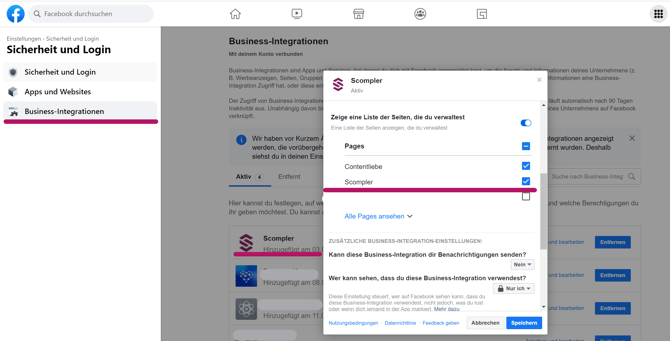
- To ensure the same accounts are activated in Scompler, click Edit Settings and activate the profiles or pages.
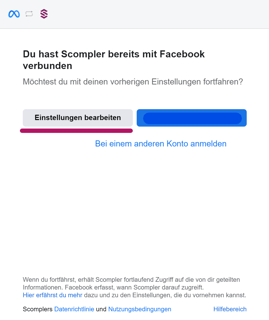
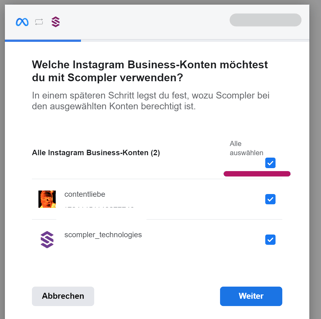
- Click Next to authorize the connection.
You have completed the connection. The connected channels are listed in the overview under Connected channels and in the Channels tab. To finish the setup of the connection, you can now edit the channel settings.
If you want to update a channel's connection, repeat the steps described here without deleting the channel first, so that the history is not lost.
Use the “Add custom channel” option
You can also add other channels for semi-automated connection. Learn more.
Custom channels do not represent an active connection. This connection is intended solely for planning, displaying, and analyzing your planned posts. Importing posts to Scompler and publishing posts created in Scompler is not possible. The actual publication takes place on the network itself.
Available direct connections in the licence packages
From Scompler ONE, you can choose between Facebook and X (Twitter) for a direct connection.
From ONE+, you can also connect LinkedIn, YouTube, Instagram, TikTok and Threads directly to Scompler.