
If you experience issues when logging in to Scompler, you can reset your password. If you have administrator rights, you can also reset the password for other users.
Reset Your Password
- On the sign-in screen, click Forgot your password?.
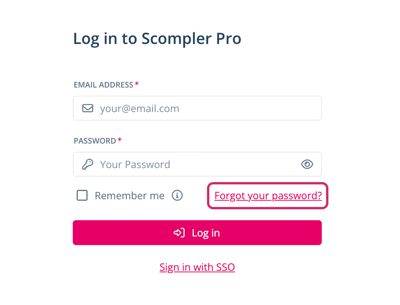
The Forgot your password? page opens. - Enter the email address you used to sign in to Scompler.
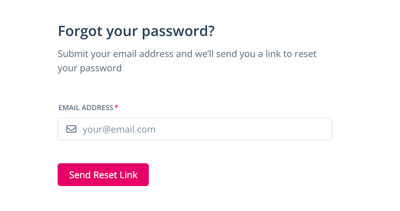
- Click Send Reset Link.
You receive an email with a link to reset your password. - Follow the instructions in the email.
The email may appear in your spam or junk folder. If you still cannot find it, contact Scompler Support.
You have reset your password. If you use a password manager, update your saved password after resetting it.
Reset the Password for Another User
You can reset the password for another user if they can not log in.
Prerequisites:
- You have administrator rights.
- The user whose password is being reset must have access to the email address associated with their Scompler account.
- Navigate to Project Settings > Users.
- In the user list, click the three dots next to the user whose password you want to reset.
- Click Reset Password.
The user receives an email with a link to reset their password.
The email may appear in the spam or junk folder. If the user still cannot find it, they should contact Scompler Support.
You have reset the password for another user.