

Scompler AI offers two modes for handling changes in your project: Ask every time and Auto. The mode determines when Scompler AI asks for your approval before carrying out a change.
Overview of Ask Every Time and Auto Mode
In Ask every time mode, every change that requires approval is presented to you first. You can review the requested change, optionally adjust it, and decide whether Scompler AI should carry it out. This gives you the opportunity to review every change before it is applied to your project.
In Auto mode, Scompler AI evaluates whether a change is sufficiently supported by your instructions and the current context. If it determines that the change can be carried out automatically, it proceeds without further approval. If not, it asks for your approval. This allows Scompler AI to complete requested tasks without interrupting you for every individual change.
Auto mode does not give Scompler AI unrestricted access to your project. The AI can only perform actions within your permission range, and certain actions will always require your explicit approval, such as: irreversable actions (e.g. deleting data), AI-generated drafts and artifacts, and actions affecting systems outside of Scompler (e.g. publishing content).
Choose a Scompler AI Mode
You can switch between the modes directly in Scompler AI. The Ask every time mode is the default.
Prerequisites:
- You are using the Scompler PRO package
- You have activated Scompler AI
- You have AI credits available
- Your user group has Scompler AI permission enabled
- Click Scompler AI.
Scompler AI opens in your selected display mode. - In the text field, click Ask every time or Auto, depending on which mode is currently used.
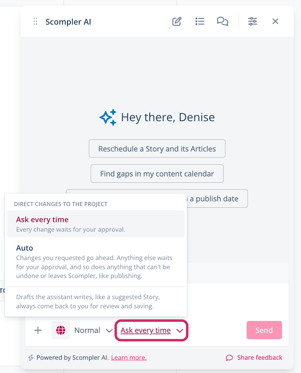
- Select the mode you want to use.
You have switched the Scompler AI mode. It is saved for the current chat and remembered for your user account. It will be automatically applied to new chats. You can switch the mode anytime.