Notifications tell you about activity in Scompler, such as new comments, mentions, and tasks assigned to you, by email, in the app, on your phone, or in Microsoft Teams. You decide for each project what you're notified about, and project administrators can set up email notifications for the whole project.
Choose Your Notifications
Your notification settings apply to one project. If you work in several projects, set them up for each project.
- Navigate to your profile picture > My Profile.
The Account Settings dialog opens. - Click the Notifications tab.
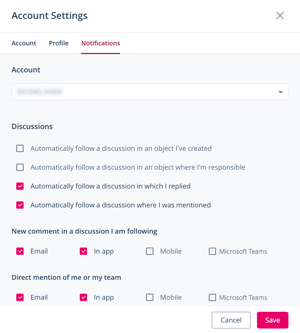
- Under Account, select the project you want to set up.
- Optionally, under Discussions, select when you automatically follow a discussion:
- Automatically follow a discussion in an object I've created
- Automatically follow a discussion in an object where I'm responsible
- Automatically follow a discussion in which I replied
- Automatically follow a discussion where I was mentioned
- For each event, select the channels you want to be notified on:
- Email, to get an email to the address in your profile
- In app, to see the notification under the bell icon in Scompler
- Mobile, to get a push notification from the Scompler Mobile app
- Microsoft Teams, to get the notification from the Scombot in Microsoft Teams

- Click Save.
You have set up your notifications for this project.
Set Up Email Notifications for Your Project
Prerequisites:
- Your user group has the Settings > Access Settings permission
- Your user group has the Settings > Manage Settings tab permission
The email settings of a project apply to all users of the project.
- Navigate to Project Settings > Settings.
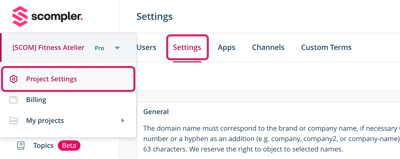
- Under Emails, select the options you want:
- Disable Dashboard Messages @mention notifications, to stop emails about mentions in messages on the dashboard
- Send the list of recipients to every assignee, to show all recipients in the email. Every recipient then sees the email addresses of all other recipients.

- Click Save.
You have set up the email notifications for your project.
Bundled Notifications for Comments and Mentions
When many comments or mentions come in at once, Scompler bundles them, so you don't get a separate notification for each one. This applies to the events New comment in a discussion I am following and Direct mention of me or my team, on every channel you've selected for them. Notifications about tasks, the workflow, and posts are not bundled.
Within 10 minutes, you get the first 2 notifications of each event right away. Scompler collects the following ones and sends them together as soon as the 10 minutes are over. If only one notification was collected, you get the usual notification.
Bundled notifications look like this on each channel:
- Email: One email lists every story, article, or other item with its number of new comments or mentions and a link to it. For mentions, it also shows who mentioned you. The email shows up to 10 items and links to the dashboard for the rest.
- In app: One notification per item, with its number of new comments or mentions. Bundled notifications don't trigger a push notification on your phone.
- Microsoft Teams: One message for all collected notifications.
A bundled email shows the number of new comments, not their text. To read the comments, open the item from the email.