
Once you have connected your DeepL account to Scompler, you can translate content directly within Scompler and create it in any language you want. You can also use DeepL to translate your social media posts.
How the DeepL integration works depends on your Scompler plan.
Learn step-by-step how to use the DeepL integration:
Translate Content With DeepL: Scompler PRO
In Scompler PRO, you can create and publish multilingual articles. You can use the DeepL integration to create the individual language versions.
- Open the article in which you want to translate a text, or create a new article.
- Navigate to the Article tab and enter your text in the article editor.
- In the dropdown menu that displays the language, select the language into which you want to translate the original text.
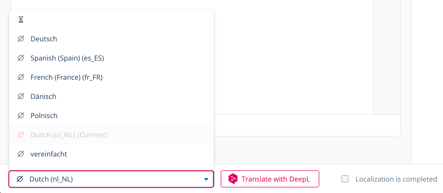
The dropdown menu shows all languages that have been created for your company under Strategy. Learn how to add additional language variants. - Click Translate with DeepL.

A dialog with translation settings opens. - Fill out the fields in the dialog:
- From: the language used as the basis for the translation
- Into: the target language into which the text should be translated
- Tone: whether the tone of the text should be selected automatically, informal, or formal
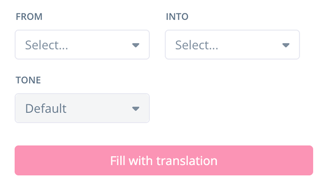
- Click Fill with translation.
You have created a new language variant for your original text and automatically translated it using the DeepL integration. If you click the dropdown menu that displays the language, you can switch between the available language variants and view them in the post editor.
Translate Content With DeepL: Scompler ONE, ONE+, and TEAM
The ONE, ONE+, and TEAM packages do not support multiple languages within a single article. When using the DeepL integration, your text is translated directly in the editor, so the translation replaces the original text with your desired language.
- Open the article in which you want to translate a text, or create a new article.
- Navigate to the Article tab and enter your text in the article editor.
- Click Translate with DeepL.
A dialog with translation settings opens. - Fill out the fields in the dialog:
- From: the language used as the basis for the translation
- Into: the target language into which the text should be translated
- Tone: whether the tone of the text should be default, informal, or formal
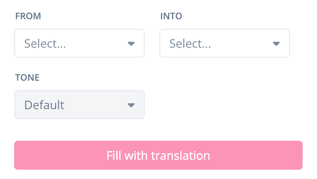
- Click Fill with translation.
A confirmation dialog opens. - Click Continue.
You have translated your original text using the DeepL integration. The translated text appears in the post editor.