
Scompler AI sets up a content strategy that matches your goals and the way your team works, or reviews your existing content strategy and suggests improvements. With a content strategy, your team classifies every topic, story, and article by the goals and decisions behind it, and can filter by them.
Prerequisites:
- Scompler AI is activated for your project
- Your user group has the Scompler AI permission
- Your organization has AI credits available
During its analysis, Scompler AI reads your project, for example your existing content strategy, categories, personas, and content models, as well as the company profile. It only asks about what it can't find there. Scompler AI writes the content strategy in the language of your project, even if you chat in another language.
You can also start these tasks from any other page, for example from a topic card: in Scompler AI, click the list icon and select Build my Content Strategy from scratch or Find the gaps in my Content Strategy.
Your content strategy, personas, and content models build on each other, and your topic architecture builds on all three. If you set up everything with Scompler AI, start with your content strategy and your personas in either order. Then set up your content models and finally your topic architecture.
Set Up Your Content Strategy with Scompler AI
Scompler AI suggests a content strategy that is as detailed as your team needs: a few parameters for a small team, or a full framework with many groups for a large organization. It writes the options in your organization's own words. If your project already contains the default groups and option suggestions, Scompler AI builds on them instead of creating duplicates.
- Navigate to Strategy > Content Strategy.
- Click Scompler AI.
Scompler AI opens. - Click Set up my Content Strategy from scratch.
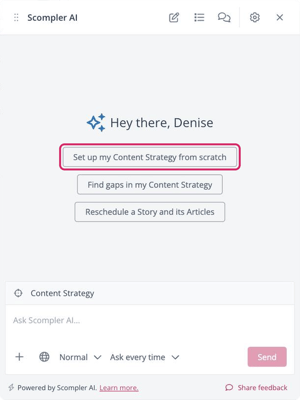
Scompler AI checks your project and the company profile, explains which kind of content strategy fits your organization, and asks you questions in the chat. - Answer the questions by selecting one of the suggested answers, entering your own answer, or clicking Skip.
Scompler AI suggests groups, parameters, and options in the chat. - If Scompler AI asks whether to prepare its suggestion, click the button below its answer.
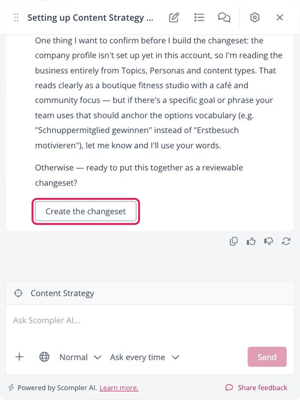
The Suggested changes panel opens. - Review the suggested groups, parameters, and options.
You can't edit the suggested fields in the Suggested changes panel. To change a suggestion, describe the change in the chat. Scompler AI then shows the updated suggestions in the panel. Suggestions you didn't select stay in the panel, so you can still apply them later.
- Optionally, clear the checkbox of each suggestion you don't want to apply.
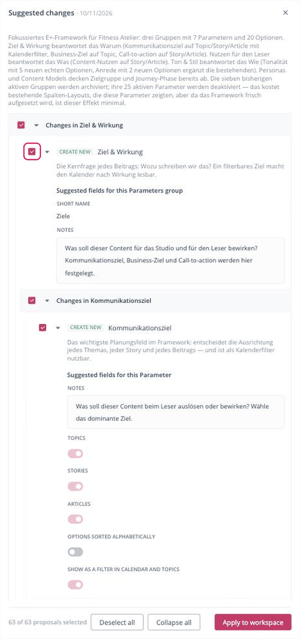
- Click Apply to workspace.
You have set up your content strategy with Scompler AI. The new groups, parameters, and options are available under Strategy > Content Strategy.
Scompler AI never deletes groups, parameters, or options. Instead, it archives groups and deactivates parameters you don't need anymore. Selections that already exist on your content are kept.
Optimize Your Content Strategy with Scompler AI
Scompler AI reviews the structure of your existing content strategy, shows what is missing, overlapping, or too complex, and suggests changes, for example new groups, new options in your own words, parameters to deactivate, or links to your personas.
- Navigate to Strategy > Content Strategy.
- Click Scompler AI.
Scompler AI opens. - Click Find gaps in my Content Strategy.
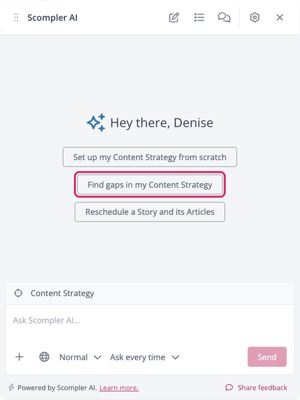
Scompler AI starts the analysis of your content strategy. If information is missing, it asks you questions in the chat. - Answer the questions by entering your answer or clicking Skip.
Scompler AI describes what it found in the chat, and the Suggested changes panel opens. - Review the suggested changes.
You can't edit the suggested fields in the Suggested changes panel. To change a suggestion, describe the change in the chat. Scompler AI then shows the updated suggestions in the panel. Suggestions you didn't select stay in the panel, so you can still apply them later.
- Optionally, clear the checkbox of each suggestion you don't want to apply.
- Click Apply to workspace.
You have optimized your content strategy with Scompler AI. The updated content strategy is available under Strategy > Content Strategy.
Scompler AI never deletes groups, parameters, or options. Instead, it archives groups and deactivates parameters you don't need anymore. Selections that already exist on your content are kept.
What Scompler AI Checks
Scompler AI reviews the structure of your content strategy for the following:
- Fit between your content strategy and the way your organization works
- Coverage of your goals
- Missing groups and parameters, and parameters that are more detailed than your team needs
- Parameters that are shown on the wrong level (topics, stories, or articles)
- Options that are not linked to your personas or to the classes of your content models
- Groups and parameters that ask the same question
- Options that still use the wording of the default suggestions
- Groups and parameters that are archived or inactive
Scompler AI doesn't check how often parameters and options are used on your content.