
The orange dot in the corner of the editor indicates that WebSpellChecker is active. When it detects issues in your text, the dot turns red. Detected issues include incorrect words (underlined in red) and incorrect grammar (underlined in blue).
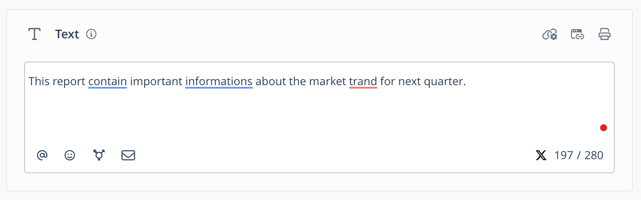
Hover over the dot to open the available options. From there, you can:
- view or change the active language
- review suggestions in the proofread dialog
- open the settings
- disable WebSpellChecker

Review Suggestions
WebSpellChecker displays spelling and grammar suggestions directly in the editor. These can be accepted or ignored directly from the suggestion menu.
The steps below describe how to review suggestions in the text editor one by one. Alternatively, you can also review all suggestions in a dialog. To do so, hover over the WebSpellChecker dot in your text editor and click on the arrow icon.
Accept a Suggestion
- In the text editor, hover over an underlined word or text section.
The suggestions display under the word.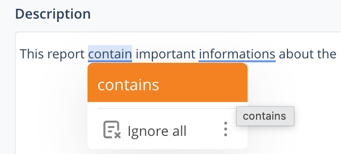
- Click on a suggestion to apply the change.
You have accepted the suggestion and the word has been replaced.
Ignore a Suggestion
- In the text editor, hover over an underlined word or text section.
The suggestions display under the word.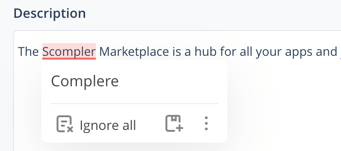
- Click Ignore all to ignore the same suggestion throughout the entire text.
- Optionally, click on the Add word icon to add this word to your personal dictionary so it is no longer marked as incorrect.
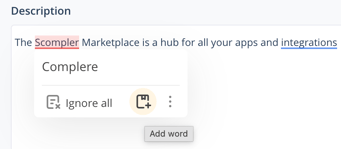
You have ignored the suggestion and optionally added the word to your dictionary.
Configure the Settings
You can configure your spelling and grammar preferences for WebSpellChecker.
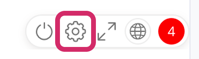
- In the text editor, hover over the dot.
The available options display. - Click the gear icon.
The Settings dialog opens.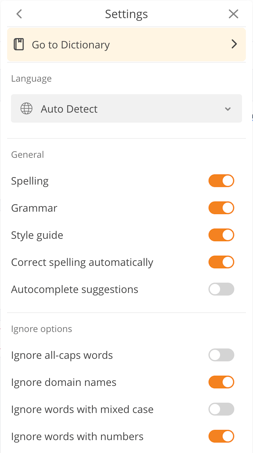
- Click Go to Dictionary to set up or edit your dictionary.
- Under Language, select a language that is used for spelling and grammar checks.
- Under General, activate or deactivate the following options:
- Spelling: highlights misspelled words
- Grammar: detects grammar issues and suggests improvements
- Style guide: provides style and readability recommendations
- Correct spelling automatically: replaces misspelled words while typing
- Autocomplete suggestions: shows word completion suggestions as you type
- Under Ignore options, activate or deactivate the following options:
- Ignore all-caps words: ignores words written entirely in uppercase
- Ignore domain names: ignores URLs and domain names
- Ignore words with mixed case: ignores words with mixed uppercase and lowercase letters
- Ignore words with numbers: ignores words that contain number
- Click X.
You have updated the WebSpellChecker settings for your account.
Disable WebSpellChecker
You can disable WebSpellChecker for your own account or, if you are an administrator, for specific user groups.
Disable WebSpellChecker for Yourself
- In the text editor, hover over the dot.
The available options display. - Click the off icon.

The icon color changes to grey.
You have disabled WebSpellChecker for your account. You can re-enable WebSpellChecker anytime.
Disable WebSpellChecker for User Groups
- Navigate to Project Settings > Users > the group for which you want to disable WebSpellChecker.
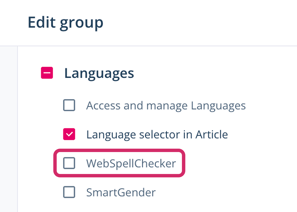
- Under Languages, deactivate the WebSpellChecker option.
- Click Save.
You have disabled WebSpellChecker for the selected user group. WebSpellChecker is no longer available for users assigned to that role. You can re-enable WebSpellChecker for the user group anytime.