To connect Scompler to Presspage, start the 30-day trial in the Marketplace. Alternatively, you can request a quote directly. We’ll get back to you as soon as possible.
After purchasing the Presspage app, we’ll first need an API token for your Presspage instance.
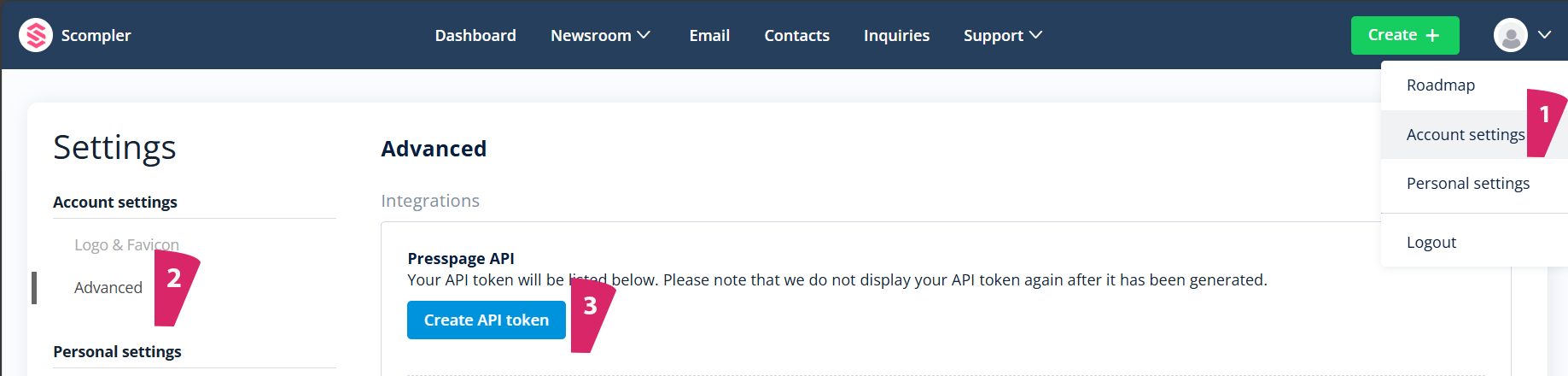
- Log in to Presspage, click on your profile picture, and select Account Settings in the drop-down menu.
- Click Advanced.
- Click Create API token.

Note: The token is only displayed fully once. Make sure you save it. You can create a new token at any time, but this will invalidate the old one. - Switch to Scompler, and navigate to Project Settings > Apps.
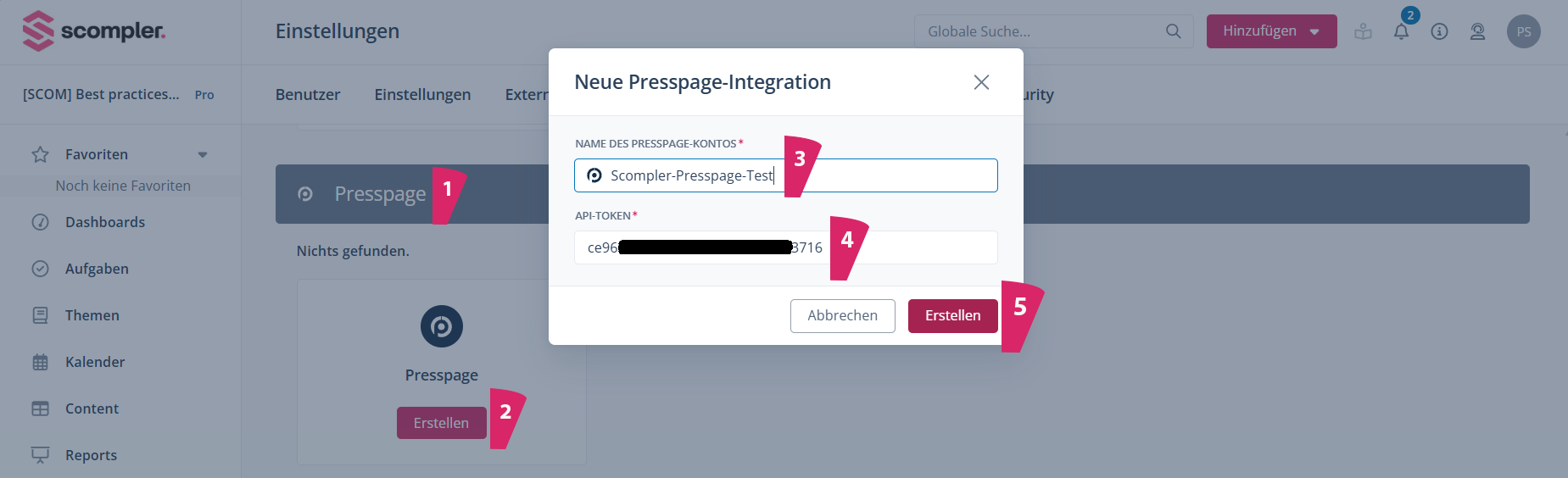
- Under Installed, scroll to Presspage, and open the app.
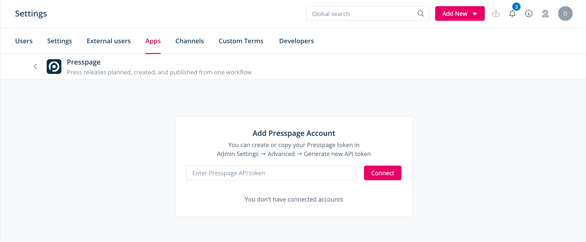
- Enter the token and click Connect.
You have connected Presspage. A Presspage content type is created automatically, allowing you to create and schedule Presspage posts in Scompler as usual—either via the Add New menu in the top navigation bar, through the topic architecture, or in the Content area. If you want to create additional Presspage content types in the future, make sure that Presspage is set as the target system.
Note: It is not possible to publish Presspage articles from Scompler – the article is only sent as a draft to Presspage, where it can be edited if necessary and subsequently published. Subsequent changes to the draft in Presspage are not synchronized with the article in Scompler.
Presspage posts can also be assigned tags and templates predefined in your Presspage space:
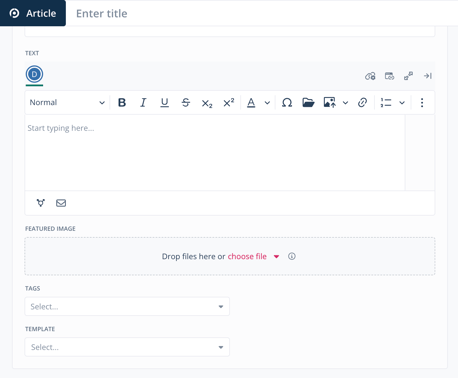
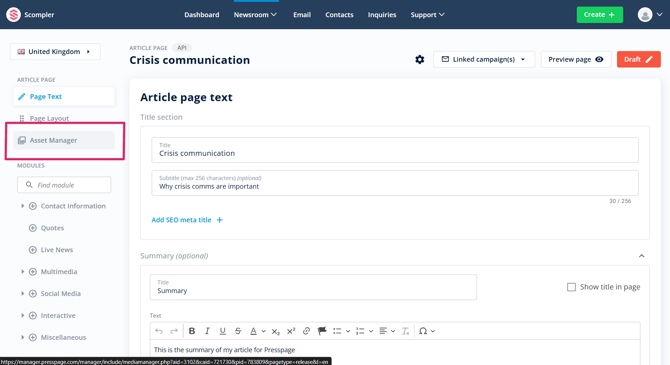
The media uploaded to the post can be found in the post draft in Presspage as well as in the Asset Manager within your Presspage account. Please note that this does not apply to media that has been copied into the text editor using “copy/paste.”