
Scompler AI chooses the content models that fit your business goals, sets them up with all classes, and links the classes to your content strategy. It also reviews an existing setup and suggests how to complete it. Content models classify your content by the role it plays, for example by its stage in the customer journey, so your team and Scompler AI know what each topic, story, or article is for.
Prerequisites:
- Scompler AI is activated for your project
- Your user group has the Scompler AI permission
- Your organization has AI credits available
Scompler AI links each class to the options of your content strategy that it should recommend.
You can also start these tasks from any other page, for example from a topic card: in Scompler AI, click the list icon and select Build my Content Models and Classes from scratch or Find the gaps in my Content Models and Classes.
Your content strategy, personas, and content models build on each other, and your topic architecture builds on all three. If you set up everything with Scompler AI, start with your content strategy and your personas in either order. Then set up your content models and finally your topic architecture.
Set Up Your Content Models with Scompler AI
Scompler AI recommends content models, for example FISH, Conversion Funnel, or Content Radar, and explains why they fit. If your project already contains these content models but they are switched off, Scompler AI completes and activates them instead of creating new ones. It sets up each content model with all its classes, each with a short description, a detailed description, and the matching options of your content strategy.
- Navigate to Strategy > Content Models.
- Click Scompler AI.
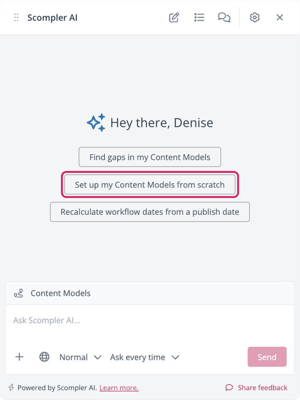
Scompler AI opens. - Click Set up my Content Models from scratch.
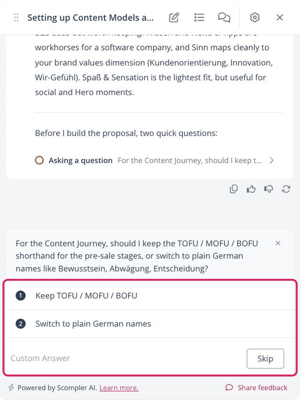
Scompler AI checks your project and recommends content models in the chat. If information is missing, it asks you questions. - Answer the questions by selecting one of the suggested answers, entering your own answer, or clicking Skip.
The Suggested changes panel opens. - Review the suggested content models and classes.
You can't edit the suggested fields in the Suggested changes panel. To change a suggestion, describe the change in the chat. Scompler AI then shows the updated suggestions in the panel. Suggestions you didn't select stay in the panel, so you can still apply them later.
- Optionally, clear the checkbox of each suggestion you don't want to apply.
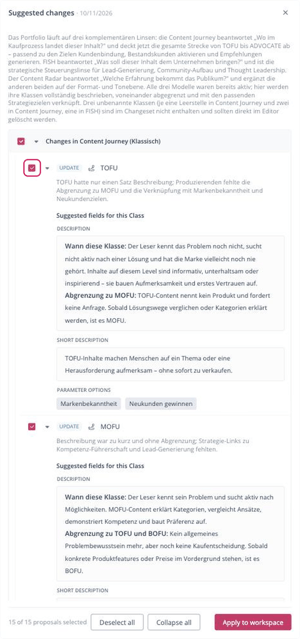
- Click Apply to workspace.
You have set up your content models with Scompler AI. The content models and their classes are available under Strategy > Content Models. Scompler AI doesn't select class images. To add an image, edit the class. Next, assign the classes to your topics, stories, and articles.
Optimize Your Content Models with Scompler AI
Scompler AI reviews your existing content models and classes, shows what is missing or not used, and suggests changes.
- Navigate to Strategy > Content Models.
- Click Scompler AI.
Scompler AI opens. - Click Find gaps in my Content Models.
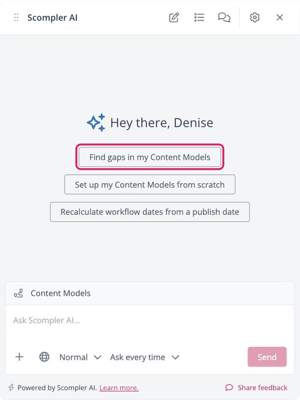
Scompler AI starts the analysis of your content models. If information is missing, it asks you questions in the chat, then describes the identified gaps, and the Suggested changes panel opens. - Review the suggested changes.
You can't edit the suggested fields in the Suggested changes panel. To change a suggestion, describe the change in the chat. Scompler AI then shows the updated suggestions in the panel. Suggestions you didn't select stay in the panel, so you can still apply them later.
- Optionally, clear the checkbox of each suggestion you don't want to apply.
- Click Apply to workspace.
You have optimized your content models with Scompler AI. The updated content models and classes are available under Strategy > Content Models.
Scompler AI never deletes content models or classes. Instead, it can switch off a content model you don't use. Classes of a switched-off content model can't be assigned to content, and the content model's column is removed from saved views. Scompler AI tells you in the chat which classes you can delete yourself, for example classes without a name.
What Scompler AI Checks
Scompler AI reviews your content models for the following:
- Content models that are only partly set up, for example with missing classes
- Classes for content aimed at existing customers and advocates
- Classes without linked content strategy options
- Content models that are switched on but not used
- Leftover classes such as "No Content Model"
- Names of content models and classes in your team's language