

The sentiment feature uses AI to classify incoming comments, mentions, and direct messages as positive, neutral, negative, or mixed. This allows you to prioritize incoming interactions more quickly and identify critical discussions early on.
In Community Management, you can:
- View sentiment at two levels: Comment, mention, or direct message level, or action level
- Manually adjust automatically assigned sentiment
- Filter actions by sentiment
Understand the Sentiment at all Levels
Sentiment is first assigned to individual comments, mentions, and direct messages. Each of these incoming interactions is automatically assigned one of the following sentiments:
- Positive (green)
- Neutral (orange)
- Negative (rotred
- Mixed (blue)
- Unknown (gray)
If an action includes multiple interactions, their sentiments are automatically aggregated. The dominant sentiment determines whether the action is mostly positive, neutral, negative, or mixed. The summary updates automatically when sentiments are adjusted. In the event of a tie, a fixed priority applies (negative before positive before mixed before neutral).
Adjust Sentiment Manually
You can manually adjust automatically assigned sentiments if you feel the sentiment does not fit.
- Navigate to Community Management > the thread containing the comment, mention, or direct message whose sentiment you want to adjust.
- Click on the text.
The action details open. - Click the sentiment label.
- Select the desired sentiment from the dropdown menu.
Screenshot/GIF
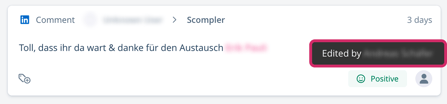
You have adjusted the sentiment of the selected comment, mention, or direct message. When you hover your cursor over the sentiment, a tooltip indicates that the sentiment was manually edited.
Filter Actions by Sentiment
In Community Management, you can filter incoming comments, mentions, and direct messages by sentiment to identify relevant actions and conversations more quickly.
- Navigate to Community Management > the filter section.
- Click on Sentiment.
- From the dropdown menu, select the sentiment(s) you want to filter by.
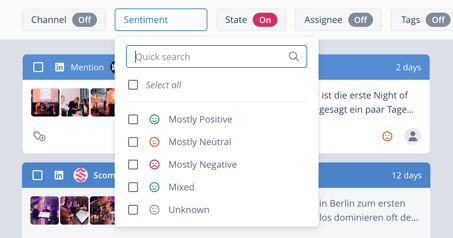
You have filtered the interactions by sentiment. The sentiment filter is labeled On in the filter section.