
AI co-workers take over writing, reviewing, and monitoring tasks in your project, the same way your regular team members do. Give them a role or assign them to tasks to delegate this work while you keep control over every change.
Prerequisites:
- AI co-workers are activated for your project
- Your organization has AI credits available
Each AI co-worker works in its own Scompler AI chat, which all users with access to the topic, story, or article can open. It writes in the Discussion tab of the card when it needs your answer or approval, and when it has finished. If you assign it to a workflow task that isn't current yet, it also confirms in the discussion that it waits until the task is current. Depending on the AI co-worker, it does the following:
- Drafter: Writes the text from the briefing, the story and topic, the content type, the discussion, and published articles of the same content type. Reports in the discussion what the text is based on. To have it revise a text, send the article back to it with what needs to change.
- Reviewer: Completes its review task if the text needs no change. Otherwise, it leaves the task open and lists each finding with a suggested fix in the discussion.
- Orchestrator: Runs its first check on the next morning, then every morning (6-8AM CET). It only writes in the discussion when something needs a user.
To have AI co-workers take over workflow steps automatically, set them up once.
Give an AI Co-worker Work
You can give work to an AI co-worker in multiple ways and places:
- Team tab of topics and stories: by selecting it for a team role
- Workflow tab of articles: by assigning it to a workflow task (it starts once the task is current) manually or automatically in every new article
- In charge field of articles: by assigning it to the current task
- Discussion tab of topics, stories, and articles: by mentioning it
- Scompler AI chat: by asking Scompler AI to assign it to a workflow task. To tell it what to do, also mention it in the Discussion tab.
AI co-workers must have access to the topic, story, or article they should complete work in. Access is given by default with their user group. If you make an object private or restrict its access, add the co-worker to its users with access.
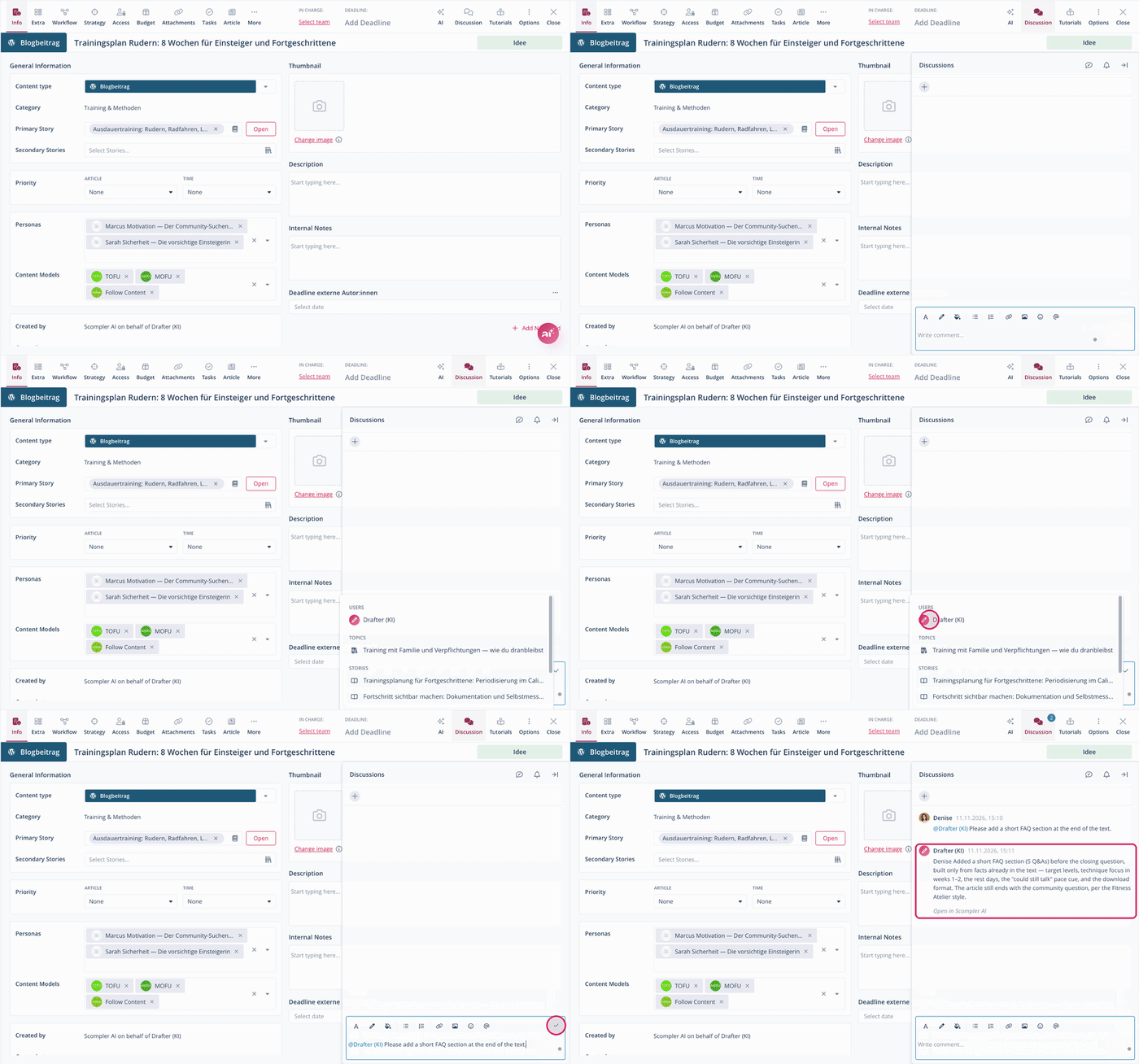
The following example shows how to give work to an AI co-worker in the Discussion tab:
- Open the topic, story, or article card in which you want to ask an AI co-worker for help.
- Navigate to the Discussion tab.
- Mention the AI co-worker, for example @Drafter.
- Enter your request.
- Click the checkmark icon to save the comment.
You have sent a request to the AI co-worker. It reports the result in the same discussion and answers further mentions there.
For the Drafter, add a briefing in the Info tab under Description, either manually or by asking Scompler AI to generate it from the article's metadata or existing documents. For the Reviewer, add a review task before the approval task in your workflow.
Steer an AI Co-worker's Work, Answer Questions, and Approve Changes
Each piece of work runs in its own Scompler AI chat, where you can follow what the co-worker reads, decides, and changes. When the co-worker needs a fact or a decision, or when a change needs your approval, it asks you in the discussion.
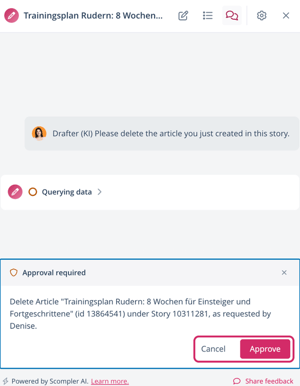
Changes that cannot be undone, such as deleting content, always need your approval.
- Open the article, story, or topic card in which you've asked an AI co-worker for help.
- Navigate to the Discussion tab.
- Below the co-worker's comment, click Open in Scompler AI.
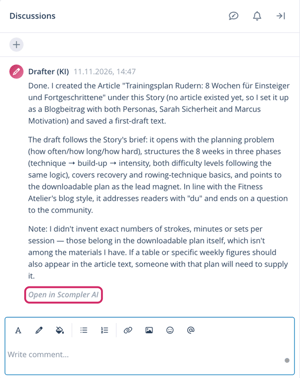
Scompler AI opens with the co-worker's chat. - Depending on what you want to do:
- Answer a question: select one of the suggested answers or enter your own answer and click Send.
- Decide on a change: check it under Approval required and click Approve or Cancel.
To give instructions while the co-worker is still working, open its chat before it writes in the discussion: in Scompler AI, click the Recent chats icon and select the chat with the name of the card. Enter your instructions and click Send.
The co-worker continues its work. Once the task is completed, you can no longer write in the chat. To give further instructions, mention the co-worker in the Discussion tab again. It handles your new request in a new chat. You can also answer a question there by replying to the co-worker's comment and mentioning it.
AI co-workers do not suggest a rejected change again.
Stop the Work of an AI Co-worker
While an AI co-worker is working, you can stop it right away: open its chat under Recent chats in Scompler AI and click Stop. Alternatively, in the Workflow tab of the article card, complete or skip the task, or remove the co-worker from the task.
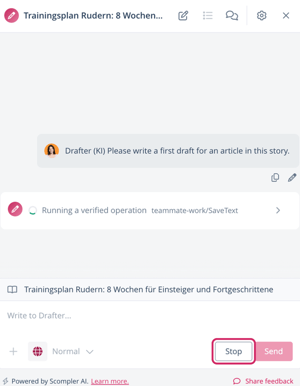
The co-worker stops immediately, drops changes that are still waiting for approval, and writes in the discussion tab how far it got.